Blog · Claude Skills
How to Create Claude Skills: A Practical Guide with SKILL.md Templates
A Claude Skill is a folder of instructions that teaches Claude to do one job your way, every time. This guide shows how to write a SKILL.md that actually triggers, how to install it in claude.ai and in Claude Code, how to share it across a team, and gives you templates you can adapt today.
Most people meet Claude Skills when they notice Claude producing a perfectly formatted Excel file or PowerPoint deck. Those come from Anthropic’s built-in Skills. The real value for a team, though, is in custom Skills: your report format, your review checklist, your house style, written down once so Claude follows them every time instead of being re-explained in every chat.
What a Claude Skill is, and how it differs from Projects and prompts
A Skill is a folder that contains a file called SKILL.md and, optionally, other files such as reference documents, templates or scripts. Claude reads the short description of every installed Skill, and when a request matches one, it loads that Skill’s instructions and follows them.
It helps to know how Skills relate to the other ways of giving Claude context:
| Tool | Best for | Where it applies |
|---|---|---|
| Prompt | A one-off request | One conversation |
| Project | Shared knowledge and instructions for one body of work | Chats inside that project |
| Skill | A repeatable procedure: how to do a specific task, step by step | Any chat where the task comes up |
| CLAUDE.md | Standing rules for a code repository | Claude Code sessions in that repo |
A simple rule of thumb: if you find yourself pasting the same instructions into Claude for the third time, it should probably be a Skill. If you are collecting documents for one piece of work, use a Claude Project instead.
How Skills load: why the description matters most
Skills are designed so that Claude can have many of them installed without being slowed down. Anthropic calls this progressive disclosure, and it works in three stages.
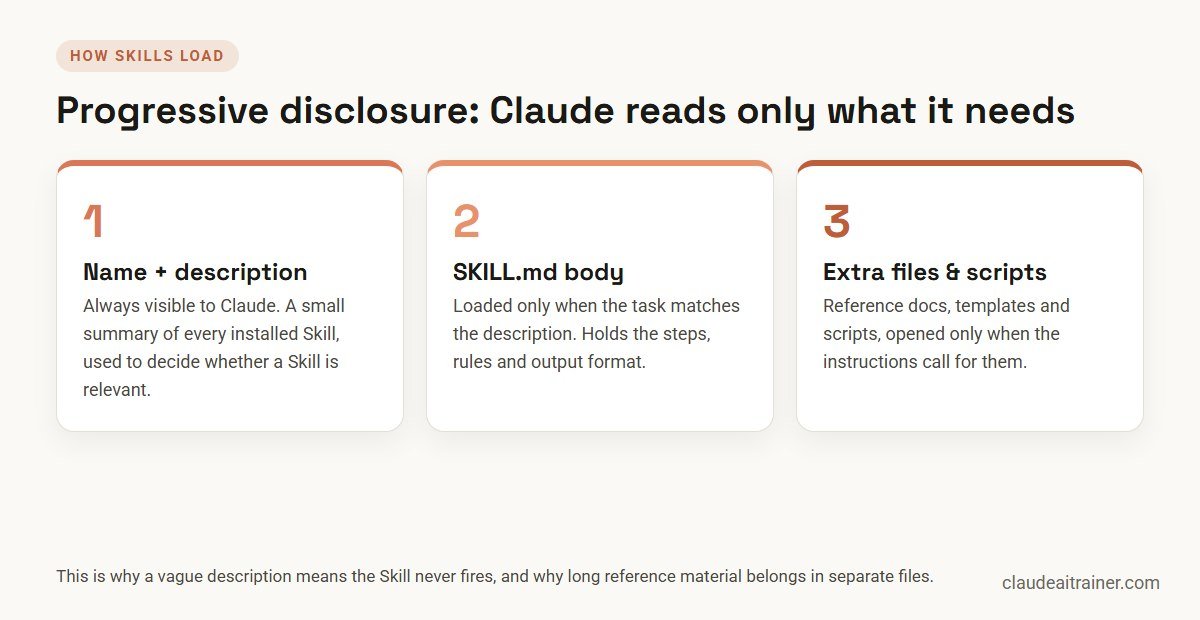
The practical consequence: Claude decides whether to use a Skill based almost entirely on its description. A vague description such as “helps with reports” means the Skill rarely fires. A specific one such as “builds the weekly sales report from a CRM export; use when the user uploads a pipeline file or asks for the weekly numbers” fires when it should.
The anatomy of a SKILL.md file
Every Skill needs one file, SKILL.md, which starts with a short block of YAML frontmatter between two lines of three dashes, followed by the instructions in plain Markdown.

The two required fields are:
- name: a short identifier of up to 64 characters. Use lowercase letters, numbers and hyphens, such as
invoice-check. Anthropic’s developer docs reserve the words “claude” and “anthropic”, so leave them out. - description: what the Skill does and when Claude should use it. The claude.ai help centre caps this at 200 characters, so write it to fit that limit even if you also use the Skill in Claude Code, where longer descriptions are allowed.
The body is where you put the procedure: the steps, the rules, the output format and the things Claude must never do. Write it as direct instructions, not as an essay. Anthropic’s Claude Code documentation recommends keeping SKILL.md under 500 lines and moving detailed reference material into separate files that the Skill points to.
How to create a Skill in claude.ai, step by step
This route suits most business users, and it works in the Claude web app and desktop app.
- Turn on code execution. Skills depend on Claude’s code execution and file creation feature. Check that it is enabled in your settings, or ask your admin on a Team or Enterprise plan.
- Create a folder named after your Skill, for example
weekly-sales-report. - Write SKILL.md inside it, with the frontmatter and instructions. You can ask Claude in an ordinary chat to draft it for you from a description of the task, then edit the result.
- Add supporting files if needed: a reference document, an example of good output, a template.
- Zip the folder so the folder itself sits at the root of the ZIP, not the loose files.
- Upload it under Customize › Skills, then switch it on.
- Test it with three or four real prompts, including one that should not trigger it.
Anthropic’s help centre lists custom Skills on Free, Pro, Max, Team and Enterprise plans. It also describes a recording option in Claude for Mac on some plans, where you demonstrate a task and Claude proposes a Skill from it. That is useful for capturing a process that is easier to show than to describe.
Skills you enable in your claude.ai account are also available in Claude Cowork, which is where many business Skills earn their keep: a Cowork task that produces a monthly report can follow your report Skill without being told.
How to create a Skill in Claude Code
In Claude Code, a Skill is simply a folder on disk. Where you put it decides who can use it:
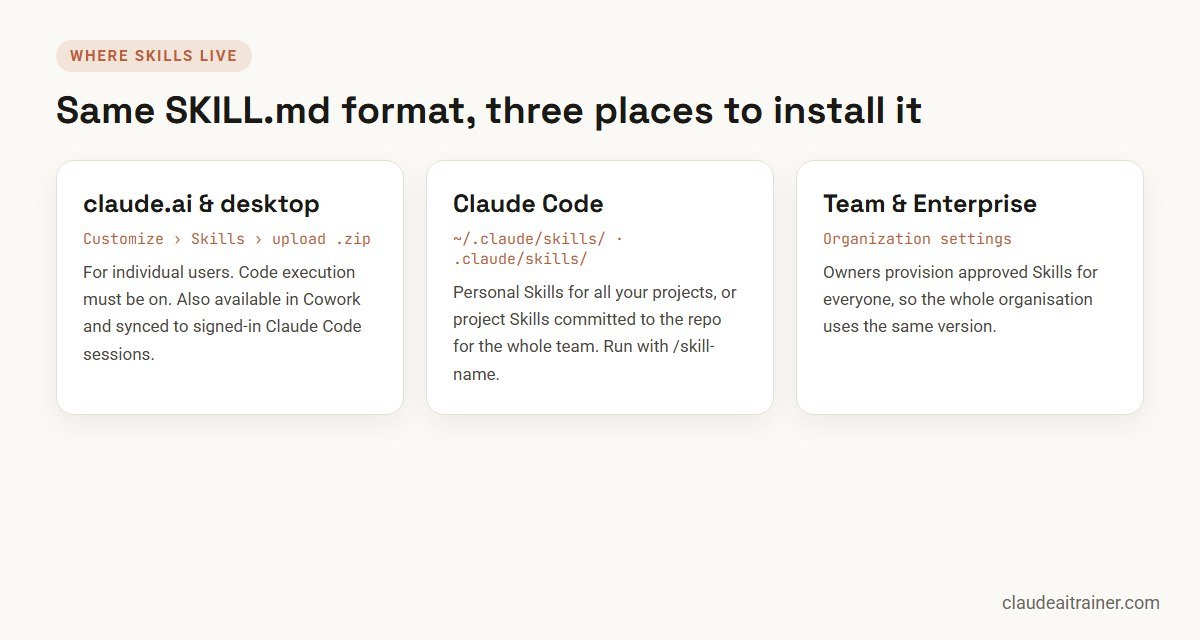
- Personal Skills go in
~/.claude/skills/<skill-name>/SKILL.mdand are available in all your projects on that machine. - Project Skills go in
.claude/skills/<skill-name>/SKILL.mdinside the repository. Commit them, and everyone working on the repo gets the same Skill, reviewed through pull requests like any other code. - Enterprise and plugin Skills can be distributed through managed settings or plugins for larger organisations.
Claude uses a Skill automatically when a request matches its description, or you can run it directly by typing /skill-name. The older custom slash commands in .claude/commands/ still work, but Anthropic now recommends Skills because they can carry supporting files and finer control.
A few optional frontmatter fields are worth knowing:
disable-model-invocation: truestops Claude triggering the Skill on its own, so it only runs when someone types the slash command. This is useful for anything with side effects, such as a deployment.allowed-toolspre-approves specific tools while the Skill runs, so people are not asked for permission at every step.context: forkruns the Skill in a separate sub-agent, which keeps long research out of your main conversation.
One more useful detail: when you are signed in, Skills you have enabled in claude.ai sync into Claude Code sessions automatically. If you edit a synced Skill, make the change in claude.ai; the next sync brings it down. For engineering teams adopting Skills alongside CLAUDE.md and hooks, our Claude Code best practices for teams explains how the pieces fit together.
Writing a description that actually triggers
Most “my Skill doesn’t work” problems are description problems. A good description does three things:
- Says what the Skill produces, in concrete terms: “a one-page variance commentary”, not “finance help”.
- Names the triggers: the words, files or situations that should call it, such as “when the user uploads a trial balance” or “asks for month-end commentary”.
- Avoids overlap with your other Skills. If two descriptions sound alike, Claude has to guess.
Compare these two:
description: Helps with finance reports.
description: Writes month-end variance commentary from a trial balance export. Use when the user uploads a TB or asks for variance notes.
Five SKILL.md templates for business teams
Here are three complete templates you can adapt, followed by two more ideas. Change the steps to match how your team actually works, because a Skill encodes your process, not a generic one.
---
name: weekly-sales-report
description: Builds the weekly sales report from a CRM pipeline export. Use when the user uploads a pipeline file or asks for this week's sales numbers.
---

# Weekly sales report

## Steps
1. Read the uploaded export. Confirm the date range with the user if it is unclear.
2. Calculate: new pipeline, deals won, deals lost, and win rate, by region.
3. Compare each figure with last week if last week's report is provided.
4. Flag any deal over 50,000 that changed stage this week.

## Output
- An Excel file with one sheet per region and working formulas.
- A five-line summary at the top: what moved, what is at risk, what needs a decision.

## Rules
- Never invent a figure. If a field is missing, say so.
- Use the company's currency format from the export.
---
name: contract-first-pass
description: First-pass review of supplier contracts against our standard terms. Use when the user uploads a supplier agreement or asks for a contract check.
---

# Contract first pass

1. Read the contract and the file standard-terms.md in this Skill.
2. Build a table: clause, what the contract says, our standard, difference.
3. Mark each difference as Accept, Negotiate or Escalate to legal.
4. List missing clauses (liability cap, data protection, termination).

Rules: this is a first pass for a human reviewer. Never state that a
contract is approved. Quote clause numbers for every finding.
---
name: meeting-to-actions
description: Turns meeting notes or a transcript into decisions and an action list. Use when the user shares meeting notes or asks for actions from a meeting.
---

# Meeting to actions

Produce three sections:
1. Decisions made (who decided, what was decided).
2. Actions: owner, task, due date. Write "owner not stated" if unclear.
3. Open questions that need a follow-up.

Keep it under one page. Use names exactly as they appear in the notes.
Two more Skills that work well for teams: a brand-voice Skill that holds your tone, banned phrases and formatting rules for external writing, and an HR policy answers Skill that points Claude at your current handbook and tells it to quote the relevant clause and say when a question needs a human. Function-specific examples like these are what we build in our Claude for finance teams and Claude for HR teams programmes.
Teams building Skills
Want your team writing Skills that people actually use?
We run hands-on sessions where each team turns two or three of its own recurring tasks into tested Skills, then sets up how they are shared and reviewed. Talk it through with us first if that would help.
Sharing Skills across a team
A Skill that lives on one person’s laptop helps one person. To get team-wide value:
- On Team and Enterprise plans, members can share Skills with colleagues, and Owners can provision approved Skills for the whole organisation, so everyone uses the same version.
- In Claude Code, commit project Skills to the repository so they are reviewed and versioned with the code.
- Keep a register: each shared Skill gets an owner, a short purpose line and a review date. Processes change, and an out-of-date Skill quietly produces out-of-date work.
Treat Skills like any other shared asset. Start with a handful that cover your most repeated tasks, measure whether they get used, and retire the ones that don’t.
Testing a Skill before you share it
Test every Skill with:
- Two or three normal requests that should trigger it. Check that the output follows every rule.
- One edge case, such as a file with missing fields, to see whether Claude says so instead of guessing.
- One request that should not trigger it. If it fires anyway, tighten the description.
For engineering teams, Anthropic publishes a skill-creator plugin for Claude Code that helps write test cases and compare results with and without a Skill. Install it with /plugin install skill-creator@claude-plugins-official.
Security: be careful with third-party Skills
A Skill can include scripts that Claude runs, which makes downloaded Skills a security question, not just a quality one. Before installing a Skill from GitHub or a marketplace:
- Read the whole
SKILL.mdand every script it includes. - Check that it does not send data anywhere you have not approved.
- Prefer Skills from sources you trust, and keep company-specific Skills in your own repository or organisation settings.
For a fuller view of agent security in engineering teams, see our Claude Code security best practices.
Troubleshooting: when a Skill won’t trigger
- Description too vague. Rewrite it with concrete outputs and trigger phrases.
- Two Skills overlap. Merge them, or make each description more specific.
- The upload failed in claude.ai. Check that the ZIP contains the folder at its root, that the file is named
SKILL.md, and that the frontmatter starts and ends with three dashes. - Code execution is off. Skills need it in claude.ai.
- In Claude Code, the Skill is in the wrong folder. It must be
.claude/skills/<name>/SKILL.md, not a loose file in.claude/skills/. - You need it now. Type
/skill-nameto run it directly while you fix the description.
Key takeaways
- A Skill is a folder with a SKILL.md file: frontmatter says when to use it, the body says how
- Write the description as a trigger: what the Skill does and the situations that should call it
- In claude.ai, upload a ZIP under Customize › Skills with code execution turned on
- In Claude Code, put Skills in ~/.claude/skills/ for yourself or .claude/skills/ in the repo for your team
- Keep SKILL.md short and move reference material into separate files
- Test with real prompts, and give every shared Skill an owner and a review date
FAQ
Claude Skills: common questions
Are Claude Skills free?
Anthropic’s help centre lists custom Skills on Free, Pro, Max, Team and Enterprise plans. Skills rely on code execution, which needs to be turned on in your settings.
What is the difference between Claude Skills and Projects?
A Project holds documents and instructions for one body of work and applies to chats inside that project. A Skill is a repeatable procedure that Claude can use in any chat where the matching task comes up.
Where do I put SKILL.md in Claude Code?
Use ~/.claude/skills/skill-name/SKILL.md for personal Skills available in all your projects, or .claude/skills/skill-name/SKILL.md inside a repository for a project Skill shared with everyone who works on it.
Do Skills sync between claude.ai and Claude Code?
Yes, when you are signed in. Skills enabled in your claude.ai account sync into Claude Code sessions. Edit synced Skills in claude.ai, because local edits are overwritten at the next sync.
Can I share a Skill with my team?
On Team and Enterprise plans, members can share Skills and Owners can provision approved Skills for the whole organisation. In Claude Code, commit project Skills to the repository.
What must SKILL.md start with?
YAML frontmatter between two lines of three dashes, containing at least a name and a description. The instructions follow in Markdown below it.
Can a Skill run scripts?
Yes. A Skill folder can include scripts that Claude runs when the instructions call for them. That is powerful, and it is why third-party Skills should be reviewed before installation.
How long should a SKILL.md be?
Keep it focused. Anthropic recommends keeping SKILL.md under 500 lines in Claude Code and moving detailed reference material into separate files that the Skill links to.
Trusted by
Teams we’ve trained
…and 200+ organisations, across 16+ countries.
What participants say
Real feedback from real sessions
Verified feedback collected from participants across corporate sessions — average rating 4.8/5.
“A very productive session for working professionals. A must-do.”
“The session was highly insightful and conducted in a very professional and interactive manner. Learnt about AI and excited to learn more!”
“Highly recommended! Hands-on and directly useful — from making PPTs and strategic plans to building KRAs.”
“Great work done by Mr Hitesh in the AI landscape — a true subject-matter expert. More power to him for spreading this knowledge.”
“I would recommend everyone to go through this session — it clarifies both what to expect from AI and where AI isn’t needed.”
“Amazing session by Hitesh. The AI tools he shared are very helpful for day-to-day work.”
“Mr Hitesh Motwani is a very informative trainer. The way he delivers training is awesome.”
“Mr Hitesh Motwani delivered a valuable, informative session and showed us exactly how to use AI tools to enhance our work. Thank you so much.”
“A nice interactive session with a lot of new insights and the power of AI. This will help me save time in routine activities.”
“A very good training session. AI can do wonders — we’ll implement it to create efficiency and save time.”
“Hitesh was very informative and knowledgeable about AI tools. It will let me use my time far more effectively.”
“Your session helped me walk into the world of magic.”
Explore more
Keep going with Claude AI training
Work with us
Turn your team's repeat work into Skills
Tell us which tasks your team repeats every week and which Claude plan you use. We will suggest a short, hands-on format and send a fixed proposal, usually within one business day.