Blog · Claude Code
Claude Code Hooks: A Practical Guide with Ready-to-Use Examples
Hooks are small scripts that Claude Code runs automatically at fixed moments: before a tool runs, after a file is edited, when Claude needs your attention. They turn “please always do this” into something that actually happens every time. This guide explains how hooks work and walks through five you can copy into your settings today.
You can write “always run the formatter after editing” in CLAUDE.md, and Claude will usually do it. Usually is the problem. Anthropic’s documentation describes CLAUDE.md as context, not enforcement, and recommends hooks for anything that has to happen at a specific point without exception. Hooks give you that deterministic control.
What Claude Code hooks are
A hook is a command you register against an event in Claude Code’s lifecycle. When the event fires, Claude Code runs your command, passes it details of what is happening as JSON, and reads the result. Depending on the event, the hook can simply observe, add information to Claude’s context, or stop an action before it happens.
Most hooks are shell commands ("type": "command"). Claude Code also supports HTTP hooks that post the event to a URL, prompt-based hooks where a Claude model makes a yes or no decision, and experimental agent-based hooks that can inspect files before deciding. This guide sticks to command hooks, which cover most needs.
The events you will use most
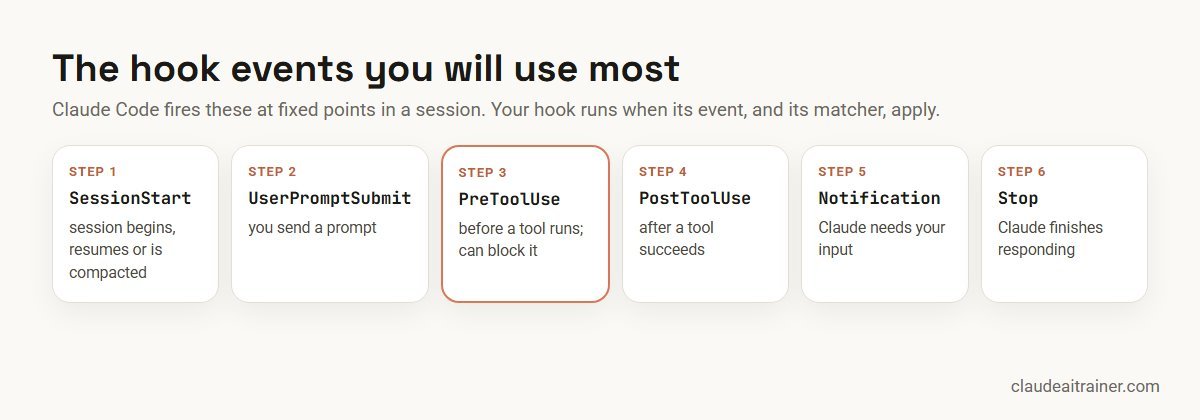
- SessionStart fires when a session begins, resumes, is cleared or is compacted. Text your hook prints is added to Claude’s context.
- UserPromptSubmit fires when you send a prompt, before Claude processes it.
- PreToolUse fires before a tool call runs and can block it.
- PostToolUse fires after a tool call succeeds. It cannot undo the action, because it has already happened.
- Notification fires when Claude Code needs your input or permission.
- Stop fires whenever Claude finishes responding, not only when a task is complete.
There are many more, including SubagentStop, PreCompact, InstructionsLoaded and SessionEnd; the hooks reference in Anthropic’s documentation lists them all with their input fields.
Anatomy of a hook in settings.json
Hooks live in a hooks block in a settings file. Each event holds a list of groups; each group has an optional matcher and a list of hooks to run.
{
  "hooks": {
    "PostToolUse": [
      {
        "matcher": "Edit|Write",
        "hooks": [
          {
            "type": "command",
            "command": "jq -r '.tool_input.file_path' | xargs npx prettier --write"
          }
        ]
      }
    ]
  }
}- Event (
PostToolUse): when the hook runs. - Matcher (
Edit|Write): for tool events, which tools it applies to. Matchers are case-sensitive; an empty matcher means every occurrence. - Command: what runs. It receives the event data as JSON on standard input, which is why the examples use
jqto pull out fields such astool_input.file_path.
If you already have a hooks block, add new events as siblings inside it rather than replacing the whole object. After saving, type /hooks in Claude Code to browse everything that is configured, grouped by event.
How a hook talks back: exit codes and JSON
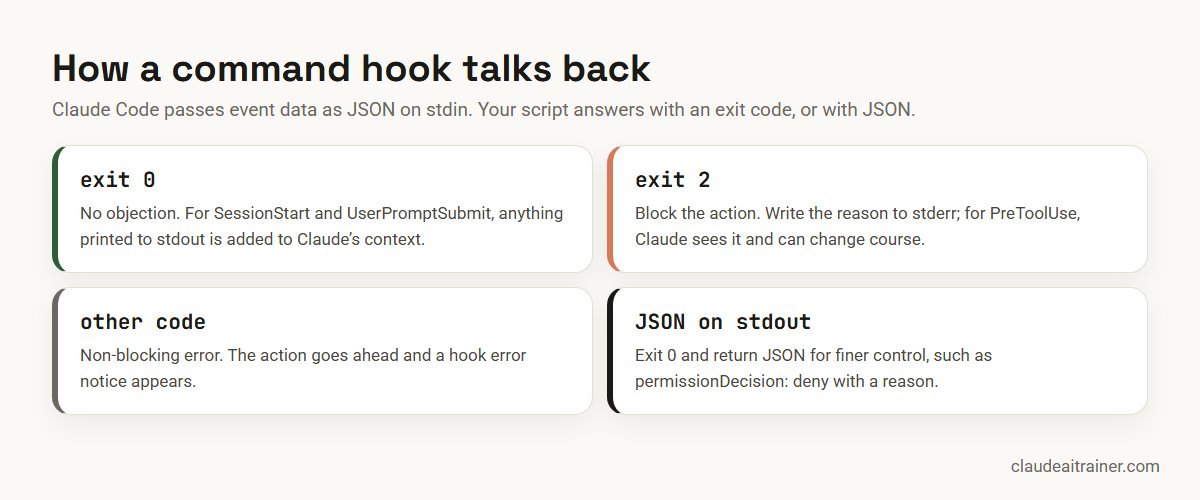
- Exit 0: no objection. For
SessionStartandUserPromptSubmit, plain text printed to stdout is added to Claude’s context. Note that exit 0 onPreToolUsedoes not approve a tool call; the normal permission flow still applies. - Exit 2: block the action. Write the reason to stderr. On
PreToolUse, Claude receives that reason and can change approach. - Any other code: usually a non-blocking error. The action goes ahead and the transcript shows a hook error notice.
- JSON on stdout: exit 0 and print JSON for finer control, for example
"permissionDecision": "deny"with apermissionDecisionReasonthat Claude sees.
Pick one approach per hook: either exit 2 with a message, or exit 0 with JSON.
Five hooks worth setting up
1. Format every file Claude edits
The example above runs Prettier after every Edit or Write. Swap in your own formatter, such as black, gofmt or ruff format, by changing the command. Commit it to .claude/settings.json so the whole team gets the same behaviour, and formatting stops being a code review topic.
2. Block edits to protected files
Save this script as .claude/hooks/protect-files.sh and make it executable with chmod +x:
#!/bin/bash
INPUT=$(cat)
FILE_PATH=$(echo "$INPUT" | jq -r '.tool_input.file_path // empty')
FILE_PATH="${FILE_PATH//\\//}"   # normalise Windows separators

PROTECTED=(".env" "package-lock.json" ".git/" "infra/prod/")

for pattern in "${PROTECTED[@]}"; do
  if [[ "$FILE_PATH" == *"$pattern"* ]]; then
    echo "Blocked: $FILE_PATH matches protected pattern '$pattern'" >&2
    exit 2
  fi
done
exit 0
Then register it as a PreToolUse hook on Edit|Write, using "command": "\"$CLAUDE_PROJECT_DIR\"/.claude/hooks/protect-files.sh" so the path works wherever Claude is running. Ask Claude to edit your .env and you will see the edit refused, with the reason passed back to Claude.
A PreToolUse hook that denies an action blocks it in every permission mode, including the modes where Claude otherwise acts without asking. That makes it the right tool for rules people should not be able to switch off.
3. Get notified when Claude needs you
Long tasks are easier when you do not have to watch the terminal. Add a Notification hook to ~/.claude/settings.json. On Windows, Anthropic’s example uses PowerShell to show a message box:
{
  "hooks": {
    "Notification": [
      {
        "matcher": "",
        "hooks": [
          {
            "type": "command",
            "command": "powershell.exe -Command \"[System.Reflection.Assembly]::LoadWithPartialName('System.Windows.Forms'); [System.Windows.Forms.MessageBox]::Show('Claude Code needs your attention', 'Claude Code')\""
          }
        ]
      }
    ]
  }
}
On macOS the equivalent command uses osascript -e 'display notification ...', and on Linux notify-send. To fire only when Claude is waiting for a permission decision, set the matcher to permission_prompt.
For engineering teams
Rolling out hooks across a team?
Hooks are where a team’s standards become automatic: formatting, protected files, audit logs. In our Claude Code sessions we set these up on your own repository with your developers, so they leave with a working configuration rather than notes. Talk to us if that would help.
4. Keep a log of every shell command
For an audit trail of what Claude ran, add a PostToolUse hook with the matcher Bash and the command jq -r '.tool_input.command' >> ~/.claude/command-log.txt. Each command Claude executes is appended to the file. In a team, the same idea can post to a shared logging service with an HTTP hook. Some ready-made plugins, such as security-guidance, are built entirely on hooks; see the best Claude Code plugins.
5. Re-inject key context after compaction
When a long session is compacted, details can get lost. A SessionStart hook with the matcher compact runs right after compaction, and whatever it prints is added back to Claude’s context:
{
  "hooks": {
    "SessionStart": [
      {
        "matcher": "compact",
        "hooks": [
          {
            "type": "command",
            "command": "echo 'Reminder: use pnpm, not npm. Run pnpm test before committing.'; git log --oneline -5"
          }
        ]
      }
    ]
  }
}
For context you want in every session from the start, put it in CLAUDE.md instead; our guide to writing a CLAUDE.md file shows how.
Where to put your hooks
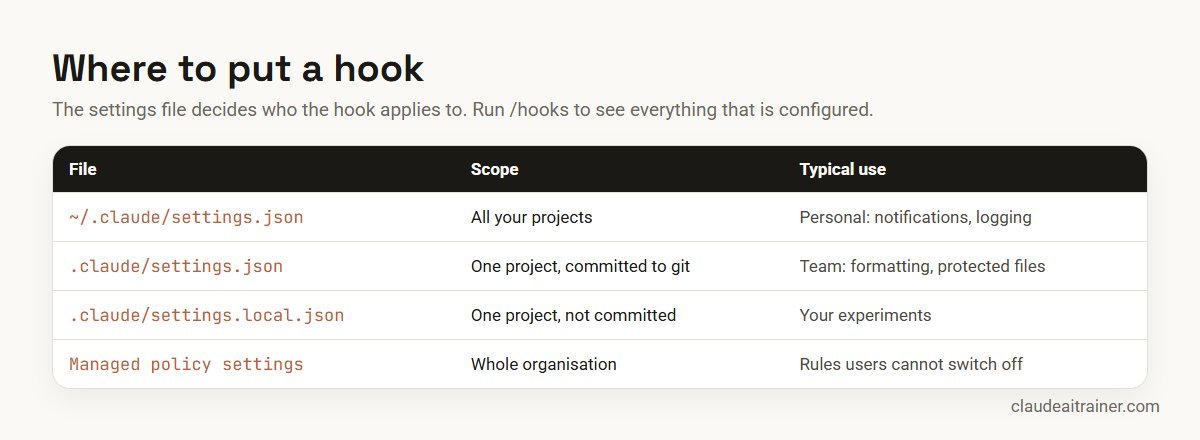
Team hooks belong in .claude/settings.json, committed with the code. Personal ones, such as notifications, go in ~/.claude/settings.json. Organisations can also set hooks in managed policy settings that individual developers cannot override. To switch hooks off temporarily, set "disableAllHooks": true.
Testing and troubleshooting
- Test the script on its own first. Pipe sample input into it and check the exit code:
echo '{"tool_name":"Bash","tool_input":{"command":"ls"}}' | ./my-hook.sh; echo $? - Hook not firing? Run
/hooksto confirm it is registered under the right event, and check the matcher spelling; matchers are case-sensitive. - “command not found”? Use
"$CLAUDE_PROJECT_DIR"or absolute paths, and make surejqis installed. - JSON errors? Settings files do not allow comments or trailing commas.
- Need more detail? Start Claude Code with
claude --debugto see full hook output.
A word on security
Command hooks run with your user account’s permissions, automatically. Treat them like any script you would add to a build pipeline: review hooks that arrive in a repository before trusting them, keep matchers as narrow as possible, quote variables in shell scripts, and never put secrets directly in a settings file. Our article on Claude Code security best practices covers permissions and secrets in more depth.
Key takeaways
- Hooks run shell commands at fixed points in a Claude Code session, every time, regardless of what Claude decides
- PreToolUse can block an action; PostToolUse runs after it and cannot undo it
- Exit 2 blocks and sends your stderr message back; exit 0 with JSON gives finer control
- Put team hooks in .claude/settings.json and personal ones in ~/.claude/settings.json
- Keep matchers narrow and test scripts by piping sample JSON into them
- Review hooks like code: they run with your user permissions
FAQ
Claude Code hooks: common questions
What are Claude Code hooks?
Hooks are commands you configure to run automatically at specific points in a Claude Code session, such as before a tool runs, after a file is edited, when Claude needs input or when a session starts. They provide deterministic behaviour that does not depend on Claude remembering an instruction.
Where do I configure hooks?
In a hooks block inside a settings file: ~/.claude/settings.json for all your projects, .claude/settings.json for a project you share with your team, or .claude/settings.local.json for a project setting you do not commit. Organisations can also set hooks in managed policy settings. Run /hooks to see what is configured.
How do I block an action with a hook?
Use a PreToolUse hook. Your script can exit with code 2 and write the reason to stderr, or exit 0 and print JSON with permissionDecision set to deny and a permissionDecisionReason. Claude receives the reason and can adjust its approach.
What is the difference between PreToolUse and PostToolUse?
PreToolUse runs before a tool call executes and can stop it. PostToolUse runs after the tool call has succeeded, so it is suited to follow-up work such as formatting or logging, but it cannot undo what already happened.
Do hooks work on Windows?
Yes. Hooks run shell commands, so on Windows you can call PowerShell, as in Anthropic’s notification example, or run bash scripts through Git Bash or WSL. Use forward slashes or normalise paths in scripts that check file names.
Should I use a hook or CLAUDE.md?
Use CLAUDE.md for context and conventions Claude should know, and hooks for actions that must happen, or must never happen, every time. If an instruction in CLAUDE.md is being missed and the consequences matter, turn it into a hook.
Are hooks safe to use?
They are as safe as the scripts you write. Hooks run automatically with your permissions, so review any hooks committed to a repository, keep matchers narrow and avoid storing secrets in settings files.
Trusted by
Teams we’ve trained
…and 200+ organisations, across 16+ countries.
What participants say
Real feedback from real sessions
Verified feedback collected from participants across corporate sessions — average rating 4.8/5.
“A very productive session for working professionals. A must-do.”
“The session was highly insightful and conducted in a very professional and interactive manner. Learnt about AI and excited to learn more!”
“Highly recommended! Hands-on and directly useful — from making PPTs and strategic plans to building KRAs.”
“I would recommend everyone to go through this session — it clarifies both what to expect from AI and where AI isn’t needed.”
“A nice interactive session with a lot of new insights and the power of AI. This will help me save time in routine activities.”
“A very good training session. AI can do wonders — we’ll implement it to create efficiency and save time.”
Explore more
Keep going with Claude AI training
Work with us
Make your team's standards automatic
Tell us about your stack, your repositories and what you want enforced. We will suggest a hands-on format for your developers and send a fixed proposal, usually within one business day.