Blog · Claude connectors
How to Connect Claude to Google Drive, Gmail, Microsoft 365 and Slack
Claude becomes far more useful once it can see the files, email and conversations your work actually lives in. This guide walks through connecting Google Drive, Gmail, Microsoft 365 and Slack, what each connector can and cannot do, the steps your admin has to take first, and how to fix the most common connection problems.
Out of the box, Claude only knows what you paste or upload. Connectors change that. Once connected, Claude can search your Drive, read a thread in your inbox, pull a document from SharePoint or find what was decided in a Slack channel, and cite where each answer came from.
The set-up takes a few minutes per app, but the rules differ from one connector to the next, and on business plans an admin usually has to act first. This guide covers both sides.
What Claude connectors are (and how they differ from Skills and plugins)
A connector links Claude to an outside app or service so it can find information there and, for some apps, take actions for you. Anthropic’s documentation separates three ways of extending Claude:
- Connectors give Claude access to your data and tools in other apps.
- Skills teach Claude a procedure: how to do a specific task your way. Our guide on how to create Claude Skills covers them.
- Plugins bundle connectors and Skills together for a role or workflow.
Most connectors are remote services built on the Model Context Protocol (MCP). You do not need to know anything about MCP to use them, but if your developers want the background, see MCP servers explained.
How to add any connector: the five-step flow
The basic flow is the same for every connector in Anthropic’s directory:
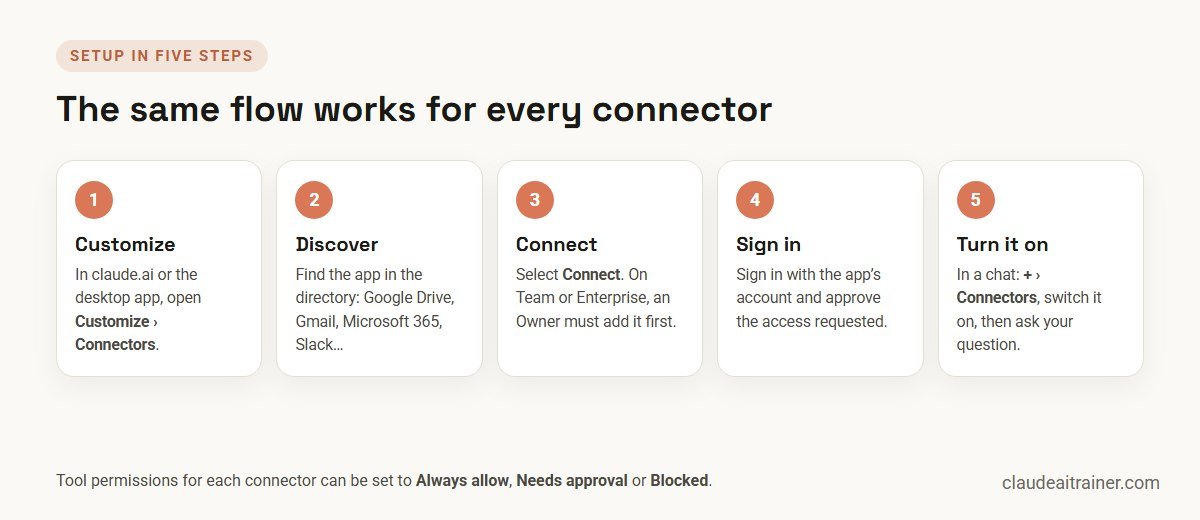
- In claude.ai or the Claude desktop app, open Customize › Connectors.
- Select Discover and search for the app. Each listing is labelled Verified or Community.
- Select Connect to Claude.
- Sign in to the app and approve the access Claude asks for.
- In a chat, select + › Connectors, switch the connector on, and ask a question that needs it.
The first time Claude uses one of a connector’s tools, it can ask for approval: Allow once or Always allow. You can change this later on the connector’s page, setting each tool to Always allow, Needs approval or Blocked.
On Team and Enterprise plans
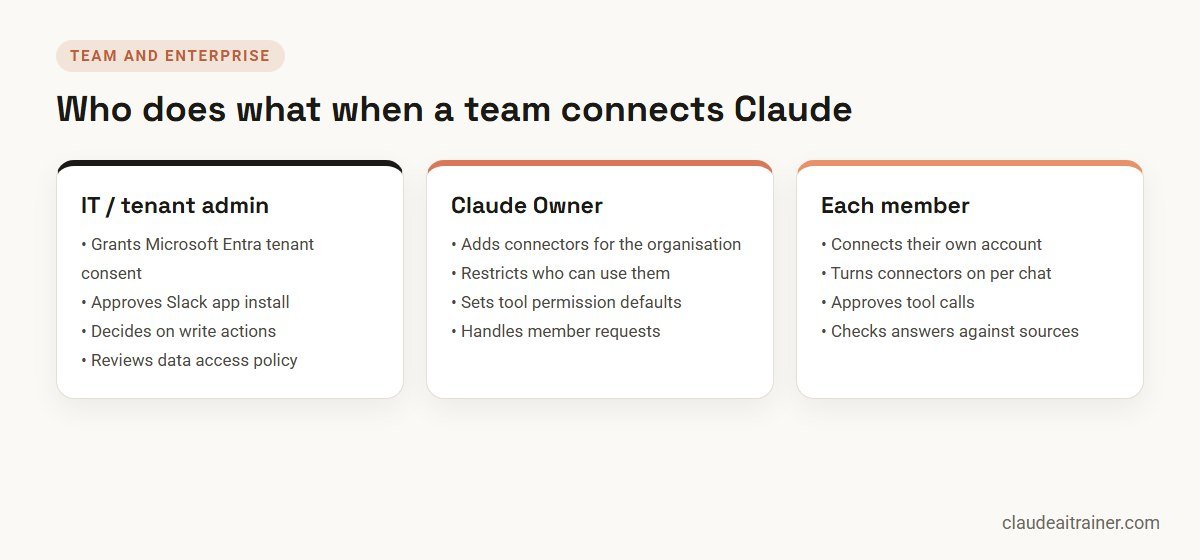
An Owner has to add a connector for the organisation before members can use it. Until then, members see a Request option instead of a connect button. When an Owner adds it, the button reads Connect for your team, and there is also a Connect just for me option for trying a connector before rolling it out. After that, each member still connects their own account, so Claude only ever sees what that person can see.
How to connect Claude to Google Drive
The Google Drive connector is built and run by Google. Each person signs in with their own Google account, so Claude can reach only the files that account can open.
- Go to Customize › Connectors and find Google Drive.
- Select Connect and sign in to Google.
- Grant the requested permissions. The button changes to Disconnect when it has worked.
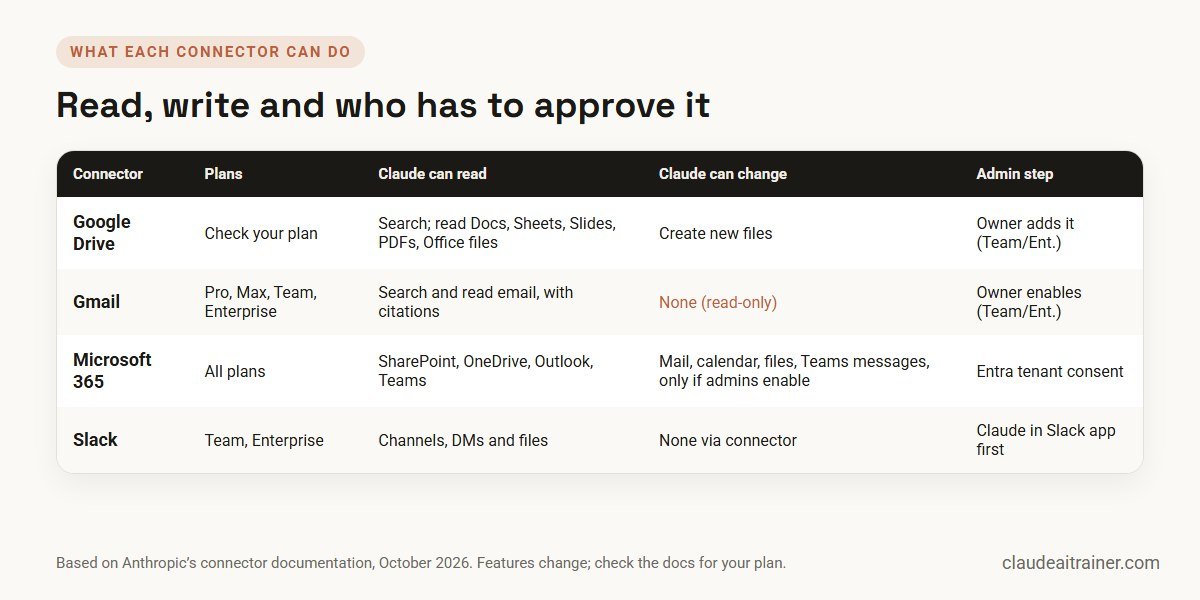
With the connector switched on in a chat, Claude can search your Drive, list recent files, check a file’s details and who it is shared with, read its content, and create new files. It can read Google Docs, Sheets and Slides, PDFs, Word, Excel and PowerPoint files, OpenDocument files, and PNG and JPEG images.
Two limits catch people out. Claude cannot read comments or suggested edits, only the content itself. And for very large files, the content Claude receives can be incomplete.
Adding Drive files to a chat or project
You can also pick files yourself with + › Add from Google Drive. Claude re-reads the file each time you send a message, so later edits come through. You can add Drive files to a project’s knowledge too, but only in a private project. In shared projects the option is greyed out. When files are added this way, Docs arrive as Markdown without images, Sheets as CSV with every tab, and Slides as plain text, and Google caps those exports at about 10 MB.
How to connect Gmail (and what it can’t do)
The Gmail connector is available on Pro, Max, Team and Enterprise plans. On Team and Enterprise, an Owner or Primary Owner enables it before members can connect.
- Go to Customize › Connectors, find Gmail and select Connect.
- Sign in to Google and grant the permissions.
- In a chat, switch Gmail on from + › Connectors and ask, for example, “Find the emails about the Q4 budget review and summarise the open points”.
Claude’s answers include citations linking back to the emails it used, which makes checking easy. The important limit: according to Anthropic’s current documentation, the Gmail connector is read-only. Claude can search and read your email, but it cannot create, send or modify messages, and it cannot see images embedded in emails. If you need Claude to draft a reply, ask it to write the text in the chat and paste it into Gmail yourself. For web apps that have no connector, Claude can work in the page itself through its browser extension; see how to use Claude in Chrome.
Google Calendar has its own separate connector, set up the same way.
How to connect Microsoft 365 (Outlook, SharePoint, OneDrive and Teams)
The Microsoft 365 connector is available on every Claude plan, including Free. Two requirements matter more than the plan:
- You need a work or school Microsoft account on a Microsoft Entra tenant. Personal outlook.com, hotmail.com and live.com accounts are not supported.
- A Microsoft Entra Global Administrator must grant tenant consent for your organisation.
On Team and Enterprise plans, a Claude Owner first adds it under Organization settings › Connectors (Add › All available › Microsoft 365 › Add to your team), grants the organisation-wide permissions, and can restrict which users get it. Members then connect their own accounts from Customize › Connectors.
What Claude can do, using only the access each person already has:
| Service | Read and search | Write (only if admins enable it) |
|---|---|---|
| SharePoint & OneDrive | Search and analyse documents | Create and update files in SharePoint |
| Outlook | Search email threads and archives | Send mail, manage drafts and rules, create and update calendar events |
| Teams calendar | Meeting information, summaries and attendance | None |
| Teams chat | Channel and chat discussions | Send chat and channel messages |
Write actions are controlled by administrators in two places: the connector’s permissions in Microsoft Entra, and the connector’s configuration in Claude’s organisation settings. Claude also cannot attach files to the email drafts it creates.
A note for IT: permissions added after consent
If your tenant approved the connector before Anthropic added a new permission, features that need it fail with a permission error, and disconnecting and reconnecting does not fix it. A Global Administrator or Application Administrator needs to approve the added permissions once for the tenant, using the admin consent link in Anthropic’s Microsoft 365 connector documentation. In the Entra admin centre, the connector appears under Enterprise applications as “M365 MCP Server for Claude”.
How to connect Slack
Slack works differently from the others, and it has two parts:
- The Claude in Slack app puts Claude inside Slack, in direct messages, the AI assistant panel and threads. It needs a paid Slack plan, and a Slack admin must approve it.
- The Slack connector lets Claude in claude.ai search your workspace’s channels, direct messages and files. It is available on Team and Enterprise plans only, and the Claude in Slack app must be installed first.
To set up the connector, an Owner enables Slack under Organization settings › Connectors, and each member then connects from Customize › Connectors. Anthropic now describes the per-user Claude in Slack app as the earlier product: its current Slack offering is Claude Tag, which gives a team one Claude identity set up by an admin. If you are starting fresh, read about Claude Tag before installing the older app.
Rolling connectors out to a team
Connected is not the same as used well
Most teams switch on connectors and then use them for the odd search. We help teams decide which connectors to enable, agree read and write rules with IT, and practise the prompts that turn connected data into finished work. Happy to talk it through.
Where connectors work: web, desktop, mobile, Claude Code and Cowork
Once connected, connectors follow your account:
- claude.ai on the web supports remote connectors, including interactive MCP Apps.
- The desktop app supports remote connectors plus local connectors installed as desktop extensions.
- The mobile app supports remote connectors.
- Claude Code can use the connectors you added in claude.ai when you sign in with your Claude account.
- Claude Cowork uses connectors and plugins. This is where connected data turns into finished work: a Cowork task can pull last month’s figures from SharePoint and produce the summary deck. Our guide on how to use Claude Cowork shows how.
Ten prompts that put connectors to work
“Find the Q3 budget sheet in Drive and list every line over plan, with the variance.”
“Search Outlook for invoices from our top three suppliers this month and summarise amounts and due dates.”
“Before my 3pm call, summarise every email with this client in the last 60 days and list open questions.”
“Find the latest proposal for this account in SharePoint and compare its pricing with the previous version.”
“Find our current leave policy in Drive and answer this employee question, quoting the clause.”
“Summarise what was discussed in #people-ops about the new onboarding process this month.”
“What did the team decide about the launch date in #product-planning last week? Link the thread.”
“Find the meeting summary from Monday’s Teams call and turn the actions into a table with owners.”
“What files have I worked on this week, and which ones are waiting for my review?”
“Summarise my unread email from the leadership team and flag anything that needs a decision today.”
Whatever the prompt, check the citations before you act on an answer, especially for figures. Prompts like these, adapted to each team’s own data, are the core of our Claude for finance teams and Claude for sales and marketing teams sessions.
Security and data handling
Connectors are designed to respect the permissions people already have:
- Access is delegated. Claude acts on behalf of the signed-in user and can only see or change what that user already can.
- Search is on demand. For Gmail, Anthropic states that Claude searches email only when a request calls for it and retrieves the minimum needed to answer.
- Tool permissions are yours to set. Put anything that changes data, such as sending mail or posting in Teams, on Needs approval.
- Admins keep control. On business plans, Owners decide which connectors exist, who can use them, and whether write actions are allowed.
Because Claude can only see what a user can see, connectors expose existing oversharing. If a confidential folder is shared with the whole company, Claude can find it for anyone. Tidy up sharing on sensitive sites before rolling connectors out widely. For organisation-wide planning, our enterprise rollout playbook covers governance in more depth.
Troubleshooting: “can’t connect” and “document not found”
- No Connect button, only Request. You are on a Team or Enterprise plan and an Owner has not added the connector yet.
- Microsoft 365 sign-in fails. Check that you are using a work or school account, not a personal one; that your Microsoft 365 licence is active; and that your organisation’s third-party app policies allow it. Try another browser or clear cookies.
- A Microsoft 365 feature returns a permission error. Your tenant probably needs to approve a permission added since consent was first granted. Reconnecting will not fix it, so ask IT.
- Claude can’t find a document you know exists. Confirm you can open it yourself, that it is stored in the cloud rather than only on your computer, and give Claude the exact file name or site. Recently uploaded files can take time to be indexed.
- The connector shows Reconnect. Claude has lost access. Select it and sign in again, or disconnect and connect again if the error repeats.
- Claude ignores the connector. Check it is switched on for this chat under + › Connectors.
Key takeaways
- Every connector is added from Customize › Connectors and switched on per chat from + › Connectors
- On Team and Enterprise plans an Owner adds each connector first, then members connect their own accounts
- The Google Drive connector reads Docs, Sheets, Slides, PDFs and Office files, and can create new files
- The Gmail connector is read-only: Claude searches and cites email but cannot send or change it
- Microsoft 365 needs a work or school account and Entra tenant consent; write actions only work if admins enable them
- The Slack connector needs Team or Enterprise and the Claude in Slack app installed first
FAQ
Claude connectors: common questions
Is it safe to connect Claude to Google Drive?
The connector only reaches files the signed-in account can already open, and you control tool permissions. The main risk is existing oversharing: if a sensitive folder is shared too widely, Claude can find it for anyone with access. Review sharing on sensitive folders before rolling it out.
Can Claude send emails from Gmail?
No. According to Anthropic’s current documentation, the Gmail connector is read-only: Claude can search and read email and cite messages, but cannot create, send or modify them. The Microsoft 365 connector can send Outlook mail if your administrators enable write actions.
Why can't I connect Claude to Google Drive?
On Team and Enterprise plans, an Owner must add the connector before members can connect. If it is already added, try disconnecting and connecting again, and check that you are signing in with the right Google account.
Does the Microsoft 365 connector work with a personal Outlook account?
No. It requires a work or school Microsoft account on a Microsoft Entra tenant. Personal outlook.com, hotmail.com and live.com accounts are not supported.
Are Claude connectors free?
It depends on the connector. Microsoft 365 is available on all plans, including Free. Gmail needs Pro, Max, Team or Enterprise. The Slack connector needs Team or Enterprise. Check Anthropic’s page for each connector, because availability changes.
Can Claude read Slack direct messages?
With the Slack connector on a Team or Enterprise plan, Claude can search channels, direct messages and files that the connected user has access to. The Claude in Slack app must be installed first.
Do connectors work in Claude Cowork and Claude Code?
Yes. Cowork uses connectors and plugins, and Claude Code can use the connectors you added in claude.ai when you sign in with your Claude account.
Can I connect Claude to an app that isn't in the directory?
Yes, if the app offers a remote MCP server. You can add a connector by its server URL, or install a local connector as a desktop extension in the Claude desktop app.
Trusted by
Teams we’ve trained
…and 200+ organisations, across 16+ countries.
What participants say
Real feedback from real sessions
Verified feedback collected from participants across corporate sessions — average rating 4.8/5.
“A very productive session for working professionals. A must-do.”
“The session was highly insightful and conducted in a very professional and interactive manner. Learnt about AI and excited to learn more!”
“Highly recommended! Hands-on and directly useful — from making PPTs and strategic plans to building KRAs.”
“Great work done by Mr Hitesh in the AI landscape — a true subject-matter expert. More power to him for spreading this knowledge.”
“I would recommend everyone to go through this session — it clarifies both what to expect from AI and where AI isn’t needed.”
“Amazing session by Hitesh. The AI tools he shared are very helpful for day-to-day work.”
“Mr Hitesh Motwani is a very informative trainer. The way he delivers training is awesome.”
“Mr Hitesh Motwani delivered a valuable, informative session and showed us exactly how to use AI tools to enhance our work. Thank you so much.”
“A nice interactive session with a lot of new insights and the power of AI. This will help me save time in routine activities.”
“A very good training session. AI can do wonders — we’ll implement it to create efficiency and save time.”
“Hitesh was very informative and knowledgeable about AI tools. It will let me use my time far more effectively.”
“Your session helped me walk into the world of magic.”
Explore more
Keep going with Claude AI training
Work with us
Get your team working with connected Claude
Tell us which tools your team uses (Google Workspace, Microsoft 365, Slack) and which Claude plan you are on. We will suggest a format, from an admin set-up session to hands-on team workshops, and send a fixed proposal, usually within one business day.