Blog · Claude apps
How to Use Claude in Chrome: Setup, Permissions and Safe Workflows
Claude in Chrome is Anthropic’s browser extension: it opens Claude in a side panel, reads the page you are on and can click, type and move between tabs for you. This guide walks through installing it, choosing a permission mode, saving and scheduling shortcuts, using it from Claude Code, and the settings an admin should decide before a team switches it on. Every step follows Anthropic’s own help pages and docs, checked in October 2026.
Most knowledge work still happens in a browser tab: a CRM, a vendor portal, an internal dashboard, a shared spreadsheet. Claude in Chrome brings Claude into that tab. Instead of copying text into a chat and pasting the answer back, you ask Claude in a side panel and it reads the page, fills the form or works through a list of tabs while you watch.
That convenience comes with a real security trade-off, which Anthropic is frank about. So this guide covers both halves: how to get useful work out of the extension, and how to set it up so a mistake or a malicious web page cannot do much damage. We built it from Anthropic’s help center articles on Claude in Chrome and the Claude Code documentation, all opened on 28 October 2026.
Quick answer
- Check your plan. Claude in Chrome needs a paid plan: Pro, Max, Team or Enterprise. It runs in Google Chrome on a computer, not on mobile.
- Install it. Open the Chrome Web Store, click Add to Chrome, sign in with your Claude account, pin the extension and grant the permissions it asks for.
- Pick a permission mode. Use Manually approve while you learn, then decide whether Automatically approve (the default) suits the sites you use.
- Give it a specific task on a site you trust, watch what it does, and save prompts that work as shortcuts.
- For developers: run
claude --chromein Claude Code to let it test and debug web apps in your browser.
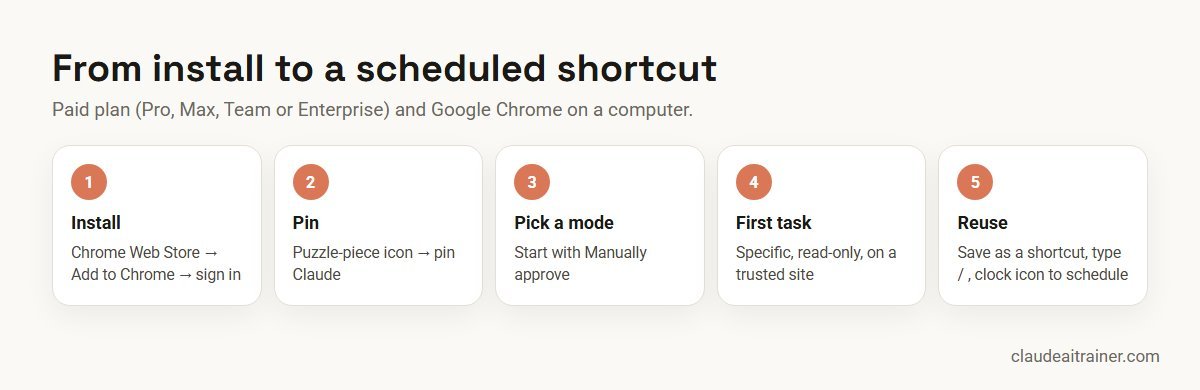
Claude in Chrome at a glance
| Question | Answer (checked October 2026) |
|---|---|
| What it is | A Chrome extension that opens Claude in a side panel and lets it read pages, click, type, fill forms and work across tabs |
| Plans | Pro, Max, Team and Enterprise. Not on the Free plan |
| Browsers | Google Chrome. The help center says other Chromium browsers and mobile devices are not supported; Claude Code’s own browser integration also connects to Edge and some other Chromium browsers |
| Permission modes | Manually approve, Automatically approve (default), Skip all approvals |
| Always blocked | Purchases and financial transactions, creating accounts, permanent deletions, handling card or ID data, following instructions found in web content, and more |
| Reuse | Shortcuts (type /), scheduled shortcuts (daily, weekly, monthly or yearly), recorded workflows in the classic side panel |
| Works with | The Claude desktop app (as a connector), Cowork, and Claude Code in the terminal or VS Code |
| Admin controls | Team and Enterprise owners: on/off for the organisation, site allowlist and blocklist, per-role access on Enterprise custom roles |
Sources: Getting started with Claude in Chrome, permissions guide, admin controls and Use Claude Code with Chrome, all checked October 2026.
Step 1: Install the extension
You need Google Chrome on a computer and a Claude account on a paid plan. Then:
- Open Chrome and go to the Claude listing in the Chrome Web Store.
- Click Add to Chrome and confirm.
- Sign in with your Claude account. If you belong to more than one organisation, pick the one your work account uses.
- Pin it: click the puzzle-piece icon in the toolbar, then the pin next to Claude. The pinned icon is how you open the side panel from then on.
- Grant the permissions it requests. They let Claude read page text, take screenshots, click and type, manage its own tab group, send notifications and run scheduled tasks.
If your company manages Chrome centrally, IT may push the extension for you, or block it. Anthropic’s admin article says it can be deployed through the Google Workspace admin console or an MDM tool, so check with IT before installing it on a work laptop.
Side panel versions
There are two versions of the side panel. The newer one is built on Cowork: conversations are saved to your history, sync across web, desktop and mobile, and can use your skills, plugins and connectors. The classic side panel is the original version and is the only one that can record a workflow by demonstration. On Enterprise, the newer panel appears only after an owner enables Claude in Chrome and Cowork in the cloud. To return to the classic version, open the side panel, click the three dots in the top right and choose Switch back to classic.
Step 2: Choose a permission mode
This is the most important setting. You pick the mode from the drop-down on the chat input, and the side panel remembers your choice for next time.
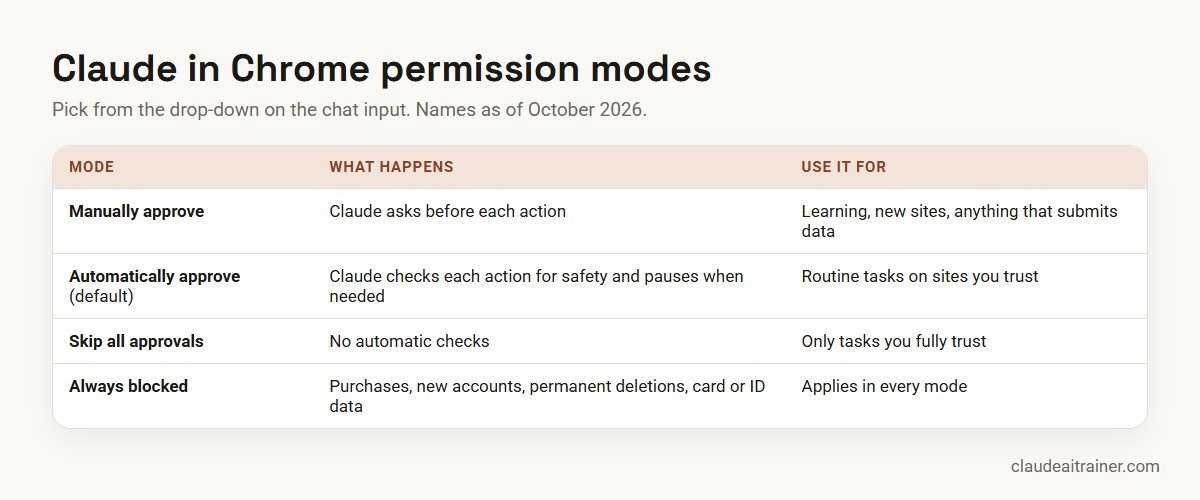
- Manually approve (previously called “Ask before acting”). Claude asks before each action. In the classic panel it first proposes a plan that lists the sites it will use, and you click Approve plan or Make changes. In the Cowork-based panel there is no upfront plan; each action gets a prompt with Allow all for this website, Allow this time only or Deny.
- Automatically approve (the default in the Cowork-based panel). Claude checks each action for safety, blocks unsafe ones and pauses to ask you when it needs to. If it keeps hitting blocks, it falls back to asking at every step.
- Skip all approvals (previously “Act without asking”). Nothing is checked automatically. Anthropic’s advice is to use it only when you fully trust the task.
Some sites need your approval for every action whatever the mode. When Claude reaches one you will see New permissions required with three choices: Allow this action (the safest), Always allow actions on this site or Decline. Even on an always-allowed site, Claude still asks before downloading files, entering potentially sensitive information or granting authorisations.
And some things it will not do in any mode. According to the permissions guide, Claude is always prohibited from making purchases or financial transactions (including trades), creating accounts, handling credit card or ID data, downloading files from untrusted sources, permanently deleting emails, files or messages, modifying system files, and following instructions it finds inside emails or web pages.
To review or revoke sites later, click the Claude extension icon, then the three dots in the side panel, then Extension settings. The Permissions page lists Your approved sites and a history of what you allowed.
Step 3: Give Claude its first task
Start on a site you trust with a task that is easy to check. Good first tasks are reading and gathering rather than submitting anything. Be specific about the site, the data and the output you want:
Summarise this page in five bullet points and list any dates or deadlines it mentions.

Open the three supplier pages in my other tabs and make a table of each one's delivery time and minimum order. Do not submit any forms.

On this internal dashboard, read the weekly figures for the North and South regions and tell me which metric moved most compared with last week.
Claude collects the tabs it opens into its own tab group, so its work stays separate from your browsing. Watch the first few runs. If it visits a site you did not expect, starts discussing something unrelated, or asks for sensitive information, stop the task; Anthropic’s safety article gives exactly that advice.
Step 4: Save shortcuts and schedule them
When a prompt works well, save it as a shortcut instead of retyping it. In the side panel, type / to pick a saved shortcut; you can edit or delete shortcuts in the extension settings. In the classic panel you can also record a workflow: start recording, do the steps yourself, stop, and save the recording as a shortcut.
To run a shortcut on a timetable, click the clock icon at the top right of the extension panel and choose daily, weekly, monthly or yearly. Two practical limits from the help center: browser workflows run only while Chrome is open, and tasks that touch local files, your computer or need Chrome driven from another surface require the Claude desktop app to be open and connected.
One warning from the Claude Code docs is worth knowing early: if you log out of the extension, you lose the shortcuts and scheduled tasks saved in it.
For teams
A browser agent needs house rules
Most of the value, and most of the risk, comes from which sites Claude may touch and which tasks people hand it. We run hands-on sessions where your team builds and tests its own browser shortcuts on approved sites. Book a short call if that would help.
Step 5: Use it from the Claude desktop app and Cowork
You do not have to start from the side panel. In the Claude desktop app, click your initials in the lower left, go to Settings > Customize > Connectors, click Configure on Claude in Chrome and switch it on. The connector is off by default in each chat, so turn it on in the conversations where you want Claude to use your browser.
In Cowork, Claude uses the desktop app’s built-in browser by default, or your own Chrome through Claude in Chrome. The difference matters: your own Chrome carries your signed-in sessions, which is useful and also the reason to be careful about which sites are allowed. If you are new to Cowork, our step-by-step Cowork guide covers the basics, and Claude Cowork vs Claude Code explains which of the two agents suits which job.
Step 6: Use it from Claude Code (developers)
Claude Code can drive the same extension, which turns it into a test and debugging tool for web apps. The docs list these requirements: Claude in Chrome version 1.0.36 or later, Claude Code, a direct Anthropic plan (Pro, Max, Team or Enterprise), and signing in with /login. It does not work when Claude Code is authenticated with an API key or a long-lived token, through Amazon Bedrock, Google Cloud or Microsoft Foundry, or inside WSL.
# start a session with browser tools
claude --chrome

# inside a session: check status, reconnect, pick a browser,
# or choose "Enabled by default"
/chrome
The integration shares your browser’s login state, opens new tabs in a visible window, and pauses for you at login pages and CAPTCHAs. In VS Code, type @browser in the prompt box to connect. Turning on Enabled by default saves typing but loads the browser tools into every session, which uses more context, so the docs suggest connecting only when you need it.
Typical developer uses from the docs: open localhost:3000 and test a form’s validation, read console errors on page load and fix the code that caused them, compare a built page with a design, or record a GIF of a checkout flow. Two guardrails are built in: Claude refuses to upload files such as .env, .pem, .key or anything under .ssh, and a repository’s own settings file cannot switch the browser integration on. If you are just starting with the CLI, our Claude Code tutorial for beginners is the place to begin.
On browsers: the help center says the extension itself is supported only in Google Chrome. The Claude Code docs say the Claude Code integration works with Chrome and Microsoft Edge and can also connect in Brave, Arc, Vivaldi and Opera. If you use Edge for the side panel itself, treat it as unsupported.
Worked example: a weekly portal round-up
Here is a realistic first project for an operations coordinator at a 60-person distributor. Every Monday she logs into four supplier portals, notes open purchase orders and delivery dates, and pastes them into a status email. It takes about an hour, and none of it involves paying or approving anything.
- Ask IT first. The company is on Claude Team, where Claude in Chrome is on by default. The owner adds the four portal domains and the company’s intranet to the allowlist and blocks the banking site.
- Use a separate Chrome profile. She creates a work profile signed in only to the supplier portals and the intranet, following Anthropic’s advice to keep the agent away from banking, healthcare and government accounts.
- Run it in Manually approve mode. Prompt: “Open these four supplier portals (she pastes the four URLs), read the open purchase orders table, and build one table with supplier, PO number, item, quantity and promised date. Do not click any buttons that change an order.” She approves each step and checks the table against the portals.
- Save it as a shortcut. After two clean Mondays, she saves the prompt as
/po-roundupand moves to Automatically approve for those four sites only. - Schedule it. With the clock icon she sets the shortcut to run every Monday at 8:00, while Chrome is open on her desktop. She still reads the table before the email goes out.
The pattern carries over to most teams: start read-only, use one profile and a short site list, approve manually until the results are boringly reliable, then automate.
Security and governance
Anthropic’s own safety article says the extension is “still risky” even with its safeguards. The main threat is prompt injection: text hidden in a web page, email or document that tries to steer Claude into something you did not ask for. Anthropic describes several layers of defence, including model training, classifiers that scan untrusted content and check actions before they run, blocked site categories and confirmations for high-risk actions, and reports that in its internal testing attack success rates fell below 0.08% with Claude Opus 4.8. It also says the risk is not zero. Plan on that basis.
- Keep it off sensitive work. Anthropic advises against using it for financial accounts, legal documents, medical information, work accounts with sensitive company data, sites holding other people’s personal information, and pages with regulated data generally.
- Remember what it sees. Claude takes screenshots of the active tab, so anything visible becomes part of the conversation, and side panel sessions are saved to your history.
- Use a separate browser profile without access to banking, healthcare or government accounts.
- You are responsible for what Claude does on your behalf, including messages sent and data changed, and for following each site’s terms of service.
- Healthcare and regulated data. In organisations with HIPAA enabled the extension is off by default, and Anthropic says data sent to third-party sites through it is not covered by the Business Associate Agreement. Zero data retention is not supported.
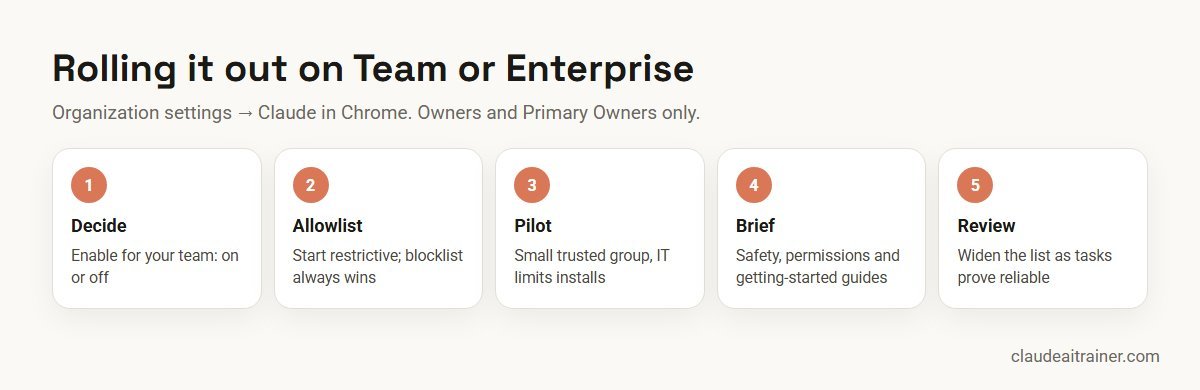
Admin controls on Team and Enterprise. Owners and Primary Owners manage the extension in Organization settings > Claude in Chrome, starting with the Enable for your team toggle. It is on by default on Team; on Enterprise it is on unless an owner turned it off, and off in HIPAA-enabled organisations. Admins can set an allowlist (Anthropic recommends starting restrictive) and a blocklist that wins over everything else; the same lists apply to Cowork’s built-in browser. Enterprise organisations using custom roles can grant or withhold Claude in Chrome per role, separately from Cowork access. For locked-down networks, the admin article lists the bridge endpoint wss://bridge.claudeusercontent.com, the extension ID and a forceLoginOrgUUID Chrome policy that ties the extension to your organisation.
For developers, the same thinking applies in Claude Code: managed MCP policies can block the claude-in-chrome server, and permission rules decide which files Claude may read and therefore upload. Our Claude Code security best practices covers the wider picture.
Troubleshooting
- Side panel will not open: check the extension is enabled in
chrome://extensionsand pinned. - Claude stops responding mid-task: a pop-up dialog on the page may be blocking it. Dismiss it, then tell Claude to continue.
- Claude Code says “Browser extension is not connected”: make sure Chrome is open and the extension is signed in to the same Claude account and organisation as Claude Code (run
/statusto see it), then run/chromeand choose Reconnect extension. Restart Chrome after the first setup so it picks up the new connection file. - Connection drops after a long idle spell: run
/chromeand reconnect. - A site is refused: it may be on your organisation’s blocklist or outside its allowlist. Ask your admin.
Next step
Pilot it with a small group first
We help teams agree an allowlist, pick permission modes, write shortcuts for real recurring tasks and brief users on prompt injection. Online or on-site.
Related reading
How we checked
We read Anthropic’s help center articles Getting started with Claude in Chrome, the Claude in Chrome permissions guide, Use Claude in Chrome safely and Claude in Chrome admin controls, plus the Claude Code documentation page on Chrome, on 28 October 2026. Mode names changed during 2026, so older guides may still say “Ask before acting” or “Act without asking”. Check the linked pages for the latest wording before you train a team.
Key takeaways
- Claude in Chrome is a Google Chrome extension for paid Claude plans (Pro, Max, Team and Enterprise); it is not supported on mobile
- There are three permission modes: Manually approve, Automatically approve (the default) and Skip all approvals
- Some actions are blocked in every mode, including purchases, creating accounts and permanent deletions
- Save prompts that work as shortcuts, type / to reuse them, and use the clock icon to schedule them
- Developers can drive the same extension from Claude Code with claude --chrome or /chrome
- On Team and Enterprise, owners control it in Organization settings with an allowlist and a blocklist; start small and restrictive
FAQ
Claude in Chrome: common questions
What is Claude in Chrome?
It is Anthropic’s browser extension for Google Chrome. It opens Claude in a side panel, reads the page you are on and can click, type, fill forms and work across tabs to complete a task you describe, asking for approval according to the permission mode you choose.
Is Claude in Chrome free?
No. The extension is free to install, but it needs a paid Claude plan: Pro, Max, Team or Enterprise (checked October 2026).
How do I install Claude in Chrome?
Open the Claude listing in the Chrome Web Store, click Add to Chrome, sign in with your Claude account, pin the extension from the puzzle-piece menu and grant the permissions it asks for. On a managed work laptop, check with IT first.
Does Claude in Chrome work in Microsoft Edge?
Anthropic’s help center says the extension is supported only in Google Chrome, not in other Chromium browsers or on mobile. Separately, the Claude Code docs say Claude Code’s browser integration works with Chrome and Edge and can connect in Brave, Arc, Vivaldi and Opera.
What are the permission modes?
Manually approve asks before each action. Automatically approve, the default, lets Claude check each action for safety and pause when needed. Skip all approvals runs without checks and is meant only for tasks you fully trust. Older guides call them Ask before acting and Act without asking.
What will Claude in Chrome never do?
Anthropic lists actions that are blocked in every mode, including purchases and financial transactions, creating accounts, handling card or ID data, downloading files from untrusted sources, permanent deletions, modifying system files and following instructions found in emails or web pages.
Can I schedule tasks in Claude in Chrome?
Yes. Save a prompt as a shortcut, then click the clock icon at the top right of the panel to run it daily, weekly, monthly or yearly. Scheduled browser tasks run only while Chrome is open.
How do I use Claude in Chrome with Claude Code?
Install the extension (version 1.0.36 or later), sign in to Claude Code with /login on a Pro, Max, Team or Enterprise plan, then start a session with claude –chrome or run /chrome. In VS Code, type @browser. It does not work with API-key authentication, third-party cloud providers or WSL.
Is Claude in Chrome safe to use at work?
It can be, with care. Anthropic calls it still risky because of prompt injection and advises keeping it away from financial, legal, medical and regulated data. Use an allowlist, a separate browser profile, manual approval while you learn and human review of anything it submits.
Can admins control Claude in Chrome?
Yes, on Team and Enterprise. Owners use Organization settings, Claude in Chrome to switch it on or off, set a site allowlist and blocklist, and on Enterprise grant it per custom role. It is on by default on Team and off by default in HIPAA-enabled organisations.
Does Claude in Chrome see my passwords?
Claude asks before entering potentially sensitive information, and the Claude Code docs say it pauses at login pages and CAPTCHAs for you to handle. A beta 1Password integration on macOS lets you approve sign-ins with biometrics so Claude never sees the password or one-time code. It does see anything visible in the tab it is working in.
Do you offer Claude in Chrome training for teams?
Yes. We run hands-on sessions where your team sets safe permissions, builds shortcuts for its own recurring browser tasks and agrees an allowlist with IT. See our Cowork training page or book a short call.
Trusted by
Teams we’ve trained
…and 200+ organisations, across 16+ countries.
What participants say
Real feedback from real sessions
Verified feedback collected from participants across corporate sessions — average rating 4.8/5.
“A very productive session for working professionals. A must-do.”
“The session was highly insightful and conducted in a very professional and interactive manner. Learnt about AI and excited to learn more!”
“Highly recommended! Hands-on and directly useful — from making PPTs and strategic plans to building KRAs.”
“I would recommend everyone to go through this session — it clarifies both what to expect from AI and where AI isn’t needed.”
“A nice interactive session with a lot of new insights and the power of AI. This will help me save time in routine activities.”
“A very good training session. AI can do wonders — we’ll implement it to create efficiency and save time.”
Explore more
Keep going with Claude AI training
Work with us
Train your team on Claude in Chrome
Tell us which web apps your team lives in and which tasks you would like Claude to take on. We will suggest a short, hands-on format, online or on-site, covering safe permissions, shortcuts and admin settings, and send a fixed proposal, usually within one business day.