Blog · Gemini Gems
Best Gemini Gems for Work in 2026, and What Replaces Them
Gems are saved, reusable versions of Gemini with their own instructions and reference files. This list covers the five premade Gems Google offers, five Gem templates that work well for business teams, and the change every Gem user needs to plan for: Google is replacing Gems with skills, starting in November 2026 for personal accounts and from March 2027 for Workspace business customers.
Most people who try Gemini end up typing the same kind of request again and again: tidy this email, summarise these notes, explain this in plain English. Gems were Google’s answer. A Gem saves instructions, and optionally reference files, so you can open a ready-made version of Gemini for one job.
This list is for people choosing which Gems to use at work. It covers the five premade Gems Google offers and five Gem templates we see working for business teams, with what each is for, who should use it and what to check. One thing changes the advice this year: Google announced in September 2026 that skills will replace Gems. We explain the dates and how each Gem on this list carries over. Product details were checked on Google’s own help pages and blog in October 2026.
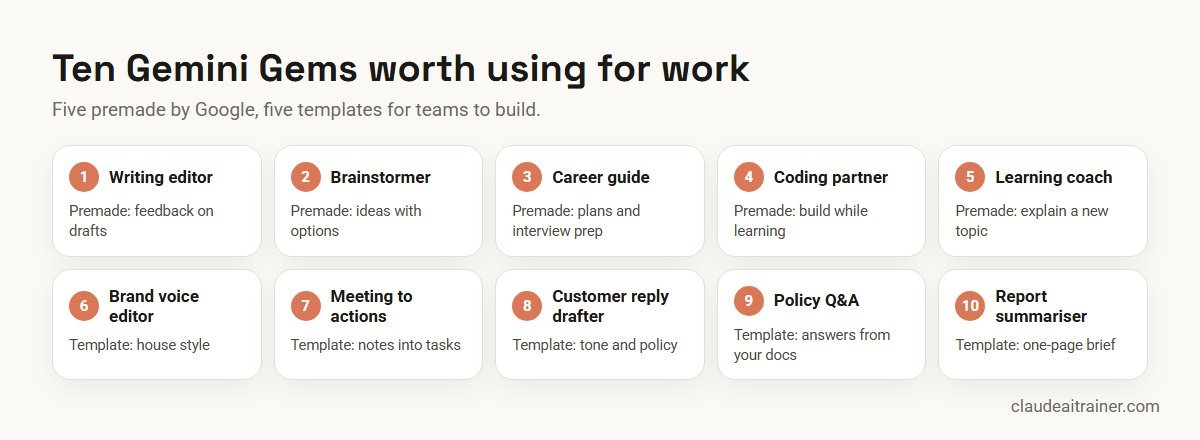
Quick answer: ten Gemini Gems worth using for work
- Writing editor (premade): feedback on drafts, including structure and grammar.
- Brainstormer (premade): ideas with options to choose from.
- Career guide (premade): development plans and interview practice.
- Coding partner (premade): help with code while you learn.
- Learning coach (premade): explanations of new topics, step by step.
- Brand voice editor (template): rewrites drafts in your house style.
- Meeting notes to action list (template): owners, dates and open questions.
- Customer reply drafter (template): replies in your tone, within your policy.
- Policy and handbook Q&A (template): answers from your own documents.
- Report summariser (template): one-page briefs for busy readers.
The first five are listed by Google; the last five are Gems you build yourself in a few minutes. For most teams the custom ones end up more useful, because they carry your own standards.
Before you pick: Gems are moving to skills
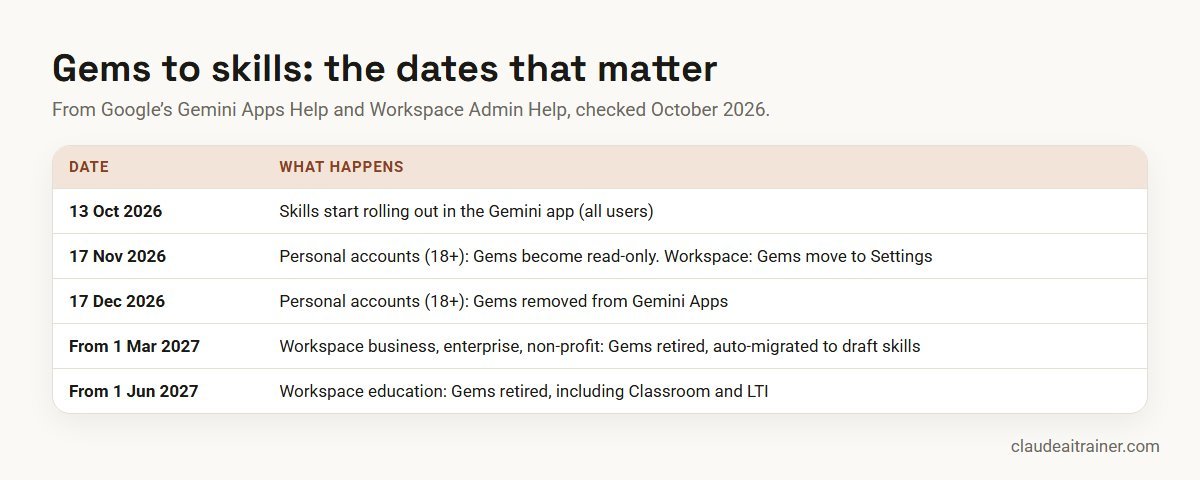
Google’s Gemini Apps Help now opens its Gems pages with a notice that Gems will transition to skills. Skills are reusable instructions you call with a slash command in any Gemini chat, and Gemini can also apply a relevant skill automatically. You can combine several skills in one prompt, which Gems could not do. Skills use the open, Markdown-based SKILL.md format.
The dates depend on the account you use:
- Personal Google accounts (18 and over): on 17 November 2026 Gems become read-only, so you can view them but not use, edit or create them. On 17 December 2026 they are removed. Google says it will recreate your Gems as skills automatically. Download any knowledge files you need before 17 December.
- Personal accounts under 18: later, with details to follow.
- Workspace business, enterprise and non-profit accounts: Gems move to Settings in the Gemini app on 17 November 2026 and keep working. No sooner than 1 March 2027, they can no longer be created, edited or used, and remaining Gems migrate to draft skills that creators must review and activate.
- Workspace education accounts: the same, no sooner than 1 June 2027.
Google also says Opal and Gems from Google Labs go away in November 2026. Skills have a 100 MB file limit, and some file types do not carry over, including audio, video, GitHub files, legacy .doc, .xls and .ppt files, and archives such as .zip. Skills also do not yet work with Canvas, Deep Research or Guided Learning.
What this means for the list: every entry below still makes sense as a pattern. Use it as a Gem while you can, and write the instructions so they move cleanly into a skill.
Comparison table
| Gem | Type | Best for | Add knowledge files? | Watch out for |
|---|---|---|---|---|
| Writing editor | Premade | Feedback on drafts | Copy it and add your style guide | Generic style unless customised |
| Brainstormer | Premade | Options for campaigns, names, events | Optional | Ideas need a reality check |
| Career guide | Premade | Development plans, interview practice | Optional | Personal data in prompts |
| Coding partner | Premade | Learning and small scripts | No | Review code before running it |
| Learning coach | Premade | New topics, explained in steps | No | Not for language learning |
| Brand voice editor | Template | Consistent tone across a team | Style guide, examples | Claims and regulated wording |
| Meeting notes to actions | Template | Owners, dates, decisions | Action list format | Confidential meetings |
| Customer reply drafter | Template | Support and account teams | Policies, reply examples | Never auto-send |
| Policy and handbook Q&A | Template | HR, IT, finance questions | Policies from Drive | Out-of-date files |
| Report summariser | Template | Board and leadership briefs | Summary template | Numbers must be checked |
The ten Gems in detail
1. Writing editor (premade by Google)
What it does. Gives feedback on a draft: structure, clarity and grammar, with suggested rewrites.
Who it’s for. Anyone who writes reports, proposals or emails that matter.
How to use it. Open Gems in Gemini, choose Writing editor under “Premade by Google” and paste your draft. Google’s own example is to make a copy and add a specific style guide for it to follow, which is the step that turns it from generic to useful.
Check. Accept edits one by one; it can smooth out phrases your readers expect.
2. Brainstormer (premade by Google)
What it does. Generates ideas and asks follow-up questions to narrow them down.
Who it’s for. Marketing, events and product teams at the start of a project.
How to use it. Give it the audience, constraints and what has already been tried. Google suggests copying it and adding details such as the audience or a time period. Ask for options in a table with pros and cons so the team can vote.
Check. Ideas are a starting point; cost, brand fit and feasibility are your call.
3. Career guide (premade by Google)
What it does. Helps build a career or development plan and practise for interviews.
Who it’s for. Employees planning their growth, and managers preparing development conversations.
How to use it. Copy it and add your skills, goals and the role you are aiming for, as Google suggests. Use it to rehearse a promotion conversation or a panel interview.
Check. Leave out personal details you would not put in a shared document, especially on a personal account.
4. Coding partner (premade by Google)
What it does. Helps you write and understand code as you build a small project.
Who it’s for. Analysts and operations staff writing their first scripts or spreadsheet formulas, and developers learning a new language.
How to use it. Describe what you want to build and ask it to explain each step, not just hand over code.
Check. Run code on test data first, and never paste credentials or customer data into the chat.
5. Learning coach (premade by Google)
What it does. Explains a new concept step by step and checks your understanding.
Who it’s for. New joiners, people switching roles, and anyone preparing for a certification.
How to use it. Tell it what you already know and ask it to quiz you at the end of each section. Google notes that this Gem does not currently support language learning.
Check. Confirm technical facts against the official source before you rely on them.
6. Brand voice editor (team template)
What it does. Rewrites drafts in your house style and flags claims that need approval.
Who it’s for. Marketing, communications and sales teams with several writers.
How to set it up. Create a new Gem named “Brand voice editor”. In the instructions, describe the tone in three or four lines, list words you never use, and say what must be flagged (prices, guarantees, competitor names). Under Knowledge, add your style guide and three examples of good copy.
You edit drafts into our brand voice.
Voice: plain, confident, warm. Short sentences. British spelling.
Never use: "cutting-edge", "world-class", "guaranteed".
Always flag (do not rewrite): prices, legal claims, competitor names, statistics.
Output: the edited draft, then a short list of what you changed and why.
Use the attached style guide and examples as the standard.
Check. One person owns the Gem and updates the style guide, so everyone uses the same version.
7. Meeting notes to action list (team template)
What it does. Turns raw notes or a transcript into decisions, actions with owners and dates, and open questions.
Who it’s for. Project managers, chiefs of staff and anyone who chairs a weekly meeting.
How to set it up. Instructions: “Return three sections: Decisions, Actions (owner, task, due date) and Open questions. If an owner or date is missing, write ‘not stated’ rather than guessing.” That last line matters most.
Check. The chair reviews the list before it is sent; sensitive meetings stay out of personal accounts.
8. Customer reply drafter (team template)
What it does. Drafts replies to customer emails in your tone and within your policies.
Who it’s for. Support, account management and collections teams.
How to set it up. Add your refund, delivery and escalation policies as knowledge files, plus five replies your best agent wrote. Tell it to ask for missing order details instead of inventing them, and to mark anything outside policy for a manager.
Check. A person sends every reply. Gems draft; they do not send.
9. Policy and handbook Q&A (team template)
What it does. Answers staff questions from your own HR, IT or finance policies, with citations to the file.
Who it’s for. HR business partners, IT service desks and finance teams who answer the same questions every week.
How to set it up. Add the policies from Google Drive rather than uploading copies. Google’s help page says a Gem uses the most recent version of a Drive file, so updates flow through. Keep knowledge citations switched on so answers point to the source.
Check. Sharing a Gem shares its instructions and files with everyone who has access, so only use documents the whole audience may see.
10. Report summariser (team template)
What it does. Turns a long report into a one-page brief: the headline, three findings, risks and the decision needed.
Who it’s for. Analysts and executive assistants preparing papers for leadership.
How to set it up. Give it your brief template and ask it to quote the page or section for every figure it uses.
Check. Every number is checked against the source before the brief goes out.
For team leads and L&D
Want your team building useful Gems or skills, not just trying them?
The value comes from writing down how your team works and turning it into instructions people reuse. We run hands-on sessions where each person builds one on their own work, in Gemini, Claude or both. Book a short call if that would help.
How to choose your first Gems
- Start with the task you repeat most. If you paste the same instructions twice a week, it should be a Gem or a skill.
- Prefer templates over premade Gems for team work. Premade Gems are general. Your own style guide, policies and examples are what make outputs consistent.
- Pick checkable outputs. Action lists, summaries with citations and edited drafts are easy to review. Open-ended advice is not.
- Plan for skills now. On a personal account, build new ones as skills. On Workspace, a Gem is fine until 2027, but keep the instructions in a document you control.
Build your own Gem for your team
This is a list, not a step-by-step guide, but a few rules make the difference between a Gem people use and one they forget:
- Write instructions as a brief to a new colleague. Role, task, format, what to avoid and what to do when information is missing.
- Add examples, not just rules. Two or three good outputs teach more than a page of adjectives.
- Keep reference files current. Link files from Drive where you can, and remove old versions.
- Share with care. Gems can be shared as Viewer or Editor. Editors can change or delete the Gem and its files, so keep editor access to one or two owners. Work and school sharing follows your organisation’s Drive sharing settings.
- Test before you share. Run ten real tasks, fix the instructions, then roll it out.
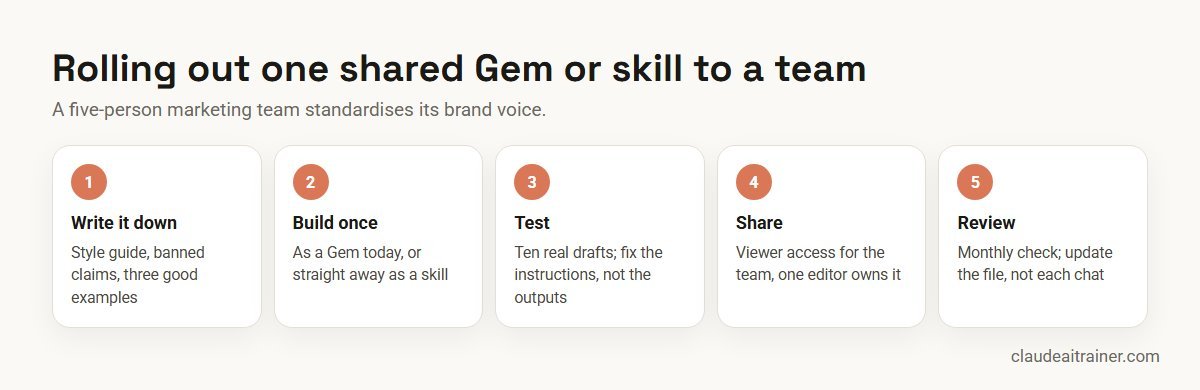
Worked example: a marketing team of five
A five-person marketing team at a B2B services company writes blog posts, LinkedIn updates and proposal sections. Drafts sound different depending on who wrote them, and approvals take two rounds.
- Week 1. The content lead writes a one-page style guide and picks three examples of good copy.
- Week 2. She builds the Brand voice editor template above and tests it on ten recent drafts, tightening the instructions twice.
- Week 3. The team gets Viewer access; she keeps Editor access. Everyone runs drafts through it before review.
- Week 4. Because the team is on a Workspace business plan, they also recreate it as a skill so they can use it alongside a second skill for proposal formatting, and so nothing is lost when Gems retire in 2027.
The result to measure is simple: how many drafts need a second round of edits, before and after.
Next step
Plan your move from Gems to skills
We help teams list the Gems they rely on, rebuild the important ones as skills, and agree who owns each one. Online or on-site.
Security and governance
- Use the right account. Work content belongs in a Workspace account your organisation manages, not a personal Google account. Google’s help notes that work and school users are subject to different terms, and Workspace editions differ in data protections.
- Shared Gems expose their contents. Google’s sharing page says anyone with access to a Gem can view its instructions and uploaded files. Do not put salary data, customer lists or credentials in a shared Gem.
- Public links. On personal accounts a Gem can be made public or shared with anyone who has the link. Check general access before you send a link.
- Admin controls. Workspace admins can turn Gem sharing on or off and control skills. Ask your admin which is enabled before rolling out a team Gem.
- Keep a copy. Store your instructions and files in Drive. That makes the move to skills, and audits, much easier.
Gems compared with Claude Projects and Claude Skills
Teams that use more than one assistant often ask how Gems map to Claude. The short version:
- Claude Projects are the closest match to a Gem: a workspace with instructions and reference files that a team can share. See our Claude Projects examples for ten ways teams use them.
- Claude Skills are the closest match to Gemini’s new skills. Both use the SKILL.md format, which Google describes as an open standard, so a well-written skill can move between the two with little change. Our guide on how to create Claude skills covers the format.
- Plugins and connectors bundle skills with access to your other tools. Our list of Claude skills, plugins and connectors covers what is available.
Neither is better for every team. If your company runs on Google Workspace, Gems and skills sit where your documents already are. If your work is long documents, analysis or code, Claude may suit some tasks better. Our comparison of Claude vs ChatGPT vs Gemini vs Copilot goes through the differences.
Sources
Checked October 2026: Google’s Use Gems in Gemini Apps, Get a quick start with premade Gems, Share a Gem from Gemini Apps and About the transition from Gems to skills; Google Workspace Admin Help, About the transition from Gems to skills; the Google Workspace Updates post of 30 September 2026; and Google’s blog, 5 tips on getting started with Gems.
Key takeaways
- Google lists five premade Gems: Brainstormer, Career guide, Coding partner, Learning coach and Writing editor
- The most useful Gems for teams are the ones you build on your own style guide, policies and examples
- Personal accounts: Gems become read-only on 17 November 2026 and are removed on 17 December 2026
- Workspace business accounts keep Gems until no sooner than 1 March 2027, then they migrate to draft skills
- Skills use the open SKILL.md format, which Claude also uses, so a well-written skill travels between tools
- Treat shared Gems like shared documents: anyone with access can read the instructions and files
FAQ
Gemini Gems: common questions
What are the best Gemini Gems for work?
Google’s five premade Gems (Writing editor, Brainstormer, Career guide, Coding partner and Learning coach) are a good start. For teams, Gems built on your own material, such as a brand voice editor or a policy Q&A Gem, are usually more useful.
Which premade Gems does Google offer?
Google lists Brainstormer, Career guide, Coding partner, Learning coach and Writing editor. Some of them can be copied and customised with your own instructions.
Are Gemini Gems going away?
Yes. Google is replacing Gems with skills. On personal accounts (18 and over) Gems become read-only on 17 November 2026 and are removed on 17 December 2026. Workspace business accounts keep them until no sooner than 1 March 2027.
Will my Gems be converted to skills automatically?
Google says it will recreate Gems as skills when Gems go away. On Workspace they arrive as draft skills that the creator must review and activate. Some file types, such as audio, video and archives, do not carry over.
Are Gems free to use?
Google’s Gems help page lists no paid-plan requirement: you need to be signed in, and 13 or over on a personal account. Work accounts need users aged 18 or over, and limits depend on your plan or Workspace edition.
Can I share a Gem with my team?
Yes, as Viewer or Editor. Anyone with access can see the Gem’s instructions and files. On work accounts, sharing follows your organisation’s Drive sharing settings.
Can a Gem use files from Google Drive?
Yes. You can add files from Drive as knowledge, and Google says the Gem uses the most recent version of each file. You need Keep Activity on and Workspace connected to Gemini.
Can I use Gems in Gmail or Google Docs?
Google’s Gemini Apps help says Gems you create appear in the Gemini side panel in Workspace. Google’s admin documentation says skills, not Gems, are the way forward inside Workspace apps.
What is the difference between a Gem and a skill?
A Gem is a separate version of Gemini you open for one job. A skill is a set of instructions you call inside any chat with a slash command, can combine with other skills, and is stored in the open SKILL.md format.
How many skills can I have in Gemini?
Google says you can create as many skills as you want, but only 100 can be active at a time, and each skill can hold up to 100 MB of files.
Is a Gem the same as a custom GPT or a Claude Project?
They are similar ideas: saved instructions plus reference files. Custom GPTs are also being retired in favour of plugins, and Claude Projects and Skills are Claude’s equivalents.
Should I build new Gems now?
On a personal account, build new ones as skills. On a Workspace account you can still use Gems until 2027, but keep the instructions in a document so moving to skills is quick.
Can you train our team on Gemini Gems and skills?
Yes. We run hands-on sessions where each person builds one Gem or skill on their own work, and we help teams plan the move from Gems to skills.
Trusted by
Teams we’ve trained
…and 200+ organisations, across 16+ countries.
What participants say
Real feedback from real sessions
Verified feedback collected from participants across corporate sessions — average rating 4.8/5.
“A very productive session for working professionals. A must-do.”
“The session was highly insightful and conducted in a very professional and interactive manner. Learnt about AI and excited to learn more!”
“Highly recommended! Hands-on and directly useful — from making PPTs and strategic plans to building KRAs.”
“I would recommend everyone to go through this session — it clarifies both what to expect from AI and where AI isn’t needed.”
“A nice interactive session with a lot of new insights and the power of AI. This will help me save time in routine activities.”
“A very good training session. AI can do wonders — we’ll implement it to create efficiency and save time.”
Explore more
Keep going with Claude AI training
Work with us
Help your team get more from Gems and skills
Tell us which assistant your team uses, the tasks people repeat every week and the documents they rely on. We will suggest a short, hands-on format, online or on-site (for example Gemini training in Bahrain or Claude Enterprise training), and send a fixed proposal, usually within one business day.