Blog · Claude Projects
Top 10 Claude Projects Examples for Business Teams (2026-27)
A Claude Project is a workspace with its own files, its own instructions and its own memory. Set one up well and every chat inside it starts already briefed. Set it up badly and it becomes a folder of forgotten uploads. This guide gives you ten project setups that business teams use, from a brand voice hub to a deal room, each with what to upload, instructions you can paste, the first prompts to run and who should be able to edit it.
Most people meet Claude Projects as a tidy place to group chats. That is the least useful thing about them. The real value is that a project carries knowledge (files Claude reads in every chat), instructions (how Claude should behave in every chat) and its own memory. Put the right material in those three places and a new colleague can open the project and get answers that sound like your team on day one.
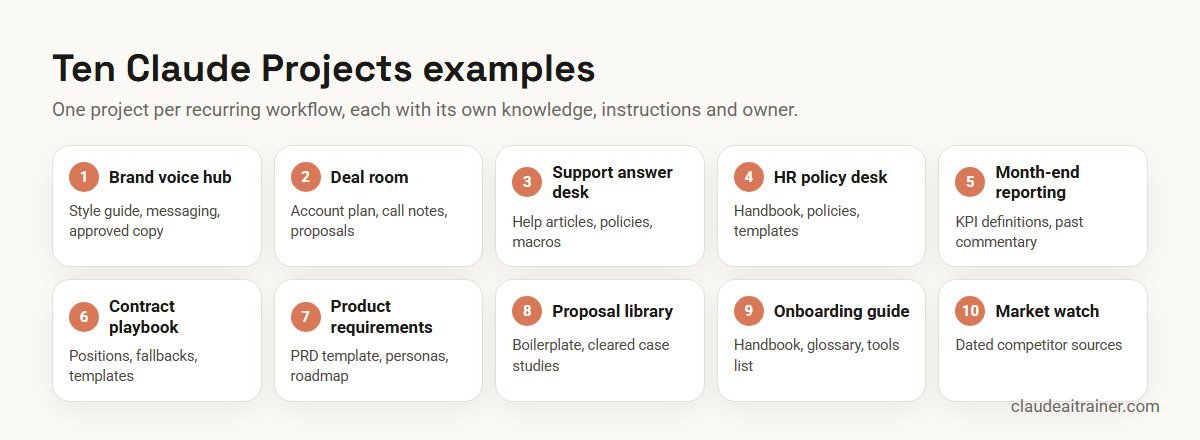
Below are ten project setups that work for business teams. They are written as recipes: what goes in, the instructions to paste, the first prompts to try, and who should be allowed to change it. Product details were checked on Anthropic’s help centre and documentation in October 2026. If you need a broader starting point, our list of Claude use cases for business picks one task per department; this article goes deeper on one feature. If you came here for the project management role rather than the Projects feature, see Claude for project managers; product teams will also want Claude for product managers.
Quick answer: ten Claude Projects examples
- Brand voice and content hub for marketing and communications.
- Key account deal room for one strategic customer.
- Customer support answer desk built on your help articles and policies.
- HR policy desk for the people team’s own questions.
- Month-end reporting project for finance commentary and packs.
- Contract playbook project for first-pass legal review.
- Product requirements workspace for PRDs, user stories and release notes.
- Proposal and RFP library for bid teams.
- New joiner onboarding guide for any team that hires.
- Competitor and market watch for strategy and product marketing.
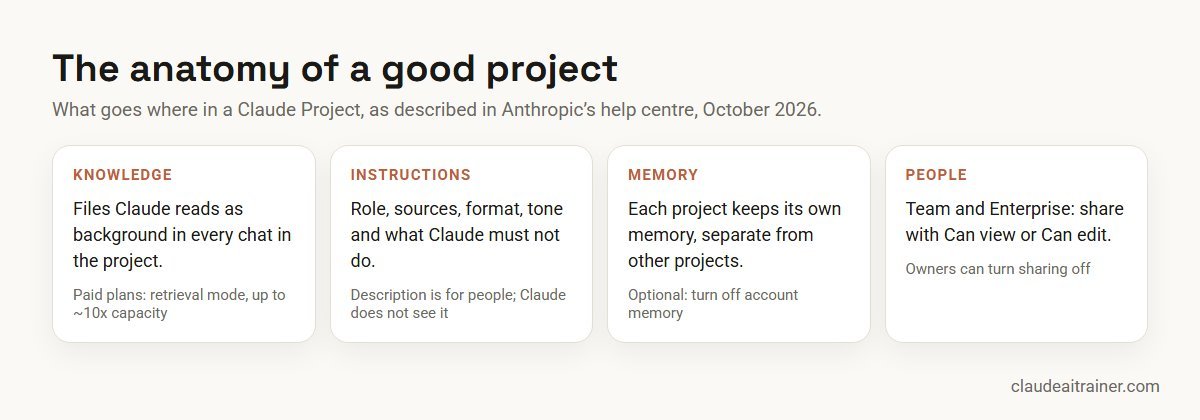
What a Claude Project gives you (checked October 2026)
- Project knowledge. You upload documents, text and code. Claude uses them as background in every chat in that project. Anthropic’s help centre notes that context carries across chats only if it is in the knowledge base, so a fact mentioned in one chat is not automatically known in the next.
- Project instructions. Standing guidance, such as a role, tone or output format, applied to every chat in the project. The project description is for people; Claude does not see it.
- Capacity. On paid plans (Pro, Max, Team and Enterprise), when knowledge approaches the context limit Claude switches to retrieval (RAG) mode, which Anthropic says expands capacity by up to 10 times.
- Plans. Projects are available on every plan, including Free, where you can create up to five.
- Sharing. On Team and Enterprise plans you can share a project with specific colleagues or the whole organisation, with two roles: Can view (read and chat) and Can edit (change instructions, knowledge and members). Owners can turn sharing off, and Enterprise owners can restrict it by role.
- Memory. Each project has its own memory, separate from other projects. You can stop a project drawing on your account-level memory with the “Use account memory” toggle on the project page. On Team and Enterprise, memory is off until the member turns it on, and owners decide whether it is available.
Two newer variants are worth knowing about. In Cowork, a project lives on your computer and holds local folders, instructions, links and memory; it cannot be shared, but it can link to a claude.ai project to draw on its knowledge. And Anthropic is rolling out a new version of projects to some Pro and Max users, starting with Claude Code, where a project runs work as parallel cloud threads. The examples below use standard claude.ai projects, which is what most teams share.
Comparison table
| Project | Team | Core knowledge | Share as | Main risk to manage |
|---|---|---|---|---|
| Brand voice hub | Marketing, comms | Style guide, messaging, approved copy | View for all writers; edit for brand lead | Unverified product claims |
| Deal room | Sales, account management | Account plan, call notes, proposals | Account team only | Customer confidential data |
| Support answer desk | Customer support | Help articles, policies, macros | View for agents; edit for knowledge lead | Out-of-date policy |
| HR policy desk | HR | Handbook, policies, FAQs | HR team only | Employee personal data |
| Month-end reporting | Finance | Prior commentary, KPI definitions, close calendar | Finance team | Numbers taken without checking |
| Contract playbook | Legal | Playbook, templates, fallback clauses | Legal team | Treating output as legal advice |
| Product requirements | Product, engineering | PRD template, personas, roadmap | Product squad | Stale roadmap assumptions |
| Proposal library | Bid, presales | Past winning bids, boilerplate, case studies | Bid team | Reusing client-specific content |
| Onboarding guide | Any hiring team | Team handbook, glossary, tools list | View for the whole team | Instructions drifting from reality |
| Market watch | Strategy, product marketing | Competitor notes, pricing pages, analyst summaries | Strategy team | Outdated competitor facts |
The ten projects in detail
1. Brand voice and content hub
What it does. Every writer in the company, not just the marketing team, gets drafts that already follow your tone, terminology and formatting rules.
Who it’s for. Marketing, communications, and anyone who writes customer-facing copy.
What to upload. Your style guide, messaging framework, three or four pieces of approved copy you are proud of, a list of banned phrases and the product fact sheet.
You are our brand editor. Write in the voice described in the style guide:
plain, confident, no hype words from the banned list. Use British spelling.
Only state product facts that appear in the fact sheet; mark anything
else with [CHECK]. When asked for copy, give two options and say which
audience each suits.
First prompts. “Rewrite this partner announcement in our voice.” “Turn this webinar transcript into a 600-word blog post and three LinkedIn posts.”
Sharing and limits. Share with Can view for everyone who writes and Can edit for the brand lead only, so the rules do not drift. A project is guidance, not enforcement; if you want the voice applied everywhere, package it as a skill (see our list of the best Claude skills, plugins and connectors). For ready-made marketing prompts to run inside this project, see our Claude prompts for marketing.
2. Key account deal room
What it does. One project per strategic customer, holding everything the account team knows, so call prep and proposals start from the full picture.
Who it’s for. Account executives, account managers and presales on a named account.
What to upload. The account plan, org chart notes, the last few call summaries, the current proposal, the signed contract summary and the customer’s public annual report.
This project covers one customer account. Before answering, check the
call notes and account plan. Always separate what the customer told us
from our assumptions. When preparing for a meeting, give: objectives,
stakeholders and what each cares about, open risks, and three questions
to ask. Never invent figures; say "not in the files" instead.
First prompts. “Prepare me for Thursday’s quarterly review with their CFO.” “What has the customer said about budget across the last four calls?”
Sharing and limits. Share only with the account team. Keep personal data about individual contacts to what your CRM policy allows. For live CRM data instead of uploaded notes, connect your CRM; see the best MCP servers for Claude.
3. Customer support answer desk
What it does. Agents ask a question in plain words and get the policy-correct answer with the source article named, plus a draft reply in your support tone.
Who it’s for. Support agents, team leads and the knowledge base owner.
What to upload. Your help centre articles (exported), refund and returns policies, escalation rules and the best reply macros.
You help support agents answer customers. Answer only from the uploaded
policies and articles, and name the article you used. If policies
conflict or nothing covers the case, say so and recommend escalation.
Draft replies in a warm, brief tone under 120 words. Never promise
refunds, credits or dates that a policy does not allow.
First prompts. “A customer in Singapore wants to return an opened item after 40 days. What does policy say?” “Draft a reply to this complaint and tell me which article it relies on.”
Sharing and limits. Can view for agents, Can edit for the knowledge lead. The main risk is stale policy: set a monthly date to replace the uploaded files. Agents still read and send every reply themselves.
4. HR policy desk
What it does. The HR team gets fast, consistent answers to policy questions and first drafts of letters and FAQs that match the handbook.
Who it’s for. HR business partners and HR operations. Start with the HR team itself before considering anything employee-facing.
What to upload. The employee handbook, leave, travel and expense policies, the job architecture, and approved letter templates.
You support our HR team. Answer from the uploaded policies and quote the
clause you relied on. Flag where local law or a manager's discretion
applies. Use neutral, inclusive language. Do not process or store
personal details about named employees; ask for anonymised scenarios.
First prompts. “Summarise how our leave policy treats carry-forward and encashment.” “Draft an FAQ for managers on the new hybrid-work policy.”
Sharing and limits. HR team only, with edit rights for the policy owner. Check your organisation’s data policy before any personal data goes into a chat. For hands-on help, see Claude for HR teams.
5. Month-end reporting project
What it does. Keeps the finance team’s KPI definitions, house style and last quarter’s commentary in one place, so each month’s management pack commentary is consistent.
Who it’s for. Financial controllers, FP&A analysts and the CFO’s office.
What to upload. KPI definitions, the close calendar, two previous months of approved commentary and the management pack template. Upload this month’s numbers in the chat, not as permanent knowledge.
You help write month-end management commentary. Use our KPI definitions
exactly. For every number you mention, state where it came from in the
files provided in this chat. Write in short paragraphs: what moved, why
(only if the files say so), and what to watch. Mark any cause you are
inferring as "to confirm".
First prompts. “Using this month’s P&L extract, draft the revenue and margin commentary in last month’s style.” “List the variances over 5% that the commentary must explain.”
Sharing and limits. Finance team only. For work inside the workbook itself, Claude for Excel is the better tool; see how to use Claude in Excel and Claude for finance teams.
For team leads
Want your team to build its first shared project together?
Projects pay off when the people who own the knowledge build them, on their own documents, in the same room. We run short hands-on sessions where each team leaves with a working, shared project and a short list of rules for keeping it current. If that would help, book a call.
6. Contract playbook project
What it does. Holds your standard positions so a first-pass review of an inbound contract compares it against your playbook, not generic advice.
Who it’s for. In-house legal and contract managers.
What to upload. The contract playbook (standard position, acceptable fallback, walk-away for each clause), your templates and a clause library.
You assist our legal team with first-pass contract review. Compare each
clause with the playbook and produce a table: clause, what the contract
says, our position, deviation, risk (high/medium/low), suggested
fallback. List clauses the playbook does not cover. Do not give a final
view on enforceability; a lawyer decides.
First prompts. “Review this supplier MSA against the playbook.” “Which liability caps in this NDA differ from our standard?”
Sharing and limits. Legal team only, with confidentiality rules your organisation has approved. A lawyer reviews every high and medium item. See Claude for legal teams.
7. Product requirements workspace
What it does. Product managers draft PRDs, user stories and release notes that match the team’s template and personas, with fewer rounds of “that’s not how we write it”.
Who it’s for. Product managers, designers and engineering leads in one squad.
What to upload. The PRD template, personas, the current roadmap summary, two good past PRDs and your definition of done.
You help our product squad write requirements. Use the PRD template
headings. Tie every requirement to a persona and a measurable outcome.
List assumptions and open questions separately. Write user stories as
"As a..., I want..., so that..." with acceptance criteria.
First prompts. “Turn these interview notes into a PRD draft for saved searches.” “Write release notes for customers from this changelog.”
Sharing and limits. Share with the squad. Replace the roadmap file whenever it changes, or Claude will reason from an old plan. Engineers who want Claude to work in the codebase itself should look at Claude Code use cases.
8. Proposal and RFP library
What it does. Answers RFP questions from your past winning responses and approved boilerplate, so bid writers start from proven text.
Who it’s for. Bid managers, presales and sales operations.
What to upload. Approved boilerplate (company overview, security, implementation), case studies cleared for reuse, and two or three anonymised winning bids.
You help answer RFP and proposal questions. Reuse approved boilerplate
where it fits, and say which source you used. Tailor to the buyer's
stated requirements. Never copy another client's name, figures or
confidential details into a new response. Flag questions that need a
subject expert.
First prompts. “Draft answers to questions 4.1 to 4.12 from this RFP.” “Build a compliance matrix from this tender document.”
Sharing and limits. Bid team only. Clear every case study for reuse before uploading. A finished proposal makes a good artifact; see Claude artifacts examples.
9. New joiner onboarding guide
What it does. A new colleague asks “how do we do X here?” and gets the team’s answer, with links, instead of interrupting someone.
Who it’s for. Any team that hires regularly.
What to upload. The team handbook, a glossary of acronyms, the tools list with what each is for, the first-30-days plan and key process documents.
You are an onboarding guide for new members of our team. Answer from the
uploaded handbook and process documents in simple language. If the
answer is not in the files, say so and suggest who to ask. End answers
with one related thing the new joiner should read next.
First prompts. “What happens in my first two weeks?” “Explain what these five acronyms mean in our team.”
Sharing and limits. Can view for the whole team. Ask each new joiner to report one wrong or missing answer; that is the cheapest way to keep it accurate.
10. Competitor and market watch
What it does. Keeps a running file on named competitors so battle cards, pricing comparisons and board updates draw on the same evidence.
Who it’s for. Strategy, product marketing and sales enablement.
What to upload. Competitor profiles, saved copies of pricing pages with the date captured, win/loss notes and analyst summaries you are licensed to use.
You maintain our competitor intelligence. Always give the date of the
source you used and say if it is older than 90 days. Separate facts
from interpretation. When building a battle card, include: where they
win, where we win, landmines to avoid and proof points we can cite.
First prompts. “Build a one-page battle card against Competitor A.” “What changed in their pricing since the last capture?”
Sharing and limits. Strategy team with edit rights; sales with view rights. For live web research, ask in a chat with web search on, then add the dated result to knowledge.
How to choose your first project
- A question people ask every week. The best projects answer repeated questions: “what’s our policy on”, “how do we usually write”, “what did the customer say about”.
- Documents that already exist. If the knowledge is not written down, write it down first; a project cannot fix missing documentation.
- One clear owner. Someone keeps the files current and edits the instructions.
- A narrow scope. One workflow per project. A single “Marketing” project with 200 files performs worse than a focused brand hub and a separate campaign project.
- The right plan. If several people need it, you need Team or Enterprise for sharing; see the best Claude plan for business.
Worked example: a support team builds its answer desk in one afternoon
A 25-person support team at a consumer electronics brand chooses project 3.
- Hour 1: gather. The knowledge lead exports 60 help articles, the returns and warranty policies and 15 top macros, and removes three articles that are out of date.
- Hour 2: instruct. The team writes instructions (adapted from the example above) and adds two rules from experience: always ask for the order number, and never quote delivery dates.
- Hour 3: test. Five agents each try ten real past tickets. Answers are marked right, partly right or wrong. Two policy conflicts come to light and go to the policy owner.
- Hour 4: share and set rules. The project is shared with Can view for agents and Can edit for the knowledge lead, with a first-Monday-of-the-month date to refresh the files.

After four weeks the team compares handle time and the number of escalations caused by wrong answers with the month before. If wrong answers trace back to the same files, the fix is in the knowledge, not the prompt.
Next step
Turn one of these ten into your team's project this month
Pick the project your team would use every week, and we will help you write the instructions, choose the files and agree who maintains it. Sessions run online or on-site for business teams of any size.
Security and governance
- Least privilege. Give Can edit to the owner, not to everyone. Editors can change instructions and add or remove members.
- Organisation controls. Team and Enterprise owners can switch off project sharing entirely, and Enterprise owners can limit it by role. Existing shares remain if sharing is switched off later, so review them.
- Keep confidential data where it belongs. Deal rooms, HR and legal projects should be shared narrowly. Use only business plans your company has approved for company data.
- Memory awareness. Projects have their own memory. If a project must stay separate from what Claude knows about you, turn off “Use account memory” for that project.
- Freshness. Most wrong answers come from outdated files. Put a review date in the project description, which colleagues see and Claude does not.
- Uploaded files are untrusted input. A document from outside the company can contain instructions aimed at Claude. Only add files you trust to shared knowledge.
Projects, artifacts, skills or Cowork?
Projects hold context. Artifacts are the outputs you share, such as a document, deck or small tool. Skills package a procedure Claude applies wherever it is relevant. Cowork does multi-step work on files and apps. Many teams use all four: a project for the account, a skill for the proposal format, an artifact for the final deck and Cowork for the weekly report. For a vendor-neutral view of the wider choice, see Claude vs ChatGPT vs Gemini vs Copilot.
Sources
Checked October 2026: Anthropic’s help articles What are projects?, How can I create and manage projects? and chat search and memory; the Cowork documentation on projects in Cowork; and Claude plans and pricing. Features and limits change, so confirm in your own account before rollout.
Key takeaways
- Build one project per recurring workflow, not one per department
- Project knowledge is the only context shared across chats, so put the reference material there
- Instructions are where quality comes from: role, sources, format and what Claude must not do
- Free plans allow up to five projects; paid plans add retrieval that expands capacity up to about ten times
- Sharing is a Team and Enterprise feature with Can view and Can edit roles, so give edit rights to the owner only
- Name a maintainer and a review date for every shared project
FAQ
Claude Projects examples: common questions
What is a Claude Project?
A Claude Project is a workspace that groups chats with shared knowledge (uploaded files Claude reads in every chat), project instructions (standing guidance for every chat) and its own memory. It keeps a recurring workflow briefed without re-uploading files each time.
What are good Claude Projects examples for business?
Strong examples include a brand voice hub, a key account deal room, a support answer desk, an HR policy desk, a month-end reporting project, a contract playbook, a product requirements workspace, a proposal library, an onboarding guide and a competitor watch.
Are Claude Projects free?
Yes. Projects are available on every plan, including Free, where you can create up to five projects. Paid plans add retrieval mode for large knowledge bases and, on Team and Enterprise, sharing.
How much can I upload to a Claude Project?
Anthropic does not publish a single file-count limit in its project articles. On paid plans, when knowledge approaches the context limit Claude switches to retrieval mode, which Anthropic says expands capacity by up to 10 times. Focused knowledge usually works better than a large archive.
Can I share a Claude Project with my team?
Yes, on Team and Enterprise plans. You can share with individuals or the whole organisation and give each person Can view or Can edit. Owners can switch sharing off, and Enterprise owners can restrict it by role.
What should go in project instructions?
The role Claude plays, which sources to rely on, the output format, the tone, and what Claude must not do, such as inventing figures or giving final legal opinions. Short, specific instructions work better than long general ones.
Does Claude remember things across chats in a project?
Files in project knowledge are available in every chat. Facts mentioned in one chat are not automatically known in another unless memory is on or you add them to knowledge. Each project has its own memory, separate from other projects. For how memory works across chats and projects, and how to keep a project sealed off, see our Claude memory guide.
What is the difference between a project and a skill?
A project holds context for one area of work. A skill packages a procedure, such as a report format or brand check, that Claude can apply wherever it is relevant. Use projects for reference material and skills for repeatable methods.
Are Cowork projects the same as claude.ai projects?
No. A Cowork project lives on your computer, holds local folders, instructions, links and memory, and cannot be shared. A claude.ai project lives in your account and can be shared on Team and Enterprise. You can link a claude.ai project into a Cowork project.
How many projects should a team create?
Start with one project per recurring workflow that several people need. One focused project that is kept current is worth more than ten that nobody maintains.
Is it safe to put confidential documents in a project?
Use a business plan your company has approved, share confidential projects narrowly, and follow your data policy for personal data. Treat files from outside the company as untrusted input.
Can our team learn to set up projects hands-on?
Yes. Our corporate sessions have each team build a shared project on its own documents, write the instructions and agree a maintenance routine, online or on-site.
Trusted by
Teams we’ve trained
…and 200+ organisations, across 16+ countries.
What participants say
Real feedback from real sessions
Verified feedback collected from participants across corporate sessions — average rating 4.8/5.
“A very productive session for working professionals. A must-do.”
“The session was highly insightful and conducted in a very professional and interactive manner. Learnt about AI and excited to learn more!”
“Highly recommended! Hands-on and directly useful — from making PPTs and strategic plans to building KRAs.”
“I would recommend everyone to go through this session — it clarifies both what to expect from AI and where AI isn’t needed.”
“A nice interactive session with a lot of new insights and the power of AI. This will help me save time in routine activities.”
“A very good training session. AI can do wonders — we’ll implement it to create efficiency and save time.”
Explore more
Keep going with Claude AI training
Work with us
Set up Claude Projects your team will actually use
Tell us which teams you want to start with, the documents they rely on and the questions they answer every week. We will suggest a short, hands-on format, online or on-site (for example Claude AI training in Bengaluru or Dubai), and send a fixed proposal, usually within one business day.