Blog · Claude artifacts
How to Use Claude Artifacts: Docs, Slides, Designs, Dashboards and Interactive Tools
Artifacts are the things Claude makes for you that are worth keeping: a document, a deck, a design, a dashboard or a small working tool. They changed a lot in September 2026, and most guides still describe the old version. This one explains how to use Claude artifacts today, from switching them on to editing, exporting and sharing them safely, with prompts and business examples you can try straight away.
Most of what people ask Claude for is not really a chat reply. It is a deliverable: a policy draft, a client deck, a pricing calculator, a process diagram. Artifacts are how Claude handles that kind of work. Instead of a long message you have to copy and reformat, you get a separate piece of work beside the conversation that you can edit, come back to and share.
What a Claude artifact is in 2026
Anthropic describes an artifact as substantial content Claude creates for you, such as a document, deck, design, dashboard or small interactive tool. Claude typically creates one when the content is substantial (often more than 15 lines), stands on its own without the conversation around it, and is something you are likely to edit, reuse or come back to. Anthropic’s list of typical artifacts includes documents, code snippets, single-page websites, images, diagrams and flowcharts, dashboards and small interactive tools.
The big change came on 16 September 2026. Anthropic introduced Claude Docs, Claude Slides and Claude Design as artifact templates that you can request in any conversation. Artifacts made in a chat before that date are now labelled legacy. They still work and can still be published or shared, but new ones are created the new way. If a tutorial you are reading talks only about a code view and a public Publish button, it is describing legacy artifacts.
Which plans include artifacts
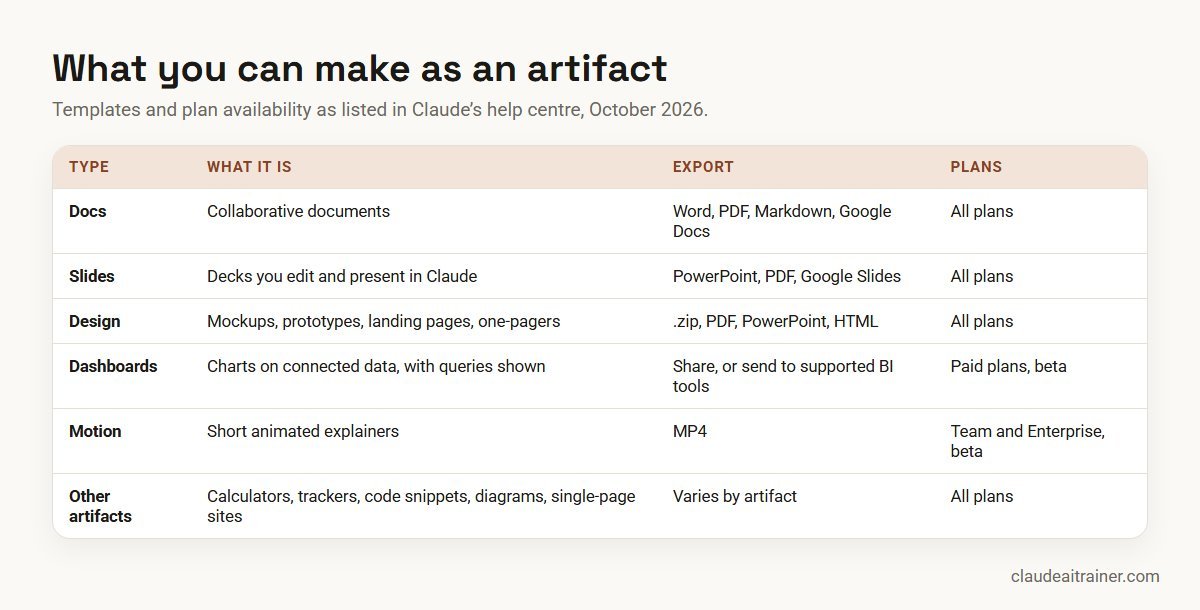
Artifacts are available on every plan, including Free, and in Claude Code on any plan that includes it. The templates vary:
- Docs, Slides and Design: all plans. On Enterprise they switch on by default from 15 October 2026, except in HIPAA-enabled organisations, and owners can enable them sooner.
- Dashboards (beta): paid plans. Off by default on Enterprise until an owner enables it.
- Motion (beta): Team and Enterprise. On by default for Team, off by default for Enterprise.
Features such as connecting apps and storing data are limited to Pro, Max, Team and Enterprise, on the web and desktop apps. On the iOS and Android apps you can ask for an artifact, view it and edit it, but sharing changes need the web or desktop app. Our overview of the Claude apps explains the differences between them.
Step 1: turn artifacts on
Artifacts depend on the code execution and file creation capability. On Free, Pro and Max, check it under Settings › Capabilities. On Team and Enterprise, an owner manages it under Organization settings › Capabilities, and the individual templates under Organization settings › Artifacts. If artifacts are not appearing at all, this setting is the first thing to check.
Step 2: ask for one, or start from a template
There are three ways in:
- Just ask. In any conversation, describe what you want. “Turn these meeting notes into a one-page project brief” is enough for Claude to create a document.
- Pick a template. Select Output in the message box and choose a template such as Docs, Slides or Design.
- Use the Artifacts tab. Open Artifacts in the sidebar, where everything you have made is saved, and start from there.
For Motion, Anthropic suggests typing /motion in the message box.
Write a brief, not a wish
The quality of an artifact depends on the brief. Say who it is for, what it must include, what it should look like, and what Claude should not invent. Our guide on how to prompt Claude goes deeper; here is the shape that works for artifacts.
Create a one-page document for new sales hires called "Your first two weeks".
Audience: graduates joining our inside sales team.
Include: a day-by-day plan, the five systems they need access to, who to ask
for what, and a short glossary of our sales terms (I have pasted them below).
Tone: friendly and plain. Use headings and short lists. Do not invent names
or policies that are not in my notes.

[paste notes and glossary]
Make an 8-slide deck for our quarterly operations review from the attached
summary. Slide 1: three headline numbers. Slides 2 to 6: one topic each,
a chart where it helps, and no more than four bullet points. Slide 7: risks.
Slide 8: decisions we need from leadership. Use only figures from the file.
Step 3: edit until it is right
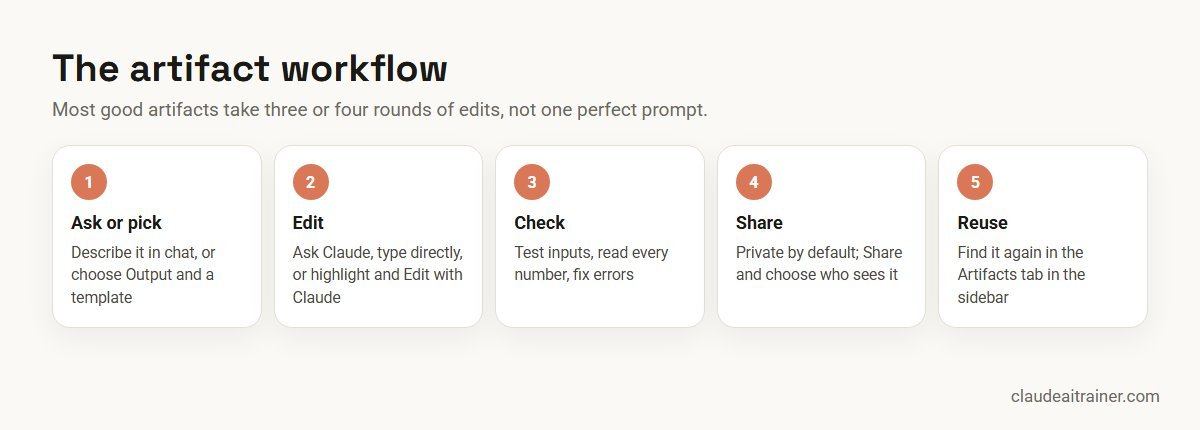
You have three ways to change an artifact:
- Ask Claude in the conversation: “Make slide 4 a bar chart and move the risks slide before the summary.”
- Edit directly in template artifacts: type into a doc, change text on a slide, or move elements around on a design canvas.
- Edit with Claude: in a doc or Markdown document, highlight a passage, click Edit with Claude and describe the change. This is the fastest way to rewrite one paragraph without touching the rest.
One thing to know about versions: if you go back and edit an earlier message in the chat, Claude creates a separate branch of the conversation with its own artifacts. That is handy for trying an alternative, but it can confuse people who expect a single document history. Name your artifacts clearly and tell colleagues which branch is final.
When something breaks
Interactive artifacts sometimes show an error. Click Try fixing with Claude next to the message; it copies the error details into a new message so Claude can diagnose it. Anthropic notes it will not always work, so if the same error returns twice, describe what you expected to happen in your own words.
For teams using Claude
Want your team building artifacts people actually reuse?
The difference between a throwaway artifact and one a whole department relies on is mostly in the brief, the checking and the sharing settings. In our team sessions, people build artifacts from their own work and agree simple rules for what gets shared. If you would like to talk through your team’s use, we are happy to help.
Step 4: export what you need
Template artifacts can leave Claude in standard formats:
| Artifact | Export options |
|---|---|
| Docs | Word, PDF, Markdown or Google Docs |
| Slides | PowerPoint, PDF or Google Slides |
| Design | .zip, PDF, PowerPoint or HTML |
| Motion | MP4 |
| Legacy artifacts | View as code, copy or download |
Exporting is often the right choice for anything that must live in your company’s own systems, such as a signed-off policy or a board deck. Keep the artifact in Claude as the working copy and treat the export as the record.
Step 5: share it with the right people
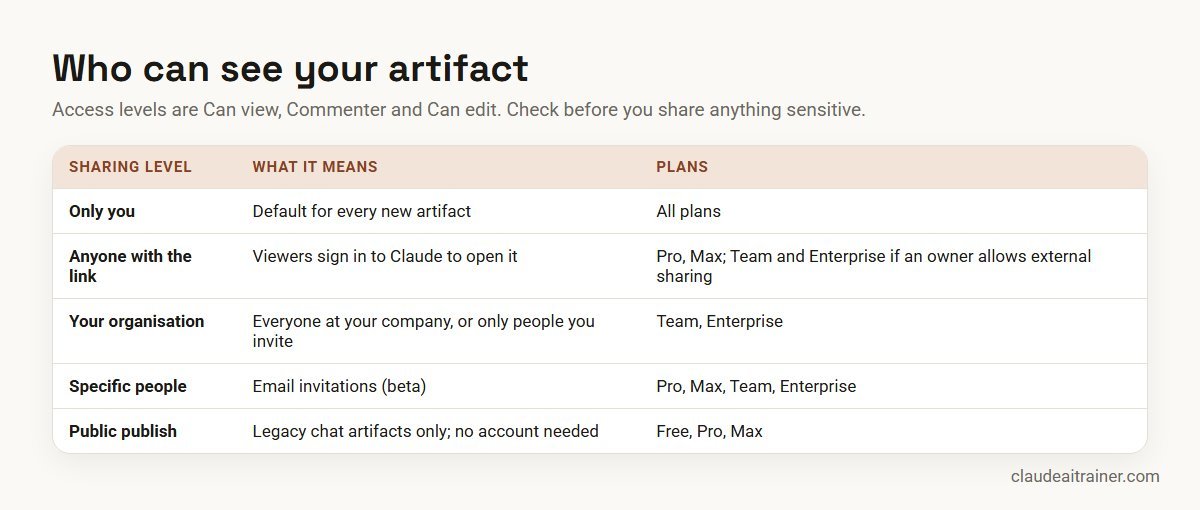
Every artifact starts private. To share a new artifact, open it, click Share, choose who can see it and copy the link. The options depend on your plan:
- Pro and Max: “Only you” or “Anyone with the link”. Viewers need to sign in to Claude.
- Team and Enterprise: “Anyone at” your organisation, or “Only people invited”. Enterprise can also share with groups. Sharing outside the company needs an owner to turn on External sharing, or to allow it for that one artifact.
- Email invitations (beta): on Pro, Max, Team and Enterprise you can invite specific people, who must sign in with the invited address.
Access levels are Can view, Commenter and Can edit, though some artifacts offer only view or edit. To stop sharing, switch back to “Only you” (Pro and Max) or “Only people invited” (Team and Enterprise).
Legacy chat artifacts work differently. On Free, Pro and Max they have a Publish button that creates a public link anyone can open without a Claude account, and a Get embed code option for placing them on another website. Unpublish removes public access, cannot be undone for that artifact, and permanently deletes any data it stored. On Team and Enterprise, legacy artifacts use Share & copy link, which also shares the chat’s attachments, so check what was in the conversation first.
If you want to build on someone else’s published legacy artifact, Anthropic’s current advice is to copy its code into a new chat and ask for changes, and to do this only with artifacts from trusted sources.
Interactive artifacts: tools that store data or use Claude
The most useful artifacts for teams are often small tools rather than documents. Three capabilities make them practical:
- Artifacts that use Claude. An artifact can call Claude itself, for example a tool that drafts a reply from a few inputs. People who use it sign in with their own Claude accounts and the usage counts against their plan, not yours. No API key is needed.
- Connected apps. On Pro, Max, Team and Enterprise (web and desktop), artifacts can use your connected apps and custom connectors. You approve which apps and tools an artifact uses, and every user connects their own. Connector tools that need approval for each action are not available inside artifacts. Our guide to connecting Claude to Google Drive, Gmail, Microsoft 365 and Slack covers how connectors are set up.
- Stored data. Artifacts can keep data between sessions, either private to each user or shared with everyone who opens it. The limit is 20 MB per artifact, text only.
Before anyone types sensitive information into a tool, check whether it uses shared storage. Anything in shared storage is visible to every user of that artifact.
A worked example: a discount approval calculator
Imagine a sales operations manager whose team keeps emailing to ask who needs to approve a discount. The rules sit in a PDF nobody reads. Here is how she turns them into an artifact in about twenty minutes.
1. Brief Claude with the actual rules.
Build a simple interactive calculator for our sales team.
Inputs: list price, proposed discount %, contract length in months,
and whether the customer is new or existing.
Show: net price, discount amount, and who must approve, using these rules:
- up to 10%: account manager
- 10 to 20%: regional sales head
- over 20%, or any discount on a contract under 12 months: sales director
Show the rule that was applied in plain English under the result.
Clean layout, our colours are navy and orange. No other rules.
2. Test it with known cases. She tries 8%, 15% and 25% discounts, a 6-month contract, and a 20% boundary case. The 20% case shows the wrong approver, because the brief said “10 to 20%” and “over 20%” without saying which side 20% falls on.
3. Fix the ambiguity, not just the output.
Exactly 20% should go to the regional sales head. Exactly 10% should go to
the account manager. Add a small table under the calculator listing the
rules, so people can see the logic.
4. Share it inside the company only. On a Team plan she clicks Share, picks the option for everyone at the organisation with Can view access, and posts the link in the sales channel. The tool stores nothing and calls no outside apps, so there is no data to worry about.
5. Keep it maintained. When the policy changes next quarter, she edits the same artifact rather than making a new one, so the link people have bookmarked keeps working.
The lesson generalises: most artifact problems are brief problems. Testing boundary cases is the quickest way to find them.
More business examples to try
For ten fuller builds with briefs, plans and sharing settings, see our list of Claude artifacts examples.
- Finance: a loan EMI or payback calculator with labelled assumptions; a one-page month-end checklist your team ticks off. If your work is mostly in spreadsheets, our guide on how to use Claude in Excel covers the add-in.
- HR: an onboarding guide for a role, or a leave policy explainer with a simple “how many days do I have left” tool that uses personal, not shared, storage.
- Sales and marketing: a campaign one-pager in Design, or a QBR deck in Slides from an exported pipeline report.
- Operations: a flowchart of an approval process, or a dashboard of weekly volumes if your organisation has Dashboards and a data connection.
- Leadership: a short Motion explainer of quarterly results for an all-hands meeting, on Team or Enterprise plans.
If you build the same kind of artifact every week, consider putting your house style and structure into a Skill so every new one starts in the right shape. Our guide on how to create Claude Skills shows how.
Notes for Team and Enterprise admins
Admin controls sit in Organization settings › Artifacts. From there owners can switch templates on or off (turning one off does not affect artifacts already made from it), control External sharing, manage email invitations to people outside the organisation, and set up shared design systems. Turning External sharing off also breaks existing outside links until it is turned back on. Connected apps in artifacts are controlled separately under Capabilities and are all or nothing for the organisation. Anthropic also notes that Docs, Slides, Design, Dashboards and Motion are not covered by the BAA in HIPAA-ready configurations. For the wider picture, see our guide to rolling out Claude across an enterprise.
Limits and troubleshooting
- No artifact appears. Check the code execution and file creation capability, then ask explicitly: “Create this as a document”. Short answers stay in the chat by design.
- A template is missing. Your plan may not include it, or an Enterprise owner has not enabled it yet.
- Colleagues cannot open your link. They need a Claude account, and on Team and Enterprise outside sharing may be switched off.
- Link sharing is not offered. Anthropic’s admin guide notes that on Team and Enterprise, artifacts that use connected apps or ask Claude questions cannot be shared with “Anyone with the link”.
- You cannot change sharing on your phone. Sharing settings need the web or desktop app.
- A tool stopped saving data. Legacy artifacts must be published for storage to work, and unpublishing deletes stored data permanently.
- Numbers look wrong. Artifacts are only as accurate as their inputs and logic. Test known cases before you share anything people will rely on.
Key takeaways
- Artifacts are substantial, self-contained outputs that open beside the chat and are saved in the Artifacts tab
- They need the code execution and file creation capability turned on
- Docs, Slides and Design are on every plan; Dashboards and Motion are in beta on selected plans
- Edit by asking Claude, typing directly, or highlighting text and choosing Edit with Claude
- Artifacts start private; choose Share and pick the narrowest audience that works
- Anything that stores data or calls Claude needs extra care before you share it
FAQ
Claude artifacts: common questions
What are Claude artifacts?
Artifacts are substantial pieces of work Claude creates for you, such as documents, decks, designs, dashboards and small interactive tools. They open beside the conversation, can be edited and shared, and are saved in the Artifacts tab in the sidebar.
How do I turn on artifacts in Claude?
Artifacts need the code execution and file creation capability. On Free, Pro and Max, check it in Settings, Capabilities. On Team and Enterprise, an owner manages it in Organization settings, Capabilities, and the individual templates in Organization settings, Artifacts.
Are Claude artifacts free?
Yes, artifacts are available on every plan, including Free, and Docs, Slides and Design templates are included on all plans. Dashboards is a beta on paid plans, Motion is a beta on Team and Enterprise, and connected apps and data storage need Pro, Max, Team or Enterprise.
How do I share a Claude artifact?
Open the artifact, click Share, choose who can see it and copy the link. Pro and Max can share with anyone who has the link; Team and Enterprise share inside the organisation unless an owner enables external sharing. Legacy chat artifacts on Free, Pro and Max use Publish instead.
Can people without a Claude account see my artifact?
Viewers generally need a Claude account. The exception is a published legacy chat artifact on Free, Pro or Max, which anyone with the public link can open.
What is a legacy artifact?
A legacy artifact is one made in a chat before 16 September 2026. Legacy artifacts keep working and can still be published or shared, but new artifacts are created with the current system and templates.
Can I edit an artifact myself instead of asking Claude?
Yes. In template artifacts you can type into a doc, edit slides or move elements on a design canvas, and in docs and Markdown documents you can highlight text and choose Edit with Claude to change just that passage.
Who pays when other people use an artifact that calls Claude?
Each person signs in with their own Claude account and the usage counts against their own plan, not the creator’s. No API key is needed.
Trusted by
Teams we’ve trained
…and 200+ organisations, across 16+ countries.
What participants say
Real feedback from real sessions
Verified feedback collected from participants across corporate sessions — average rating 4.8/5.
“A very productive session for working professionals. A must-do.”
“The session was highly insightful and conducted in a very professional and interactive manner. Learnt about AI and excited to learn more!”
“Highly recommended! Hands-on and directly useful — from making PPTs and strategic plans to building KRAs.”
“I would recommend everyone to go through this session — it clarifies both what to expect from AI and where AI isn’t needed.”
“A nice interactive session with a lot of new insights and the power of AI. This will help me save time in routine activities.”
“A very good training session. AI can do wonders — we’ll implement it to create efficiency and save time.”
Explore more
Keep going with Claude AI training
Work with us
Help your team turn Claude conversations into useful deliverables
Tell us which teams use Claude, what they produce each week and which plan you are on. We will suggest a short, hands-on format built around their real documents, decks and tools, and send a fixed proposal, usually within one business day.