Blog · Claude for Excel
How to Use Claude in Excel: Setup, Prompts and a Review Routine for Finance and Ops Teams
Claude can now sit inside your workbook, read every tab, explain where a number comes from and make changes with your approval. This guide covers how to use Claude in Excel from installation to sign-off: which plans and Excel versions work, prompts for the jobs finance and operations teams actually do, a worked month-end example, the limits worth knowing and a review routine that keeps errors out of the files you send.
If you spend your day in spreadsheets, the most useful place for an AI assistant is not a separate browser tab. It is next to the cells. Anthropic’s Claude for Excel add-in does exactly that: it opens as a sidebar in Excel, reads the workbook you have open and can explain, edit and build inside it. Below is a practical walkthrough for analysts, controllers, FP&A teams and operations managers who want to use it well and safely. For analysis methods that go beyond one workbook, from CSV files to warehouse queries, see Claude for data analysis.
What Claude for Excel actually does
According to Anthropic’s documentation, the add-in lets you:
- Ask questions about a workbook and get answers with cell-level citations you can click to jump to the referenced cell.
- Change assumptions while keeping formula relationships intact, so dependent cells recalculate as they should.
- Find and fix errors such as #REF! or #DIV/0!, including their root cause.
- Build new models or fill existing templates from a plain-language description.
- Work across multi-tab workbooks, not just the active sheet.
- Run native Excel operations: sorting, filtering, editing pivot tables, conditional formatting and data validation dropdowns.
- Pull in outside context through connectors, and apply Skills you have enabled in Claude.
The point that matters most for finance work is the citations. When Claude says gross margin falls because of a change in freight costs, it points to the cells it read. You can check its reasoning in seconds instead of taking it on trust.
Before you start: plans and Excel versions
Claude for Excel is generally available on the Pro, Max, Team and Enterprise plans. It is not part of the Free plan. Use counts against the same usage limits as the rest of your Claude account.
The add-in runs on:
- Excel on the web
- Excel on Windows with a Microsoft 365 subscription (build 16.0.13127.20296 or later)
- Excel on Mac, version 16.46 or later
It does not run on Excel 2016 or 2019 perpetual or volume licences, Excel on iPad, Excel on Android, or older Microsoft 365 builds. If a colleague cannot find the add-in, an older perpetual licence is the usual reason.
How to install Claude in Excel

Install it yourself
- Open the Claude for Microsoft 365 listing on Microsoft AppSource.
- Select Get it now.
- Open Excel and activate the add-in: Home › Add-ins on Windows, or Tools › Add-ins on Mac.
- Sign in with your Claude account.
Deploy it for the whole organisation
Admins can push the add-in to everyone, or to chosen groups, from the Microsoft 365 Admin Center. Anthropic’s steps are: make sure Let users access the Office Store is on (Settings, Org Settings, User owned apps and services), go to Settings › Integrated apps › Add-ins, search AppSource for “Claude for Microsoft 365”, then assign it. Where Office Store access is switched off, Anthropic provides a custom manifest file instead. One known snag: admin roles activated through Microsoft Entra Privileged Identity Management are not recognised on the Integrated apps page, so deploy from an account where the role is permanently active.
Organisations that route AI traffic through Amazon Bedrock, Google Cloud Vertex AI or Azure AI Foundry can also deploy the add-in without individual Claude accounts, though some features such as connectors and Skills may not be available that way. If you are planning a wider rollout, our guide on rolling out Claude across an enterprise covers the governance side.
Set your house rules once
Open Settings in the sidebar and use the Instructions field for preferences that should apply to every Excel conversation: number formats, currency, how you label assumptions, whether headers are bold. These instructions apply only in Excel; Word and PowerPoint keep their own.
Format currency as INR with thousand separators and no decimals unless asked.
Put every hard-coded assumption on the Inputs tab, shaded light yellow.
Never overwrite a formula with a hard-coded value without asking first.
When you explain a number, cite every cell you used.
Use SUMIFS and XLOOKUP rather than array formulas or INDIRECT.
How to use Claude in Excel: the six jobs it does best
The examples below use prompts we have found reliable. Notice that each one names a sheet, a cell or a range. Specific prompts get specific answers; “check my model” gets a vague tour. Consultants building market sizing models will find a step-by-step routine in Claude for consultants.
1. Understand a workbook you did not build
Inherited files are where the add-in earns its keep. Ask for a map first, then drill in.
Give me a map of this workbook: what each tab does, which tabs feed which,
and where the hard-coded inputs live. Then list any formulas that refer to
external files or to ranges that look out of date. Cite the cells.
2. Trace a number back to its source
Walk me through how the EBITDA figure in Summary!H24 is calculated,
step by step, back to the raw data. Flag any step that uses a
hard-coded number instead of a reference.
3. Fix errors at the root
Claude looks for the cause, not just the cell that shows the error. A #N/A in a summary tab is often a missing code in a mapping table three tabs away.
Find the source of the #N/A errors in the Summary tab. Tell me the root
cause before you change anything, and suggest the smallest fix.
4. Change assumptions and see the effect
Because Claude edits values while preserving formula links, scenario questions are quick. Ask for the before and after side by side so you can sanity-check the direction and size of the change.
Change the INR/USD rate on the Inputs tab from 84 to 88 and show me the
before and after for revenue, gross margin and cash at year end in a small
table on a new tab called Scenario_FX. Do not change anything else.
5. Build or fill a model
Claude can populate a template you already use or create a new structure from a description. Give it the layout rules up front, or it will invent its own.
Build a 12-month cash flow forecast on a new tab. Inputs (opening cash,
monthly sales growth, debtor days, creditor days, fixed costs) go at the top,
clearly labelled. Calculations below, months across the columns. No
hard-coded numbers inside formulas.
6. Tidy, sort and format
Sorting, filtering, pivot table edits, conditional formatting and dropdown lists can all be requested in plain English. It is a small thing, but it saves a lot of clicking in month-end packs.
For finance and operations teams
Getting a whole team comfortable with Claude in Excel?
The add-in takes minutes to install. The habits take longer: asking precise questions, checking citations and knowing when not to trust an answer. Our sessions for finance and MIS teams practise those habits on the reports people already maintain. If it would help to talk through your team’s setup, we are glad to.
A worked example: a monthly cost variance pack
Here is how an operations finance analyst might use Claude in Excel to prepare a monthly cost review. The workbook has four tabs: Actuals (a ledger export), Budget, Mapping (cost centres to departments) and Summary. For ten more templates, from accruals to a 13-week cash forecast, see our Claude prompts for finance.
Step 1: start from a copy. Save this month’s file as a new version before asking Claude to edit anything. Anthropic’s own best practice is to start from a trusted copy before asking for wide changes.
Step 2: ask for orientation.
Before we change anything: summarise how Summary pulls from Actuals,
Budget and Mapping, and list anything that looks fragile, such as
whole-column references, hard-coded totals or unmapped cost centres.
Claude replies with a short description of the flow, citing the lookup in the Summary tab and noting that three cost centres in Actuals do not appear in Mapping.
Step 3: fix the cause, not the symptom. Ask Claude to list the unmapped cost centres on a new tab instead of hiding the errors. You decide which department each belongs to, add them to Mapping, and the #N/A cells resolve on their own.
Step 4: add the variance columns.
In Summary, add columns for Budget, Actual, Variance and Variance % for
each department, using SUMIFS on Actuals and Budget. Highlight variances
above 10% and more than INR 50,000 in light red. Keep the existing totals row.
Step 5: ask for commentary, with sources.
Write five bullet points of commentary on the largest variances for the
operations head. Plain English, one line each, and cite the cells behind
every number you mention.
Step 6: review. Click two or three citations to confirm Claude read the right rows. Check that the Summary totals still equal the ledger export total. Recalculate one department by hand. Only then does the file go to your manager.
The analyst still makes the judgement calls: which department owns an unmapped cost centre, whether a 12% overspend matters this month, what goes in the commentary. Claude removes the mechanical work around those calls.
The alternative: upload a spreadsheet to a Claude chat
You do not need the add-in for every spreadsheet task. With the code execution and file creation capability turned on (Settings › Capabilities on individual plans, Organization settings › Capabilities for Team and Enterprise), you can upload a CSV or Excel file to an ordinary Claude conversation. Claude can then analyse the data, chart it, and produce a new .xlsx file with working formulas, formatting and charts for you to download. It can also pull tables out of a PDF into a spreadsheet. This works on all plans, including Free, with a limit of 30 MB per file, and file creation uses more of your usage allowance than plain chat.

A good rule of thumb: if the workbook is a living model that other people depend on, work in it with the add-in so changes stay traceable and formulas stay connected. If you just want to understand an export, compare two files or create a fresh summary, a chat upload is faster. For work that spans a folder of files, Claude’s Cowork capabilities are worth a look; our Cowork guide explains how.
Working across Excel, PowerPoint, Word and Outlook
If you install the other Claude for Microsoft 365 add-ins as well, Claude can read from one open file and write to another in the same conversation: numbers from your Excel model into a PowerPoint slide, or a Word memo drafted from a workbook. Each add-in has a Let Claude work across files setting. Anthropic notes it is on by default for Pro and Max and off by default for Team and Enterprise, where owners also control it at organisation level. Claude only works with files that are already open; it cannot open or switch files by itself. For ten worked examples on the other side of that link, see Claude for PowerPoint use cases and Claude for Word use cases.
Connectors extend this further. In the sidebar, click + below the chat input and choose Connectors. Anthropic lists financial data sources such as S&P Global, LSEG and Daloopa, plus any custom connectors your organisation has enabled. Our guide to connecting Claude to Google Drive, Gmail, Microsoft 365 and Slack explains how connectors work in general. Skills you have enabled also apply in the add-in; type / in the sidebar to see the ones relevant to Excel. If your team has a standard way of building models, packaging it as a Skill is worth the effort, and our guide on how to create Claude Skills shows how.
Limits worth knowing before you rely on it
- Not supported: macros and VBA, and Excel data tables.
- Big workbooks slow down. Anthropic’s performance guidance says files under about one million used cells across all sheets work well, one to five million is higher risk, and above five million is at your own risk. Claude reads up to 2,000 cells with data per read, so large sheets take several steps.
- Heavy steps can time out. If Claude reports a timeout, Excel may still be working. Wait, save, then ask for a smaller step. Do not click around or start a data refresh while Claude is mid-task.
- Chat history lives in your browser. Conversations are stored locally, are not synced across devices and can be cleared from Settings. Do not expect to pick up yesterday’s thread on another laptop.
- Not every model appears. The add-in offers a curated subset of Claude models, filtered by your organisation’s model access settings. Our guide to choosing the right Claude model helps if you do get a choice.
- Governance differs from Claude.ai. The add-in does not inherit custom data retention settings, and its activity is not included in Enterprise audit logs, although Enterprise organisations using the Compliance API get add-in sessions there.
Anthropic is also clear that the add-in is not recommended for final client deliverables without human review, audit-critical calculations without verification, or highly sensitive regulated data without proper controls.
Speed tips from Anthropic’s guidance
- Name the sheet and range in your prompt, or copy the sheets you need into a new workbook.
- Close workbooks you are not using; all workbooks in one Excel instance share one process.
- For large formula changes, set calculation to Manual (Formulas › Calculation Options), let Claude make the changes, press F9, ask Claude to verify, then switch back to Automatic.
- Ask for SUMIFS, COUNTIFS and direct references rather than array formulas, OFFSET or INDIRECT.
Security: only use trusted spreadsheets
Spreadsheets from outside your organisation, such as vendor templates or downloaded data, can hide instructions meant to manipulate an AI assistant. Anthropic warns that in testing, Claude for Excel could be manipulated into extracting information, changing data or taking destructive actions when allowed to act without checks. Claude asks you to confirm risky operations and warns before overwriting existing data. Read those confirmations properly, especially on files you did not create.
A review routine before anything leaves your desk
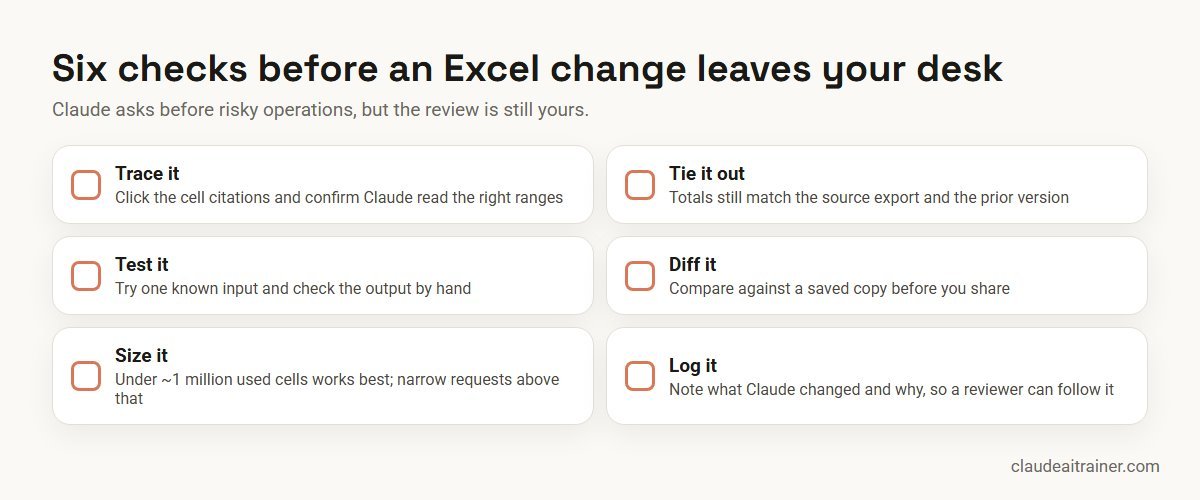
| Check | How to do it |
|---|---|
| Citations | Click at least two cited cells per answer and confirm they are the rows you expected. |
| Control totals | Totals still agree to the source export and to last month’s closing figures. |
| Known-answer test | Recalculate one line by hand or with a simple input you can verify. |
| Formula hygiene | No new hard-coded numbers in formulas; assumptions stay on the inputs tab. |
| Change log | Ask Claude to list every cell it changed in this session, and keep that list with the file. |
That last prompt is worth memorising:
List every cell, range and tab you changed in this conversation, what it
was before, what it is now and why. Put it in a table I can paste into
our review notes.
Troubleshooting
- The add-in is missing. Check your Excel version and licence type, then look under Home › Add-ins (Windows) or Tools › Add-ins (Mac). In a managed company, ask IT whether Office Store access is blocked.
- Sign-in works but nothing happens. Confirm you are on a paid Claude plan and that your organisation allows the add-in.
- Claude cannot see another open file. Activate the add-in in that app too and turn on Let Claude work across files.
- Excel freezes or closes. Reopen the file and use Document Recovery, then start a new chat with a smaller request. If it keeps happening, use More options › Download Transcript in the Claude pane and send it to IT with the time of the problem.
- Answers feel generic. Name cells and tabs, say who the output is for, and ask for citations. Our guide on how to prompt Claude covers the habits that help most.
Key takeaways
- Claude for Excel needs a Pro, Max, Team or Enterprise plan and a supported Excel build on Windows, Mac or the web
- Install from Microsoft AppSource, or ask your admin to deploy it from the Microsoft 365 Admin Center
- Ask about specific cells and ranges, and click the citations to see what Claude read
- Work on a trusted copy, change one thing at a time and approve risky operations carefully
- Macros, VBA and data tables are not supported, and very large workbooks need narrower requests
- For quick analysis of an exported file, uploading it to a Claude chat is a good alternative
FAQ
Claude in Excel: common questions
Is Claude for Excel free?
No. Anthropic lists Claude for Excel as available on the Pro, Max, Team and Enterprise plans, and its use counts against your normal Claude usage limits. On the Free plan you can still upload a spreadsheet to a Claude chat for analysis.
How do I install Claude in Excel?
Open the Claude for Microsoft 365 listing on Microsoft AppSource, select Get it now, then open Excel, activate the add-in from Home, Add-ins on Windows or Tools, Add-ins on Mac, and sign in with your Claude account. Admins can deploy it to users from the Microsoft 365 Admin Center.
Which versions of Excel does Claude support?
Excel on the web, Excel on Windows with a Microsoft 365 subscription (build 16.0.13127.20296 or later) and Excel on Mac version 16.46 or later. Excel 2016 and 2019 perpetual licences, Excel on iPad and Excel on Android are not supported.
Can Claude in Excel run macros or VBA?
No. Anthropic lists macros, VBA operations and Excel data tables as unsupported capabilities. Claude can still read and edit formulas, values, formatting, pivot tables, charts and data validation.
Does Claude change my spreadsheet without asking?
Claude makes the edits you request, warns before overwriting existing data and asks you to confirm risky operations. You should still work on a copy, review each change and ask Claude for a list of every cell it changed.
Where is my Claude for Excel chat history stored?
Locally in your browser storage on that device. Conversations are not stored on Anthropic’s servers as chat history, are not synced across devices and can be cleared from the add-in’s Settings.
Should I use the Excel add-in or upload my file to Claude?
Use the add-in for live workbooks where formulas must stay connected and changes need to be traceable. Upload to a Claude chat for one-off analysis, charts or creating a new spreadsheet from a CSV or PDF table.
Is it safe to use Claude for Excel with client files?
Follow your organisation’s data policy first. Anthropic recommends using the add-in only with trusted spreadsheets, because external files can contain hidden instructions, and does not recommend it for audit-critical or highly sensitive work without proper controls and human review.
Trusted by
Teams we’ve trained
…and 200+ organisations, across 16+ countries.
What participants say
Real feedback from real sessions
Verified feedback collected from participants across corporate sessions — average rating 4.8/5.
“A very productive session for working professionals. A must-do.”
“The session was highly insightful and conducted in a very professional and interactive manner. Learnt about AI and excited to learn more!”
“Highly recommended! Hands-on and directly useful — from making PPTs and strategic plans to building KRAs.”
“I would recommend everyone to go through this session — it clarifies both what to expect from AI and where AI isn’t needed.”
“A nice interactive session with a lot of new insights and the power of AI. This will help me save time in routine activities.”
“A very good training session. AI can do wonders — we’ll implement it to create efficiency and save time.”
Explore more
Keep going with Claude AI training
Work with us
Help your analysts use Claude in Excel with confidence
Tell us which reports your team maintains, which Claude plan you are on and who owns review. We will suggest a short, practical format built around those files and send a fixed proposal, usually within one business day.