Blog · Claude artifacts
Claude Artifacts Examples: Top 10 Things to Build at Work (2026-27)
Since Anthropic’s September 2026 changes, an artifact can be a document, a slide deck, a design, a dashboard, a short video or a small working tool that stores data and even calls Claude. That is a lot of choice. This list narrows it to ten artifacts business teams actually build and reuse, with the template to start from, a brief you can copy, the plan it needs and the sharing setting that keeps it safe.
Ask ten people what a Claude artifact is and you will get ten answers: a code snippet, a chart, a document, a little game. All of them are right, which is the problem. When everything can be an artifact, teams build one clever thing, show it once and move on.
This list is built around reuse. Each of the ten examples is something a business team needs every week or month, and each comes with the starting template, a brief you can copy, the plan it needs, how to share it and the limits to know about. Details were checked on Anthropic’s help centre in October 2026. If you have never made an artifact, read our step-by-step guide on how to use Claude artifacts first; this article assumes the basics and focuses on what to build.
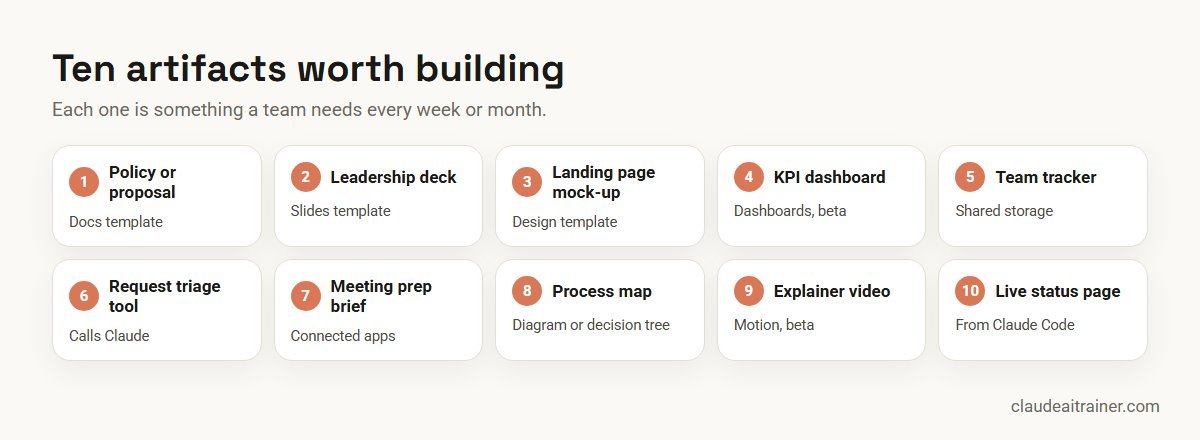
Quick answer: ten artifacts worth building
- A policy or proposal document with the Docs template.
- A leadership update deck with the Slides template.
- A campaign landing page mock-up with the Design template.
- A KPI dashboard with the Dashboards template (beta).
- A shared team tracker that stores data for everyone.
- An AI-powered request triage tool that calls Claude.
- A meeting prep brief that reads your connected apps.
- A process map or decision tree for a messy procedure.
- A short product explainer video with the Motion template (beta).
- A live status page published from a Claude Code session.
What artifacts can do now (checked October 2026)
- Templates. Docs, Slides and Design are available on all plans and on by default; on Enterprise they turn on by default on 15 October 2026, and owners can enable them sooner. Dashboards (beta) are on Pro, Max, Team and Enterprise. Motion (beta) is on Team and Enterprise.
- Exports. Docs export to Word, PDF, Markdown or Google Docs; Slides to PowerPoint, PDF or editable Google Slides; Design to .zip, PDF, PowerPoint or standalone HTML; Motion to MP4.
- Prerequisite. “Cloud code execution and file creation” (shown as “Create and edit files” in the newer layout) must be on in Capabilities settings.
- Storage. Interactive artifacts can store data, either personal to each user or shared by all users, up to 20 MB per artifact, text only.
- Artifacts that use Claude. Users sign in with their own Claude account and usage counts against their own plan, with no API key needed.
- Connected apps. On paid plans, artifacts can read from and write to connected apps such as Asana, Google Calendar and Slack. Each person connects their own apps, and tools that require approval for every action are not available to artifacts.
- Legacy artifacts. Artifacts created in chat before 16 September 2026 still work and can be shared, but new ones of that kind can no longer be created.
Comparison table
| Artifact | Start from | Plan | Exports or output | Typical owner |
|---|---|---|---|---|
| Policy or proposal doc | Docs | All plans | Word, PDF, Markdown, Google Docs | HR, legal, sales |
| Leadership deck | Slides | All plans | PowerPoint, PDF, Google Slides | Chief of staff, team leads |
| Landing page mock-up | Design | All plans | .zip, PDF, PowerPoint, HTML | Marketing |
| KPI dashboard | Dashboards (beta) | Pro, Max, Team, Enterprise | Live page; each chart shows its query and refresh time | Analysts, ops |
| Team tracker | Chat request | Paid plans (storage) | Interactive page with shared storage | Any team lead |
| AI triage tool | Chat request | Any plan to use; users need an account | Interactive tool that calls Claude | Ops, IT, support |
| Meeting prep brief | Chat request | Paid plans (connectors) | Page using the viewer’s own apps | Managers, sales |
| Process map | Chat request | All plans | Diagram in the conversation or a doc | Process owners |
| Explainer video | Motion (beta) | Team, Enterprise | MP4 | Product marketing |
| Live status page | Claude Code | Plans that include Claude Code | Private URL that updates during the session | Engineering leads |
The ten artifacts in detail
1. A policy or proposal document (Docs)
What it is. A properly formatted document that you and Claude edit together: a travel policy, a client proposal, a project charter.
Why it beats a chat answer. In a Doc you can highlight a paragraph and use “Edit with Claude”, edit directly yourself, and export to Word or Google Docs for the rest of the organisation.
Create a Doc: a two-page travel and expenses policy for a 150-person
company. Sections: scope, booking rules, per-diem table by city tier,
approvals, receipts, exceptions. Plain English, numbered clauses.
Use the attached old policy as the starting point and list every
change you made at the end.
Plan and sharing. All plans. On Team and Enterprise, Claude Docs cannot yet be shared with “Anyone with the link” or by email invitation, so they stay inside the organisation. Keep the final approved version in your document system of record.
2. A leadership update deck (Slides)
What it is. A short deck built from notes, a report or a spreadsheet, which you can present from Claude or download.
Make a 6-slide Slides deck for Monday's leadership meeting from the
attached weekly operations report: one title slide, one slide of three
headline numbers, two slides on what changed and why, one on risks,
one on decisions needed. Keep each slide under 40 words.
Plan and sharing. All plans; exports to PowerPoint, PDF or editable Google Slides. If your company deck lives in PowerPoint with a corporate template, Claude for PowerPoint (a separate add-in on paid plans) may suit better.
3. A campaign landing page mock-up (Design)
What it is. A visual mock-up of a landing page, social asset or one-pager, for review before it goes to the web team.
Design a landing page mock-up for our October webinar on supplier risk.
Hero with headline and registration button, three benefit blocks,
speaker panel with placeholders, FAQ, footer. Use our colours: navy
#1B2A4A and amber #F2A900. Export as standalone HTML.
Plan and sharing. All plans; exports to .zip, PDF, PowerPoint or HTML. Treat it as a mock-up: brand, accessibility and legal checks still happen before anything is published. For copy to put in it, see our Claude prompts for marketing.
4. A KPI dashboard (Dashboards, beta)
What it is. A page of charts on your data, where each chart shows the query behind it and when it was last refreshed.
Build a dashboard from the attached monthly sales export: revenue by
region (bar), month-on-month trend (line), top 10 products (table),
and win rate by segment. Add a note under each chart explaining what
it shows in one sentence.
Plan and sharing. Pro, Max, Team and Enterprise; off by default on Enterprise until an owner enables it. Because each chart shows its query, a reviewer can check the logic, which matters more than the look.
5. A shared team tracker with storage
What it is. A small interactive page where the whole team logs items and sees the same list: an onboarding checklist, a supplier issue log, a content calendar.
Build an interactive tracker for our supplier quality issues. Fields:
date, supplier, part number, issue, severity (1-3), owner, status.
Use shared storage so everyone sees the same list. Add filters by
status and severity and a count of open severity-1 issues at the top.
Plan and sharing. Storage needs a paid plan. You choose personal storage (each user sees only their own data) or shared storage (everyone sees the same data, with a confirmation the first time). Limits: 20 MB per artifact, text only. Do not use it for anything that must be audited; that belongs in a proper system.
6. An AI-powered request triage tool
What it is. A tool that takes a free-text request (an IT ticket, a purchase request, a policy question) and returns a category, priority and next step, because the artifact itself calls Claude.
Build a tool for our facilities team. A user pastes a request; the tool
calls Claude to return: category (from a fixed list), urgency (P1-P3)
with a one-line reason, and the team it should go to. Show the result
as a card with a "copy to ticket" button. Never auto-submit anything.
Plan and sharing. Each user signs in with their own Claude account and usage counts against their own plan, so sharing it costs the creator nothing extra. New artifacts ask permission the first time they need Claude. Treat every request as untrusted text and keep a person in charge of the actual ticket.
For managers and analysts
Want your team building artifacts people reuse, not one-offs?
The difference between a clever demo and a tool the team uses every week is a good brief, the right template and sensible sharing. In our hands-on sessions each person builds one artifact for their own work. Book a short call if that would help.
7. A meeting prep brief from connected apps
What it is. A page that reads your calendar and messages and lays out tomorrow’s meetings with context for each.
Build a meeting prep page. Read my Google Calendar for tomorrow and,
for each external meeting, pull the last Slack thread that mentions the
company. Show: time, attendees, purpose, last discussion point, and one
question to ask. Read only; do not post or change anything.
Plan and sharing. Connected apps need a paid plan. Claude asks you to approve the apps and tools the first time, and you can turn individual tools off. If you share it, each viewer connects their own apps and sees their own data; anything they cannot access shows an error instead. Team and Enterprise owners can disable connected artifacts for the organisation. For which connectors to trust, see the best MCP servers for Claude.
8. A process map or decision tree
What it is. A diagram that turns a long procedure into a picture: an approval workflow, an escalation path, a returns decision tree.
Turn the attached returns SOP into a decision tree diagram. Start with
"Customer requests a return" and branch on: days since delivery,
opened or unopened, damaged on arrival, and order value over $500.
End each branch with the action and who approves it. Then list any
step in the SOP that is ambiguous.
Plan and sharing. All plans. The ambiguity list is often more valuable than the diagram: it shows where the written process and real practice differ. Put the approved diagram into a Doc for distribution.
9. A short product explainer video (Motion, beta)
What it is. A short animated explainer exported as MP4, for a release announcement, an internal launch or a training module.
Create a 30-second Motion video explaining our new expense approval
flow in four scenes: submit, manager approval, finance check, payment.
Use simple icons and on-screen captions, no voice-over. Brand colours
navy and amber.
Plan and sharing. Team and Enterprise only; on by default for Team, off for Enterprise until an owner enables it. Review captions for accuracy and accessibility before release.
10. A live status page from Claude Code
What it is. Claude Code can publish session output as a live page at a private URL that updates as the session continues: a migration progress page, a test summary or a release checklist.
As you work through this dependency upgrade, publish a status page
listing each package, old and new version, test result and any
breaking changes found. Update it after each package.
Plan and sharing. Available wherever your plan includes Claude Code. The page starts private to you. It is a good way to keep a manager informed without screenshots. For more engineering ideas, see Claude Code use cases.
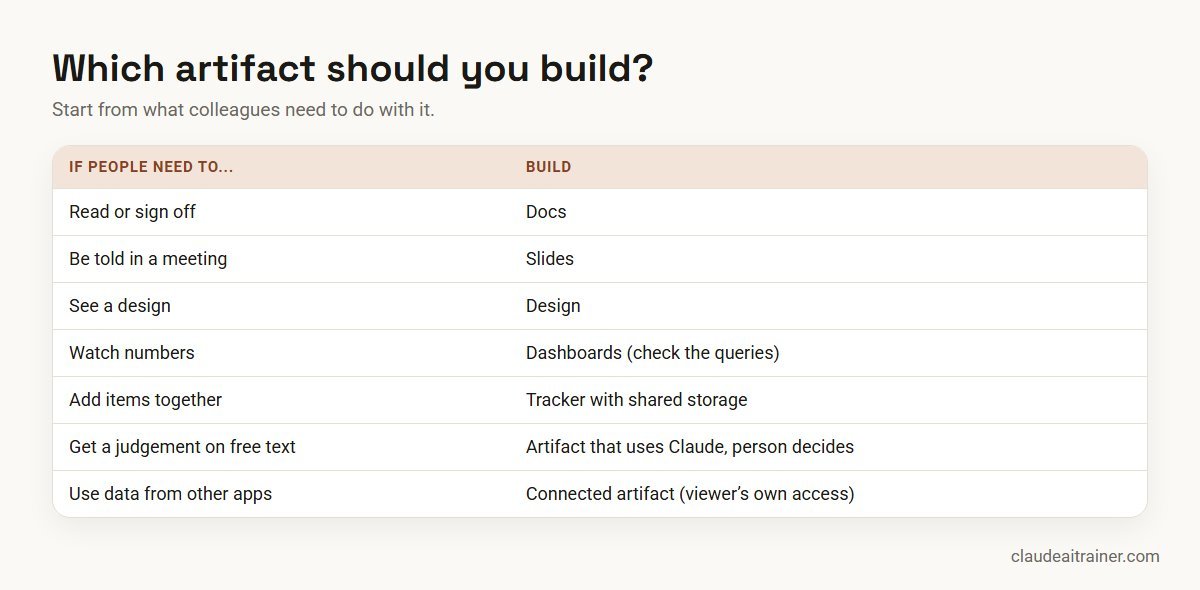
How to choose which artifact to build
- If people need to read or sign off, build a Doc.
- If people need to be told, build Slides.
- If people need to see a design, use Design.
- If people need to watch numbers, build a Dashboard, and check the queries.
- If people need to add things, build a tracker with shared storage.
- If people need a judgement on free text, build an artifact that uses Claude, with a person making the final call.
- If the source of truth is in other apps, build a connected artifact, and remember each viewer uses their own access.
Worked example: a procurement team replaces a spreadsheet chain
A five-person procurement team in a manufacturing company tracks supplier quality issues in a spreadsheet emailed around every Friday. Versions conflict and nobody is sure which is current.
- Build. The team lead uses the brief in example 5 to build a tracker with shared storage, then asks Claude to add a weekly summary view.
- Share. On their Team plan, the tracker is shared with the procurement group as Can edit and with two quality engineers as Can view.
- Report. Every Friday the lead asks Claude for a Slides deck (example 2) built from the tracker’s open items for the operations meeting.
- Review. After a month the team checks whether issues were missed and whether the 20 MB text-only limit is a problem. It is not, but they keep photos of defects in their document system and paste only the link.
The win is not the tool; it is that the team has one list instead of five versions of a spreadsheet.
Next step
Build your team's first shared artifact with us
Bring one recurring document, report or tracker. We will help your team turn it into an artifact, choose who can view or edit it, and agree how it stays current. Online or on-site.
Security and governance
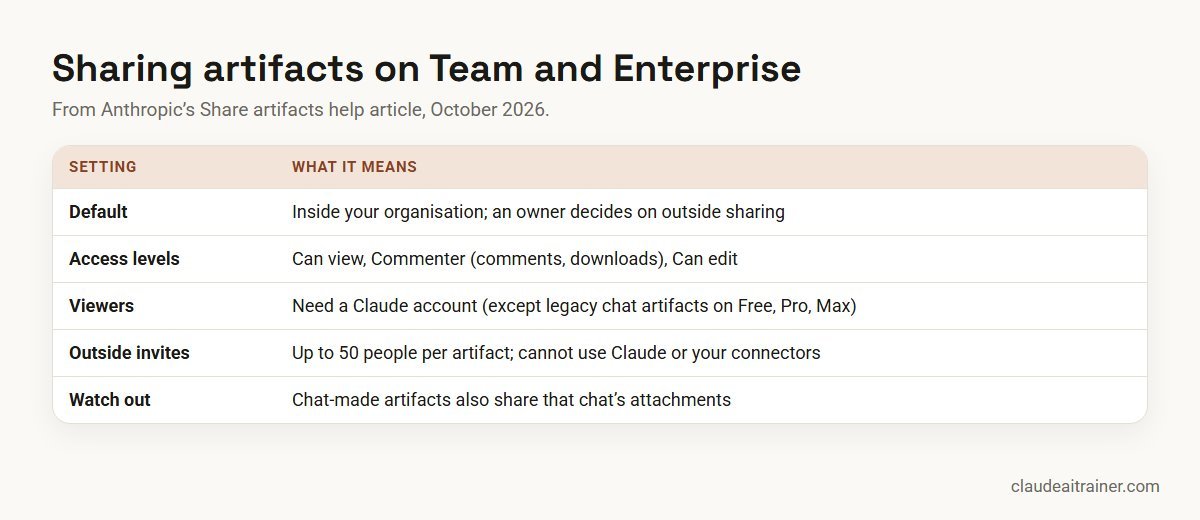
- Default inside the organisation. On Team and Enterprise, artifacts stay inside your organisation by default, and an owner decides whether people can share outside it. “Anyone with the link” needs that permission.
- Accounts required. People without a Claude account cannot open a shared artifact, even with the link; the exception is a legacy chat artifact published on Free, Pro or Max.
- Access levels. Choose Can view, Commenter (adds comments and downloads) or Can edit. Give edit rights sparingly.
- Hidden extras. When you share an artifact made in a chat, viewers also get access to that chat’s attachments and files. Check before sharing.
- Storage choices matter. The person who builds an artifact decides which data is personal and which is shared. Check before typing anything sensitive into someone else’s artifact.
- Outside invitations. You can invite up to 50 people from outside your organisation per artifact; invited outsiders cannot use the parts that rely on Claude or your connectors.
- Trust. Only build on artifacts from trusted sources, and keep actions that send, pay or change records out of artifacts unless a person approves each one.
Admins will find the controls in Anthropic’s artifacts admin guide for Team and Enterprise plans. For plan differences, see the best Claude plan for business.
Sources
Checked October 2026: Anthropic’s help articles What are artifacts and how do I use them? and Share artifacts; the artifacts admin guide; and Anthropic’s 16 September 2026 announcement of Claude Docs, Slides and Design in conversations. Features in beta can change, so confirm in your account.
Key takeaways
- Pick the template first: Docs, Slides, Design, Dashboards or Motion each has its own export formats
- Interactive artifacts can store up to 20 MB of text, privately per person or shared by everyone
- Artifacts that call Claude bill each user's own plan, so sharing them costs the creator nothing extra
- Connected artifacts use each viewer's own app access, never the creator's
- On Team and Enterprise, artifacts stay inside the organisation unless an owner allows outside sharing
- Check what a chat-made artifact exposes before sharing, because viewers also get the chat's attachments
FAQ
Claude artifacts examples: common questions
What are some good Claude artifacts examples for work?
Useful work artifacts include a policy or proposal document, a leadership update deck, a landing page mock-up, a KPI dashboard, a shared team tracker, an AI-powered triage tool, a meeting prep brief from connected apps, a process map, a short explainer video and a live status page from Claude Code.
Which artifact templates does Claude offer?
Docs, Slides and Design on all plans, Dashboards in beta on Pro, Max, Team and Enterprise, and Motion in beta on Team and Enterprise. You can also ask for interactive tools and diagrams in a normal chat.
Can a Claude artifact save data?
Yes, on paid plans. Storage can be personal to each user or shared by everyone, up to 20 MB per artifact, and it holds text only, not images or files.
Who pays when colleagues use an artifact that calls Claude?
Each user signs in with their own Claude account and usage counts against their own plan limits. The creator does not pay for other people’s use, and no API key is needed.
Can an artifact read my Google Calendar or Slack?
Yes, on paid plans artifacts can read from and write to connected apps such as Google Calendar, Slack and Asana. Claude asks you to approve the apps first, and each viewer of a shared artifact uses their own connections.
Can people outside my company open my artifact?
On Team and Enterprise, only if an owner allows outside sharing. Viewers generally need a Claude account. You can invite up to 50 outside people per artifact, and they cannot use the parts that rely on Claude or your connectors.
How do I export a Claude artifact to PowerPoint or Word?
Slides export to PowerPoint, PDF or Google Slides, and Docs export to Word, PDF, Markdown or Google Docs. Design exports to .zip, PDF, PowerPoint or HTML.
What happened to older artifacts?
Artifacts created in chat before 16 September 2026 are now called legacy artifacts. They still work and can be shared, but new ones of that kind cannot be created.
Are artifacts the same as Claude Projects?
No. A project holds context, such as files and instructions, for a recurring area of work. An artifact is an output you share, such as a document, deck or tool. Many teams build artifacts inside a project.
Can artifacts replace our internal software?
They suit small, team-level tools and drafts. Anything that must be audited, holds sensitive records or takes consequential actions belongs in a proper system with IT oversight.
Is it safe to share an artifact made in a chat?
Check first. On Team and Enterprise, viewers of a chat-made artifact also get access to that chat’s attachments and files, so remove sensitive documents or start a clean chat before sharing.
Where can my team practise building artifacts?
In our hands-on sessions each person builds an artifact for their own work and agrees sharing settings with their team. Sessions run online or on-site.
Trusted by
Teams we’ve trained
…and 200+ organisations, across 16+ countries.
What participants say
Real feedback from real sessions
Verified feedback collected from participants across corporate sessions — average rating 4.8/5.
“A very productive session for working professionals. A must-do.”
“The session was highly insightful and conducted in a very professional and interactive manner. Learnt about AI and excited to learn more!”
“Highly recommended! Hands-on and directly useful — from making PPTs and strategic plans to building KRAs.”
“I would recommend everyone to go through this session — it clarifies both what to expect from AI and where AI isn’t needed.”
“A nice interactive session with a lot of new insights and the power of AI. This will help me save time in routine activities.”
“A very good training session. AI can do wonders — we’ll implement it to create efficiency and save time.”
Explore more
Keep going with Claude AI training
Work with us
Help your team turn chats into tools people reuse
Tell us which documents, reports or trackers your team rebuilds every month and who needs to see them. We will suggest a short, hands-on format, online or on-site (for example Claude AI training in Mumbai or Singapore), and send a fixed proposal, usually within one business day.