Blog · Claude apps
Claude Memory: How It Works, How to Turn It On and How to Import Your Context
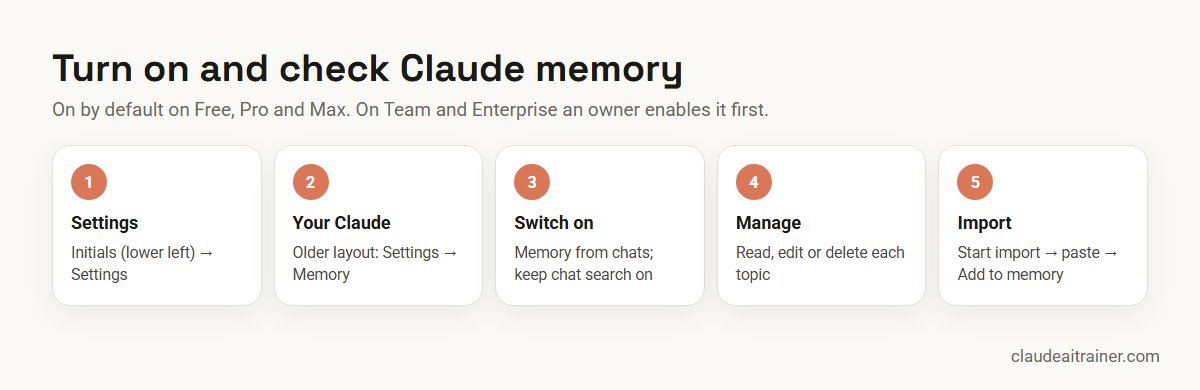
Claude memory lets Claude carry context such as your role, projects, people and preferences from one chat into the next. It is on by default on the Free, Pro and Max plans; on Team and Enterprise an owner has to allow it first. You manage it in Settings > Your Claude. Every step below follows Anthropic’s help center, checked October 2026.
Quick answer: how to turn on Claude memory
- Open Settings. On the web or in Claude Desktop, click your initials in the lower left and choose Settings.
- Go to Your Claude. Open Settings > Your Claude. If your app shows the older layout, the page is Settings > Memory.
- Switch on Memory from chats (called Generate memory from chats in the older layout). Leave Search and reference chats on if you also want Claude to look things up in past conversations.
- Check what it saved. Select Manage next to Your memory to read, edit or delete each topic.
- Optional: bring your history with you. Select Start import to paste in memory exported from ChatGPT or another assistant.
On Team and Enterprise, step 3 only appears after an owner has turned memory on for the organisation.
What Claude memory is, and what it is not
Without memory, every new chat starts from nothing: you re-explain your job, your clients and how you like answers written. Memory changes that. Claude saves short topics about you as you chat, such as “runs the North region sales team” or “prefers tables over long paragraphs”, and uses them in later conversations. You can also say “remember this” to save something directly.
People often mix memory up with four other features. They do different jobs:
| Feature | What it does | Who writes it |
|---|---|---|
| Memory from chats | Topics Claude saves about you and reuses in new chats | Claude, and you when you ask it to remember or forget |
| Search and reference chats | Claude looks up earlier conversations when you ask about them; it shows up as a tool call with citations | Nobody; it searches your history |
| Instructions | Account-wide guidance applied to every chat (tone, format, terms you use) | You, in Settings > Your Claude |
| Project instructions and knowledge | Context and files for one project only | You, in the project |
| CLAUDE.md and auto memory | Persistent context for Claude Code in a repository | You (CLAUDE.md) and Claude (auto memory) |
Sources: Use Claude’s chat search and memory, Understanding Claude’s personalization features and How Claude remembers your project, all checked October 2026.
Which Claude plans have memory?
| Plan | Memory from chats | Search past chats | Memory import | Incognito chats |
|---|---|---|---|---|
| Free | Yes, on by default | No | Yes | Yes |
| Pro | Yes, on by default | Yes | Yes | Yes |
| Max | Yes, on by default | Yes | Yes | Yes |
| Team | If the owner allows it; off for each member until they turn it on | Yes | Yes | Yes |
| Enterprise | If the owner allows it; off for each member until they turn it on | Yes, except with customer-managed encryption keys | Yes | Yes |
Memory works on the web, in Claude Desktop and in the Claude mobile apps; update the mobile app to the latest version. Memory import runs on the web and in Claude Desktop. One older help article still describes memory as a paid-plan feature, but the main memory article and Anthropic’s pricing page both list it on Free, so we follow those. The new memory experience is not available to organisations with HIPAA or public-sector agreements.
How Claude memory works
It saves topics as you go. The current version stores memory as a set of individual topics while you chat, rather than summarising conversations after they end. If you mention that a deadline moved, your next conversation already knows. A small number of Team and Enterprise organisations still have the legacy version, which builds a summary of your chats that refreshes every 24 hours.
Projects get their own memory. Inside a project, Claude uses that project’s memory plus your memory from chats outside projects, but never memory from other projects. To keep a project completely sealed off, open the project page and turn off Use account memory under Memory. This is useful when one project holds a client’s confidential work and another holds an unrelated client.
It follows you into Cowork, in the cloud. What Claude learns in chat is available when you hand it a task in Cowork running in the cloud, and what comes up in a Cowork task carries back to chat. Cowork sessions that run locally on your computer do not use memory.
It focuses on work. Claude remembers your role and projects, the people and places in your work, communication preferences, technical preferences and ongoing work. Sensitive subjects such as health, religion or politics are not saved unless you opt in (more on that below).
Turn memory on, pause it or reset it
To switch it on, go to Settings > Your Claude and turn on Memory from chats. When you switch it off, Claude asks which of two things you want:
- Pause memory. Claude keeps what it has saved but stops using it and stops saving anything new. Chats you have while paused are not added later if you unpause.
- Reset memory. Permanently deletes every memory, including project memories. It cannot be undone; if you switch memory back on you start from scratch.
Pause is the safer choice if you are unsure. On Free, Pro and Max, turning memory off also hides your monthly recap, because the recap is built from the same chat history.
View, edit and delete what Claude remembers
Go to Settings > Your Claude and select Manage next to Your memory. Everything Claude remembers is listed under Topics. Select a topic to read it, use the edit icon to correct it, or select Delete to remove it. A fix applies to every conversation from then on.
You can do the same from a chat. Typical requests:
Remember that I now report to the CFO, not the finance controller.

Forget everything about the Alpha tender; that project is closed.

What do you remember about how I like weekly updates written?
One detail surprises people: deleting a conversation does not delete the memories Claude made from it. If a chat contained something you do not want remembered, delete the topic in Manage as well.
Turn memory off for a single chat
You can leave memory on and still keep one conversation out of it. The chat stays in your history, but Claude neither uses nor adds to memory in it. You must do this before the first message; it cannot be changed once the chat starts.
- Start a new chat.
- Click + in the message box (on mobile, tap + next to the message box).
- Turn off Memory.
- Send your first message.
On the web and desktop a crossed-out memory icon then appears next to the chat title. On mobile the switch stays visible but locked in the + menu. It works inside projects too, and if you want to start a voice chat without memory, turn memory off first and then tap the voice button.
For teams
Memory helps most when people know what to tell it
Teams get the most from memory, Projects and instructions when they agree what goes where. We run hands-on sessions where people set these up on their own work. Book a short call if that would help.
Incognito chat or memory off: which to use?
| Incognito chat | Memory off for one chat | |
|---|---|---|
| How to start | Ghost icon, top right of a new chat (outside projects) | + menu > Memory, before the first message |
| Uses or adds to memory | No | No |
| Saved in chat history | No | Yes |
| Found by past-chat search later | No | Yes |
| Works in projects | No | Yes |
| Plans | All | Plans that include memory |
Two cautions about incognito. It is not invisible: incognito chats are kept for 30 days by default for safety (longer under an Enterprise retention policy), and on Team and Enterprise they are included in organisational data exports. And Claude can still read your profile settings, such as your instructions, inside an incognito chat. If you have the new Claude experience, incognito chats open in the previous chat experience, so Claude cannot create files or run code in them. Source: Use incognito chats, checked October 2026.
How to import memory from ChatGPT or another assistant
If you have built up context in another assistant, Claude can take it in. Anthropic’s help center lists memory import on Free, Pro, Max, Team and Enterprise, on the web and in Claude Desktop.
- Open the import screen. Go to Settings > Your Claude (or Settings > Memory in the older layout) and select Start import. The screen shows a ready-made export prompt and a text box.
- Run the prompt in your old assistant. Copy the prompt into ChatGPT, Gemini or whichever tool you used. It asks that tool to list every stored memory and learned detail about you in one code block. Edit the output to remove anything you would rather not move.
- Paste and add. Paste the result into Claude’s text box and click Add to memory. Claude extracts the key points and stores them as individual memory entries.
- Check the result. Click See what Claude learned about you, or open Manage, and correct anything it got wrong.
Set expectations: Anthropic calls memory import experimental and says Claude may not always incorporate imported memories. Because memory is built around work, personal details unrelated to work may be dropped. Chat history itself cannot be imported, only memory. If you need old conversations for reference, export them from the other service and add the relevant ones as files in a Claude project.
How to export your Claude memory
There is no download button for memory alone, but there are two simple routes. Open Settings > Your Claude > Manage next to Your memory and copy the topics, or ask in a chat: “Write out your memories of me verbatim, exactly as they appear in your memory,” then save the answer to a file. A full account data export also includes memory.
What Claude never saves
Sensitive topics are opt-in. By default Claude does not store personal or sensitive subjects such as health, race, ethnicity, religious beliefs, politics or gender identity. If you would rather not keep re-explaining these, turn on Include sensitive topics in memory in Settings > Your Claude. Claude then shows a notice above the message box each time it saves one, and if you later switch the setting off, it removes the sensitive items already saved. On iOS and Android this needs the latest app version.
Some things are never saved, even if you ask: government ID numbers, criminal history, financial account numbers and immigration status. Claude tells you when it declines for that reason.
Claude memory vs CLAUDE.md and Claude Code auto memory
Claude Code, the coding agent, has its own memory and does not use your claude.ai memory topics. Its documentation describes two mechanisms, both loaded at the start of each session:
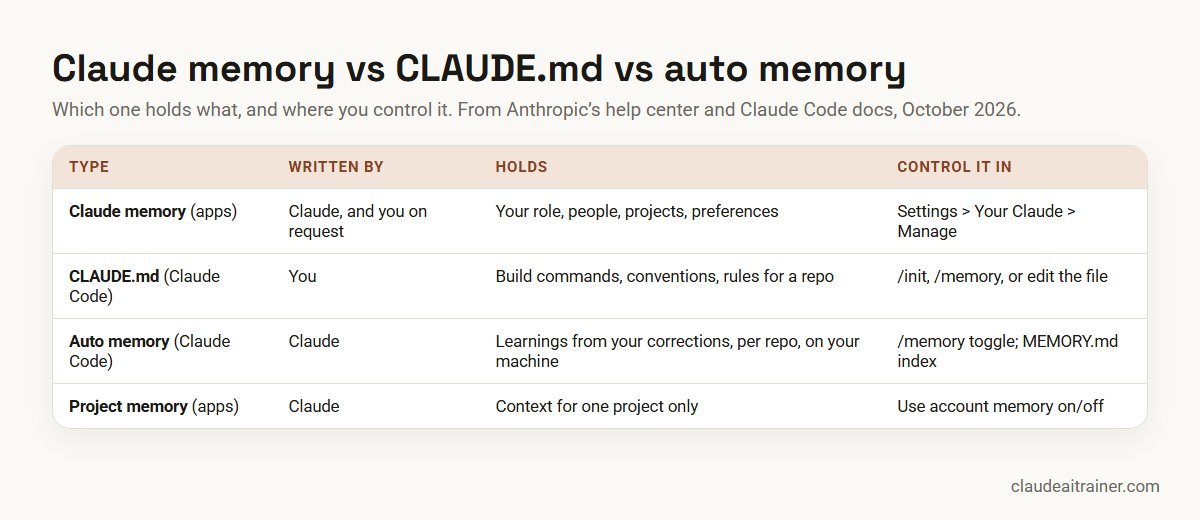
- CLAUDE.md files are instructions you write: build commands, conventions, what to avoid. They can sit at user, project or organisation level, and
/initdrafts one for you. Our guide on how to write CLAUDE.md covers this in depth. - Auto memory is notes Claude writes for itself from your corrections. It is on by default in local sessions, stored per repository at
~/.claude/projects/<project>/memory/, and indexed by aMEMORY.mdfile whose first 200 lines or 25KB load into every session. Run/memoryto browse the files or toggle auto memory, or setautoMemoryEnabledtofalsein a project’s settings.
The rule of thumb: claude.ai memory is about you as a person at work; CLAUDE.md is about a codebase and is shared with your team through the repository; auto memory is Claude Code’s private notebook on one machine. Developers building their own apps on the Claude API have a separate memory tool in the API, which is different again.
Memory, Projects or instructions: which should hold your context?
All three carry context forward, so it helps to give each a job.
- Instructions (Settings > Your Claude > Instructions) for rules that apply everywhere: “Use British English”, “Lead with the answer, then the detail”.
- Projects for a body of work with shared files and a defined purpose: a client account, a policy rewrite, a quarterly report. Project instructions apply only inside that project, and on Team and Enterprise projects can be shared with colleagues. Our Claude Projects examples show ten set-ups.
- Memory for the things that change as you work: who your stakeholders are, what was decided last week, which format a particular manager prefers.
If a fact must be right every time, put it in instructions or project knowledge, which you control word for word. Memory is convenient but it is Claude’s own interpretation of your chats, so check it from time to time. Clear prompts still matter; see how to prompt Claude.
Worked example: a regional sales manager's first two weeks
An illustrative example. Priya manages a six-person sales team for an industrial supplies distributor and uses Claude Pro on the web and her phone.
- Day 1: import. She runs Claude’s export prompt in the assistant she used before, deletes two personal lines from the output and adds the rest with Start import. In Manage she corrects one topic that listed her old job title.
- Day 1: instructions. She sets account instructions for format: Indian English, rupee amounts in lakh and crore, tables for any comparison.
- Day 2: a project per key account. She creates a project for each of her three largest customers, uploads the contract and price list to each, and turns off Use account memory on the one customer that insists on strict confidentiality.
- Week 1: let memory work. When she mentions that the West region target moved to 4.2 crore, the next week’s forecast chat already uses the new figure. When she drafts a performance note, she turns Memory off in the + menu first, so the details stay out of her memory.
- Week 2: review. She opens Manage, deletes a topic about a tender that is now closed, and asks Claude what it remembers about her weekly update format to confirm it matches.
The pattern carries to most roles: import once, set instructions for fixed rules, use projects for shared files, let memory track the moving parts, and review it every couple of weeks.
Team and Enterprise: admin controls and privacy
Who controls what. On Team and Enterprise, Owners and Primary Owners turn memory on for the organisation in Organization settings > Capabilities. After that, each member decides for themselves; memory stays off for a member until they turn it on. Allowing memory does not allow sensitive topics: each user has to opt in to those separately.
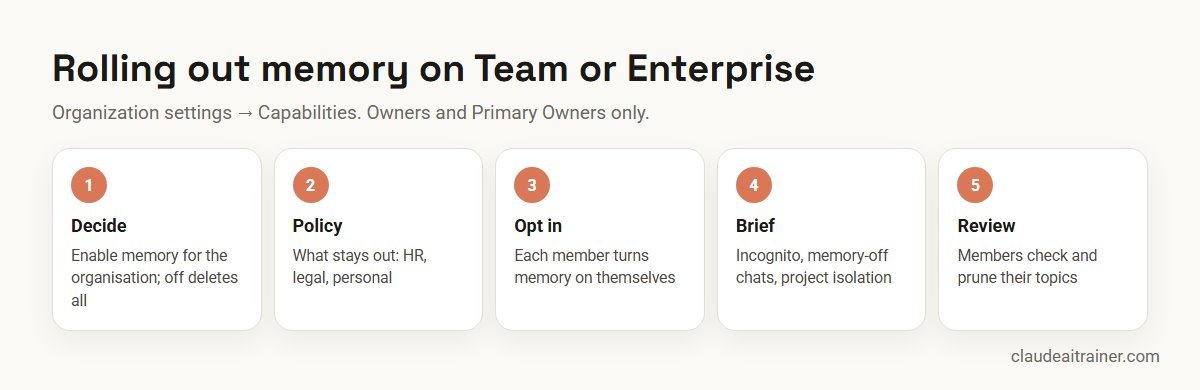
- Turning it off deletes everything. If an owner switches memory off for the organisation, all members’ memory entries are deleted immediately and permanently.
- Owners cannot read individual memories. They cannot view or edit what Claude remembers about a member. Audit logs record when owners change the organisation memory setting, but individual memory edits are not logged.
- Retention. Memory entries are encrypted at rest and included in data exports. If the organisation has a custom retention period covering chats, it also applies to members’ memory (not project memory) while the new unified Claude experience is on; an entry not updated for longer than the period is deleted. Project memory is deleted with its project.
- Incognito is not private from the organisation. Incognito chats do not appear in members’ histories but remain in data exports, in the Compliance API on Enterprise, and are retained for at least 30 days.
- Not available everywhere. Past-chat search is unavailable with customer-managed encryption keys, and the new memory experience is not offered to organisations with HIPAA or public-sector agreements.
A sensible policy for most firms: enable memory, tell staff to use memory-off or incognito chats for HR, legal and personal matters, keep client material in projects with Use account memory switched off where confidentiality requires it, and remind people that memory topics are theirs to check and delete.
Troubleshooting and limits
- No memory setting in Settings. On Team or Enterprise, your owner has not enabled memory for the organisation. Ask your admin.
- The page looks different from this guide. You may be on the older Settings layout (Settings > Memory) or the legacy memory experience (Memory under Settings > Capabilities, or a Generate memory from chat history setting). The controls are similar; the names differ.
- No Memory option in the + menu. It only appears when memory is on for your account and your plan includes it, and never in incognito chats.
- Claude did not pick up something you imported. Import is experimental. Open Manage, check the topics and add missing points with the Tell Claude what to change or remove box. On the legacy experience, updates can take up to 24 hours.
- Claude still remembers a deleted chat. Deleting a chat does not delete memory made from it. Delete the topic in Manage.
- Cowork does not seem to remember. Memory is shared only with Cowork tasks that run in the cloud, not local sessions.
- Claude cannot find an old chat. Past-chat search needs a paid plan and does not include incognito chats. Inside a project it searches that project only.
- Long chats and usage. Searching past chats runs as a tool call, and tool use is one of the factors Anthropic lists as affecting usage. Anthropic does not publish a separate token figure for memory. See Claude usage limits explained for how limits work.
Next step
Roll out memory with a policy, not a guess
We help owners decide whether to enable memory, brief staff on incognito and memory-off chats, and set up Projects for shared context. Online or on-site.
Related reading
How we checked
We read Anthropic’s help center articles Use Claude’s chat search and memory to build on previous context, Import and export your memory from Claude, Use incognito chats, Understanding Claude’s personalization features and See your monthly recap, Anthropic’s pricing page, and the Claude Code documentation page How Claude remembers your project, on 29 October 2026. Anthropic is moving accounts to a new Settings layout and a new memory experience, so menu names can differ between accounts for a while. Check the linked pages before training a team.
Key takeaways
- Memory is on by default on Free, Pro and Max; on Team and Enterprise an owner enables it and each member then turns it on
- Turn it on or off in Settings > Your Claude (Settings > Memory in the older layout); Pause keeps memories, Reset deletes them permanently
- Searching past chats is a separate setting and needs a paid plan
- Each project has its own memory; turn off Use account memory to keep a project fully separate
- Use an incognito chat, or turn Memory off in the + menu before the first message, when a conversation should not be remembered
- Import from ChatGPT or another assistant with Start import; the feature is experimental, so check what Claude kept
- Claude Code uses CLAUDE.md files and auto memory instead, which are separate from claude.ai memory
FAQ
Claude memory: common questions
Does Claude have memory?
Yes. Claude can save topics about you as you chat, such as your role, projects and preferences, and use them in later conversations. It is on by default on Free, Pro and Max; on Team and Enterprise an owner enables it and each member then turns it on (checked October 2026).
How do I turn on memory in Claude?
Go to Settings, then Your Claude, and turn on Memory from chats. In the older Settings layout it is Settings, Memory, Generate memory from chats. On Team or Enterprise the setting appears only after an owner allows memory for the organisation.
How does Claude memory work?
Claude stores memory as individual topics while you chat and uses them in new chats. Each project has its own memory, and memory is shared with Cowork tasks that run in the cloud. You can also tell Claude to remember, change or forget something.
Is Claude memory free?
Yes. Anthropic’s memory article and pricing page list memory on the Free plan as well as Pro, Max, Team and Enterprise. Searching past chats is the part that needs a paid plan.
Does Claude memory use more tokens?
Anthropic does not publish a separate token cost for memory. Searching past chats runs as a tool call, and tool use is one of the factors Anthropic says affects your usage, so heavy chat search can use more of your limit.
Should I use Claude memory?
For most work use, yes: it saves re-explaining your role and projects. Keep fixed rules in instructions, keep confidential client work in projects with account memory switched off, and use incognito or memory-off chats for sensitive matters.
Can I import my ChatGPT memory into Claude?
Yes. Go to Settings, Your Claude, Start import, run the prompt it shows in ChatGPT, paste the result and click Add to memory. Anthropic calls the feature experimental and says personal details unrelated to work may not be kept. Chat history itself cannot be imported.
How do I delete Claude's memory?
To delete one item, open Settings, Your Claude, Manage next to Your memory, select the topic and choose Delete. To delete everything, switch memory off and choose Reset memory, which permanently removes all memories including project memories.
What is the difference between incognito and turning memory off?
An incognito chat is not saved to your history or memory and is not found by later searches. A chat started with Memory turned off in the + menu skips memory but stays in your history and can still be searched.
Does Claude remember across projects?
Inside a project Claude uses that project’s memory plus your general memory, but never another project’s memory. Turn off Use account memory on the project page to keep a project completely separate.
Is Claude memory the same as CLAUDE.md?
No. Claude memory belongs to your Claude account in the apps. CLAUDE.md is a file of instructions for Claude Code in a repository, and Claude Code also keeps its own auto memory notes on your machine.
Can my company admin see my Claude memories?
Owners cannot view or edit individual members’ memories, according to Anthropic. They can turn memory on or off for the organisation, which deletes all memories when switched off, and memory is included in data exports.
Do you offer Claude training for teams that covers memory?
Yes. We run hands-on sessions where your team sets up memory, Projects and instructions on its own work and agrees what should stay out of memory. See our corporate training page or book a short call.
Trusted by
Teams we’ve trained
…and 200+ organisations, across 16+ countries.
What participants say
Real feedback from real sessions
Verified feedback collected from participants across corporate sessions — average rating 4.8/5.
“A very productive session for working professionals. A must-do.”
“The session was highly insightful and conducted in a very professional and interactive manner. Learnt about AI and excited to learn more!”
“Highly recommended! Hands-on and directly useful — from making PPTs and strategic plans to building KRAs.”
“I would recommend everyone to go through this session — it clarifies both what to expect from AI and where AI isn’t needed.”
“A nice interactive session with a lot of new insights and the power of AI. This will help me save time in routine activities.”
“A very good training session. AI can do wonders — we’ll implement it to create efficiency and save time.”
Explore more
Keep going with Claude AI training
Work with us
Train your team to use Claude memory well
Tell us how your team uses Claude today and which plan you are on. We will suggest a short, hands-on format, online or on-site, covering memory, Projects, instructions and the privacy settings that matter, and send a fixed proposal, usually within one business day.