Blog · Claude Code
Claude Code Slash Commands: Built-in Commands and How to Create Custom Commands
Slash commands are the fastest way to steer Claude Code: /clear to start fresh, /compact when the context fills up, /model to switch models. They are also how a team turns its best prompts into one-word shortcuts everyone can run. This guide covers the built-in Claude Code slash commands worth knowing, then shows step by step how to create custom commands with arguments, frontmatter and live shell output, and explains how custom commands have now merged into Skills.
Every developer who uses Claude Code for more than a week ends up typing the same instructions again and again: “review my diff for security issues”, “write the release notes since the last tag”, “fix issue 482 and add a test”. Slash commands turn those into shortcuts. Some are built in, and the rest you can write yourself in a few lines of Markdown.
This guide reflects Anthropic’s Claude Code documentation as of October 2026. Commands change between versions, so run /help or type / to see exactly what your version offers.
How slash commands work
A slash command is anything you type at the start of a message that begins with /. Type / on its own and Claude Code shows a menu you can filter by typing more letters. Anything after the command name becomes its arguments, so /compact keep the API decisions runs /compact with “keep the API decisions” as its instruction.
Two details save confusion. A command is only recognised at the start of a message, not in the middle of a sentence. And if you send a command while Claude is still responding, it is queued until the current turn finishes, except for a few such as /status and /usage that run immediately.
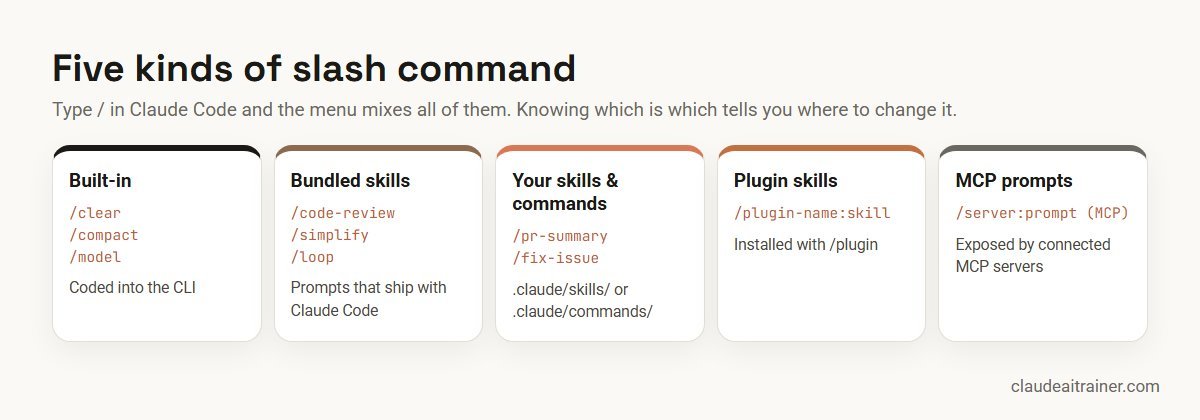
The menu mixes five kinds of command:
- Built-in commands are coded into the CLI, such as
/clear,/modeland/permissions. - Bundled skills ship with Claude Code but work like prompts handed to Claude, such as
/code-review,/simplify,/debugand/loop. - Your own commands and skills, stored in your project or home folder.
- Plugin skills, which appear as
/plugin-name:skill-name. - MCP prompts exposed by connected MCP servers, listed as
/servername:promptname (MCP).
The built-in commands worth knowing
Claude Code has dozens of built-in commands, and not every one appears for every user, because availability depends on your platform, plan and setup. These are the ones most developers use every week:
| Command | What it does |
|---|---|
/init | Generates a starter CLAUDE.md for the project. |
/memory | Edit CLAUDE.md files and manage auto memory. |
/clear | Start a new conversation with empty context (aliases /reset, /new). |
/compact [instructions] | Summarise the conversation to free space, optionally with focus instructions. |
/context | Show what is filling the context window. |
/model and /effort | Switch model and set how much reasoning Claude applies. |
/plan [description] | Enter plan mode before a large change. |
/permissions | Manage allow, ask and deny rules for tools. |
/diff | Review the changes in your working tree, including Claude’s edits. |
/code-review | Review the current diff or a pull request for bugs; /review is now an alias. |
/security-review | Check your branch’s changes for security vulnerabilities. |
/rewind | Roll code and conversation back to a checkpoint. |
/resume | Return to an earlier conversation. |
/mcp, /hooks, /skills, /plugin | Manage MCP servers, view hooks, list skills, manage plugins. |
/usage | Session cost, plan limits and activity (/cost is an alias). |
/doctor | Run a setup checkup and propose fixes. |
/install-github-app | Connect a repository to Claude Code GitHub Actions. |
A few commands have changed recently, which is why older tutorials can mislead. /review used to be a separate pull request review and is now an alias of /code-review. /agents now reminds you to ask Claude to create subagents or edit the agent folders directly. /pr-comments and /vim have been removed; you ask Claude for pull request comments directly, and Vim mode moved into /config. The commands reference in Anthropic’s docs is the place to check.
Custom commands are now Skills
This is the biggest change for anyone who learned Claude Code a while ago. Anthropic’s documentation now says custom commands have been merged into skills. In practice:
- A file at
.claude/commands/deploy.mdand a skill at.claude/skills/deploy/SKILL.mdboth create/deploy, and they work the same way. - Your existing
.claude/commands/files keep working. They accept the same frontmatter as skills, exceptnameandpaths. - The skill format adds a folder for supporting files, controls over whether you or Claude can run it, and the option for Claude to load it automatically when it is relevant.
- If a skill and a command file have the same name, the skill wins.
So for new work, write a skill. If all you want is a single-file shortcut, a command file is still fine. Our guide to creating Claude Skills goes deeper into skills that Claude loads by itself; this guide focuses on the commands you run by name.
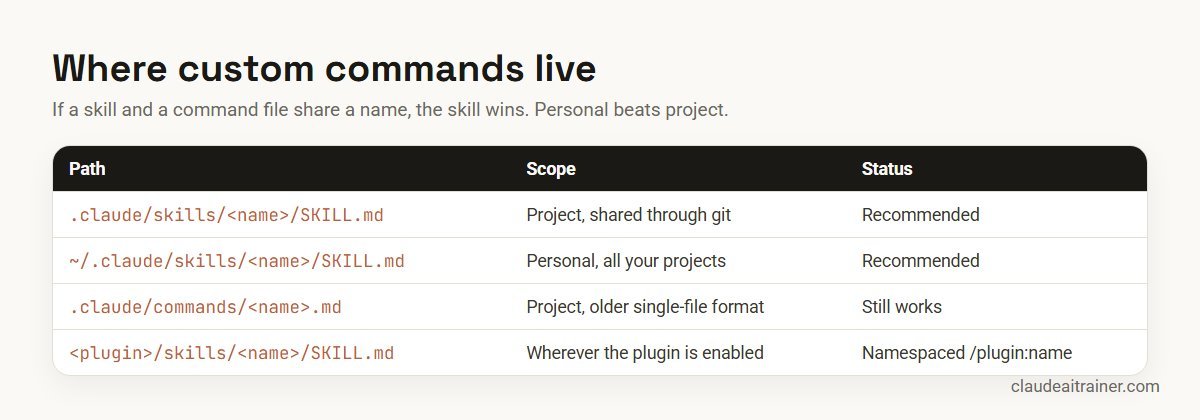
Project commands in .claude/skills/ are committed to git and shared with everyone who clones the repository. Personal ones in ~/.claude/skills/ follow you across projects. When the same name exists in both, the personal one runs; organisation-wide skills from managed settings take priority over both. Command files in subfolders get a namespace: .claude/commands/frontend/component.md becomes /frontend:component.
How to create your first custom command
Let’s build /pr-summary, a command that summarises the current pull request for reviewers.
Step 1: create the folder and file
mkdir -p .claude/skills/pr-summary
# then create .claude/skills/pr-summary/SKILL.md
Step 2: write the command
---
description: Summarise the current pull request for reviewers. Use when asked for a PR summary or review notes.
argument-hint: [optional focus, e.g. security]
allowed-tools: Bash(gh *)
disable-model-invocation: true
---

## Pull request context
- Diff: !`gh pr diff`
- Changed files: !`gh pr diff --name-only`

## Your task
Write a summary for reviewers with three parts:
1. What changed and why, in three bullets.
2. Files a reviewer should read first, and why.
3. Risks: missing tests, migrations, config or security concerns.

If a focus is given, spend most of the summary on it: $ARGUMENTS
Step 3: run it
/pr-summary security
If the command doesn’t appear straight away, run /reload-skills, which re-scans skill and command folders without restarting. To share it, commit the folder; your teammates get /pr-summary on their next pull.
The same thing as an older-style single file would be .claude/commands/pr-summary.md with identical content. Both work.
Frontmatter: the settings at the top
Everything between the --- lines is YAML frontmatter. All fields are optional, but a few make a big difference.
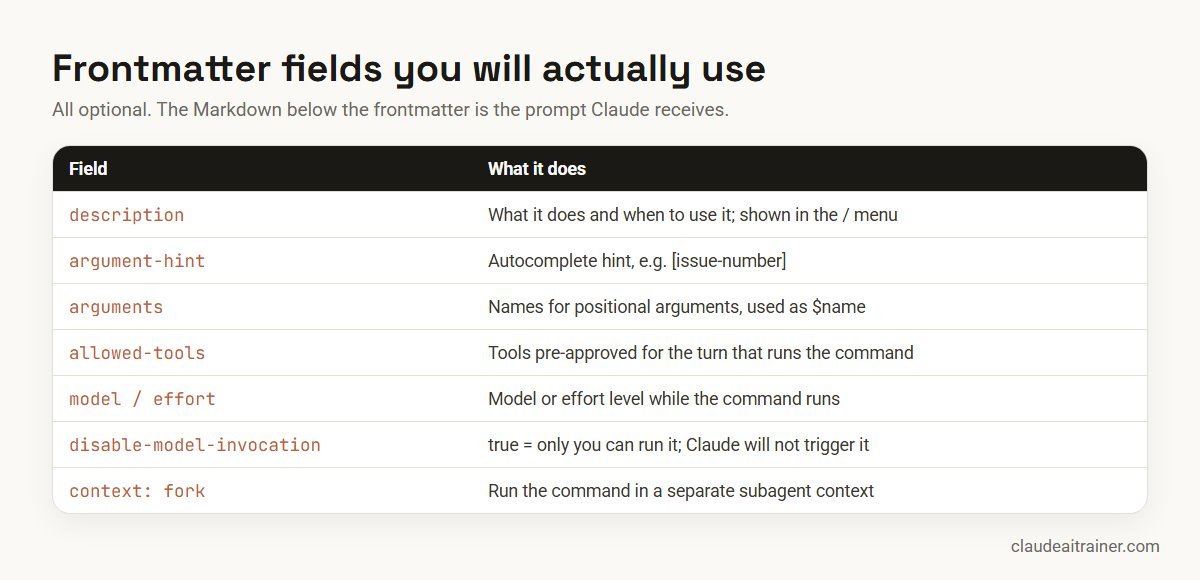
description: what the command does and when to use it. It appears in the menu and helps Claude decide when a skill is relevant. Put the key use case first; descriptions are truncated in the skill listing.argument-hint: the hint shown in autocomplete, such as[issue-number].arguments: names for positional arguments, so you can write$issueinstead of$0.allowed-tools: tools Claude may use without asking during the turn that runs the command, for exampleBash(git add *) Bash(git commit *). It pre-approves; it does not restrict. Other tools stay available under your normal permission rules, and the grant clears when you send your next message.modelandeffort: run the command with a particular model or effort level for the rest of that turn.disable-model-invocation: true: only you can run it. Use this for anything with side effects, such as commit, deploy or posting a message. You don’t want Claude deciding to deploy because the code looks ready.user-invocable: false: the opposite. Claude can use it as background knowledge, but it is hidden from the menu.context: forkwithagent: run the command in a separate subagent, such as the built-inExploreagent, so its working doesn’t fill your main conversation.
Passing arguments
Arguments are whatever you type after the command name. You can place them in the prompt in several ways:
| Placeholder | Expands to |
|---|---|
$ARGUMENTS | Everything typed after the command. |
$ARGUMENTS[0] or $0 | The first argument. Indexing starts at 0, so $1 is the second. |
$name | A named argument declared in the arguments frontmatter, in order. |
| (no placeholder) | Claude Code appends ARGUMENTS: <value> to the end of the prompt. |
Here is a command that uses named arguments:
---
description: Fix a GitHub issue on a new branch, with a test
argument-hint: [issue-number] [branch-name]
arguments: [issue, branch]
disable-model-invocation: true
---

Fix GitHub issue #$issue on a branch called $branch.

1. Read the issue with gh issue view $issue.
2. Reproduce the problem with a failing test first.
3. Make the smallest change that fixes it.
4. Run the tests for the files you touched.
5. Commit with a message that references #$issue. Do not push.
Running /fix-issue 482 fix/csv-quoting fills in $issue and $branch. A word of caution if you adapt examples from older blog posts: positional numbering is now zero-based in the docs, with $0 as the first argument, so check any template that uses $1 for the first value.
Running shell commands inside a command
The !`command` syntax runs a shell command before the prompt is sent to Claude and replaces the placeholder with its output. Claude receives the real data, not the command. That is how /pr-summary above includes the diff. For longer scripts you can open a fenced block with ```!.
Keep these rules in mind:
- If one of the commands fails, the whole invocation stops, so test the commands in your terminal first.
- The output is inserted once and is not scanned again for further placeholders.
- Commands run with bash by default. On Windows you can set
shell: powershellin the frontmatter. - Use
${CLAUDE_SKILL_DIR}to run a script stored next to the SKILL.md, wherever the command is run from.
For engineering teams
Building a shared command library for your team?
The commands that pay off are the ones a whole team uses the same way: review checklists, release notes, issue fixes. In our Claude Code sessions, developers write them on their own repositories, next to CLAUDE.md, hooks and subagents, and agree who maintains each one. If you would like help getting there, book a short call.
Worked example: a release-notes command for the team
A team wants consistent release notes without anyone remembering the format. They add this to the repository:
---
description: Draft release notes for changes since the last git tag
argument-hint: [version, e.g. 2.4.0]
allowed-tools: Bash(git *)
disable-model-invocation: true
---

## Changes since the last release
- Last tag: !`git describe --tags --abbrev=0`
- Commits: !`git log --oneline $(git describe --tags --abbrev=0)..HEAD`

## Your task
Draft release notes for version $ARGUMENTS in CHANGELOG style:
- Group entries under Added, Changed, Fixed and Security.
- One line per change in plain English, written for customers, not developers.
- Leave out merge commits, dependency bumps and internal refactors.
- End with a short "Upgrade notes" section only if something needs action.

Show the draft. Do not edit CHANGELOG.md until I confirm.
The release manager runs /release-notes 2.4.0, reads the draft, asks for one wording change and approves it. Because the file lives in the repository, the next person to cut a release gets exactly the same structure. Two choices make it safe: disable-model-invocation stops Claude starting it unprompted, and the last line keeps a person in charge of the actual file change.
Plugins, MCP prompts and chaining commands
Plugins package commands, skills, subagents, hooks and MCP servers so you can install them in one step with /plugin. Their skills appear namespaced, for example /code-review:code-review, so they never clash with yours. After changing an installed plugin, /reload-plugins applies the changes without restarting. When a command library is useful across many repositories, a plugin is usually the right way to distribute it. For ready-made ones, see the best Claude Code plugins.
MCP prompts come from connected MCP servers. They appear in the menu as /servername:promptname (MCP), and you can also type /mcp__servername__promptname followed by space-separated arguments, such as /mcp__github__pr_review 456. See our MCP servers explainer for connecting servers in the first place.
Chaining: at the terminal prompt you can start one message with several skills, up to six. /write-tests /fix-issue 123 loads both and passes 123 to each.
In CI: the Claude Code GitHub Action accepts a skill as its prompt, so the same command can run on every pull request. Our Claude Code GitHub Actions guide shows the workflow.
Commands, Skills, subagents or hooks?
These features overlap, so it helps to have a rule of thumb:
- A command (a skill you run by name) is a reusable prompt you choose to run at a specific moment.
- A skill Claude loads by itself is knowledge or a procedure that should apply whenever a task calls for it, without anyone remembering to type it.
- A subagent is a separate worker with its own context for a self-contained job; see how to create Claude Code subagents.
- A hook is for anything that must happen every time, enforced by a script; see our Claude Code hooks guide.
- CLAUDE.md holds the facts Claude needs in every session; see how to write a CLAUDE.md file.
Troubleshooting
| Problem | What to check |
|---|---|
| “Unknown command” | Check spelling: after a typo, Enter sends your text as typed. Check the file is at .claude/skills/<name>/SKILL.md or .claude/commands/<name>.md, then run /reload-skills. |
| Command missing from the menu | user-invocable: false hides it, as does a skillOverrides setting of off. Run /skills to see what is loaded. |
| A different version runs | A skill beats a command file with the same name, and a personal skill beats a project one. Rename one of them. |
| Arguments not filled in | Placeholders are zero-based: $0 is the first argument. Named arguments need the arguments field. |
| The command fails before Claude replies | One of the !`...` shell commands failed. Run it in your terminal to see the error. |
| Claude still asks for permission | Add the exact tool pattern to allowed-tools, for example Bash(gh pr *). The grant lasts only for the turn that ran the command. |
| Claude runs a command you didn’t ask for | Add disable-model-invocation: true. |
A checklist for a team command library
- Start with three to five commands for tasks people repeat every week.
- Write each description so a new teammate understands it from the menu alone.
- Add
disable-model-invocation: trueto anything that commits, pushes, deploys or messages people. - Pre-approve only the tools a command needs, with narrow patterns.
- End risky commands with a step that asks for confirmation.
- Keep commands in git, review changes in pull requests, and give each one an owner.
- Move commands that many repositories need into a plugin.
If you are rolling Claude Code out to a wider group, our Claude Code best practices for teams covers how commands fit alongside the rest of a shared setup.
Key takeaways
- Type / to see every command; text after the command name becomes its arguments
- Custom commands have merged into Skills: .claude/skills/name/SKILL.md and .claude/commands/name.md both create /name
- Use $ARGUMENTS for everything typed, or $0, $1 and named arguments for positions (0-based)
- !`command` runs a shell command first and puts its output into the prompt
- Set disable-model-invocation: true for anything with side effects, such as deploy or commit
- Commit project commands to git so the whole team gets the same shortcuts
FAQ
Claude Code slash commands: common questions
What are slash commands in Claude Code?
Slash commands are shortcuts you type at the start of a message, beginning with /. Built-in ones such as /clear, /compact and /model control Claude Code itself; custom ones run prompts you or your team have saved. Type / to see the commands available in your version.
How do I create a custom slash command in Claude Code?
Create a folder at .claude/skills/<name>/ with a SKILL.md file inside, or a single Markdown file at .claude/commands/<name>.md. The Markdown is the prompt Claude receives, optional YAML frontmatter configures it, and you run it with /<name>.
Have custom commands been replaced by Skills?
Anthropic’s documentation says custom commands have been merged into skills. Existing .claude/commands/ files keep working and create the same /name command, but skills add a folder for supporting files, invocation controls and automatic loading. If both exist with the same name, the skill wins.
Where are Claude Code custom commands stored?
Project commands live in the repository under .claude/skills/ (or the older .claude/commands/) and are shared through git. Personal ones live under ~/.claude/skills/ and work in every project. Plugins and managed settings can also provide them.
How do I pass arguments to a slash command?
Type them after the command name. In the command file, $ARGUMENTS inserts everything, $0 and $1 insert the first and second argument, and names declared in the arguments frontmatter can be used as $name. Without any placeholder, the arguments are appended to the prompt.
Can a slash command run shell commands?
Yes. Write !`command` in the file and Claude Code runs it before sending the prompt, inserting the output. Use allowed-tools to pre-approve tools Claude needs afterwards, and remember that a failing command stops the whole invocation.
How do I stop Claude from running a command on its own?
Add disable-model-invocation: true to the frontmatter. Only you can then run it by typing /name, which is the right setting for commits, deployments and anything else with side effects.
What happened to /review and /pr-comments?
/review is now an alias of /code-review, which reviews your diff or a pull request. /pr-comments was removed; ask Claude directly to read pull request comments instead.
Trusted by
Teams we’ve trained
…and 200+ organisations, across 16+ countries.
What participants say
Real feedback from real sessions
Verified feedback collected from participants across corporate sessions — average rating 4.8/5.
“A very productive session for working professionals. A must-do.”
“The session was highly insightful and conducted in a very professional and interactive manner. Learnt about AI and excited to learn more!”
“Highly recommended! Hands-on and directly useful — from making PPTs and strategic plans to building KRAs.”
“I would recommend everyone to go through this session — it clarifies both what to expect from AI and where AI isn’t needed.”
“A nice interactive session with a lot of new insights and the power of AI. This will help me save time in routine activities.”
“A very good training session. AI can do wonders — we’ll implement it to create efficiency and save time.”
Explore more
Keep going with Claude AI training
Work with us
Want commands your whole team actually uses?
Tell us about your repositories and the tasks your developers repeat every week. We will suggest a short, hands-on format, online or on-site (for example Claude Code training in Noida or Bengaluru), and send a fixed proposal, usually within one business day.