Blog · Claude for small business
Claude for Small Business: 10 Workflows, Setup & Cost (2026)
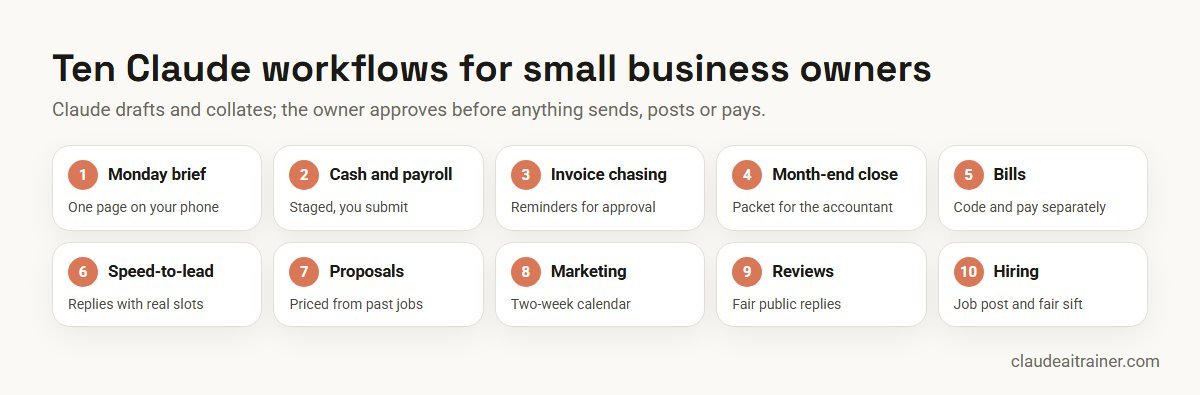
Claude for Small Business is Anthropic’s package of a Cowork plugin and partner connectors that runs everyday owner jobs, such as a Monday brief, invoice chasing, the month-end close and lead replies, and asks for your approval before anything is sent, posted or paid. There is no separate fee: you need a paid Claude plan (Pro for one person, Team for more), and you pay for your own tools. Below are ten workflows, the setup and the cost.
Most small business owners do not need another app. They need the Monday numbers in one place, the overdue invoices chased, the month closed without a weekend lost, and new enquiries answered before a competitor gets there. That is the work Anthropic aimed at when it launched Claude for Small Business on 13 May 2026.
This guide explains what the package actually is, what it costs, how to set it up and which ten workflows are worth starting with. Each workflow says what to connect or attach, gives a prompt you can copy and ends with the check the owner should make. Product details were checked on Anthropic’s announcement, solution page, plugin listing, open-source plugin repository and pricing page in October 2026.
What is Claude for Small Business?
It is three things working together:
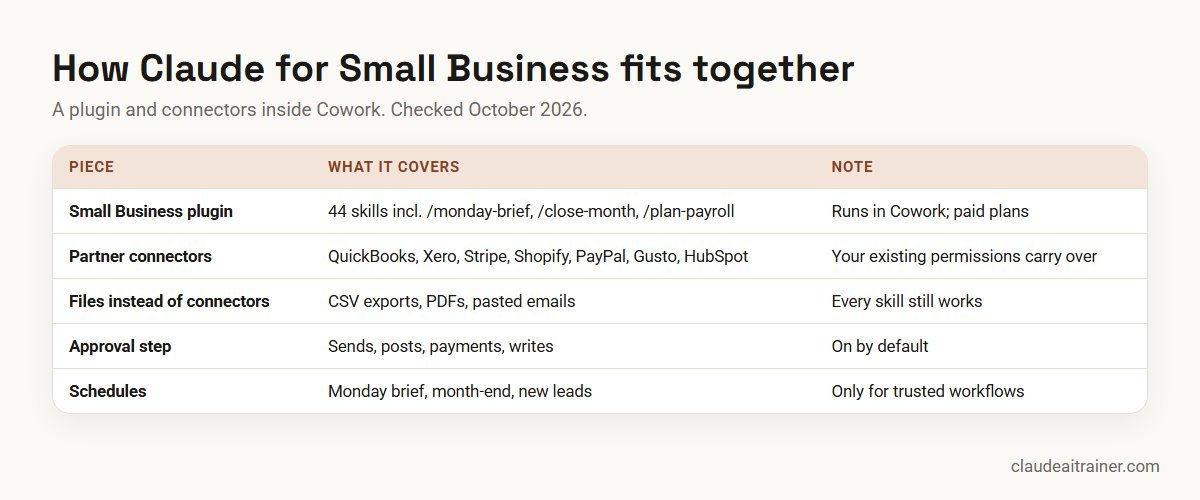
- A plugin called Small Business. Anthropic’s open-source repository describes it as 44 skills spanning finance, sales, marketing, operations and hiring, plus a router that understands plain English (version 1.35.1, dated 15 September 2026). At launch Anthropic described 15 ready-to-run workflows and 15 skills; the plugin has grown since. Eleven of the skills are chained workflows, such as
close-monthandplan-payroll, with an approval checkpoint at every step. - Connectors to tools you already use. The plugin listing says it works with 37 partner connectors, including QuickBooks, PayPal, HubSpot, Shopify, Salesforce, Gusto, Square, Stripe, Xero, Canva, Docusign, Google Workspace, Microsoft 365, Slack and Zapier. Connectors are optional: the README says every skill still works from a CSV export, a pasted email, an uploaded PDF or plain conversation.
- Claude Cowork. The plugin runs in Cowork, Claude’s mode for multi-step work on files and connected apps. You install it from the plugin directory, then say “get me started” (or run
/smb-onboard) for a guided setup that connects your first two tools and learns your business.
Two design choices matter for owners. First, approval gates: Anthropic’s plugin listing says every workflow starts in approval mode, so nothing is sent, posted or paid until you approve it; once you trust a workflow you can let it run on a schedule. Second, permissions carry over: Anthropic states that if an employee cannot see something in QuickBooks or Drive today, they cannot see it through Claude.
How much does Claude for Small Business cost?
Anthropic does not list a separate price for the package. Its solution page says Pro is for one person and Team is for a business with more than one, both month to month, and links to the standard pricing page. Partner tools such as QuickBooks or Shopify are billed by their own vendors.
| Your situation | Plan | Price (USD, checked October 2026) |
|---|---|---|
| Owner working alone | Pro | $20 a month billed monthly, or $17 a month billed annually ($200 a year) |
| Owner with heavy daily use | Max | From $100 a month |
| 2 to 150 people | Team, standard seat | $25 per seat a month billed monthly, or $20 billed annually |
| Team members who run long tasks | Team, premium seat | $125 per seat a month billed monthly, or $100 billed annually |
| Trying it out without Cowork | Free | $0; chat, file uploads, connectors and up to five projects, but no Cowork |
Prices are list prices in US dollars; Anthropic shows local currency where supported. For a fuller comparison, see the best Claude plan for business.
How do I get Claude for Small Business? Setup in five steps
- Choose the plan. Pro for a solo owner; Team if staff will use it, so each person has their own seat and you get admin controls.
- Open Cowork and install the plugin. Install Small Business from the plugin directory in Cowork. (Developers can also install it in Claude Code from the
knowledge-work-pluginsmarketplace.) - Run onboarding. Say “get me started”. The README describes a 15-minute setup that connects your first two tools, runs one real task, learns your business and captures your brand colours for reports.
- Connect tools one at a time. Start with read-heavy sources: accounting (QuickBooks or Xero), payments (Stripe, Square, PayPal or Shopify) and calendar. Add the CRM and email once you are comfortable.
- Approve, then schedule. Run each workflow by hand for two or three weeks. Only then put the trusted ones, such as the Monday brief, on a schedule.
Comparison table: ten workflows at a glance
| Workflow | Plugin skill | Connect or attach | Owner check |
|---|---|---|---|
| Monday brief | /monday-brief | Accounting, payments, CRM, calendar | Cash figure matches the bank |
| Cash and payroll check | /plan-payroll | Accounting, payroll, bank export | You press the payroll button |
| Invoice chasing | invoice-chase | QuickBooks or Xero, or an aged-debtors export | Disputed invoices removed |
| Month-end close | /close-month | Accounting plus Stripe, Shopify or PayPal | Accountant reviews the packet |
| Bills and payables | /pay-the-bills | Bills inbox or PDFs, accounting | Coding and paying approved separately |
| Speed-to-lead | /speed-to-lead | Email or web form, calendar, CRM | Reply and times approved |
| Proposals and quotes | proposal-builder | Job notes, photos, past quotes | Price and scope signed off |
| Marketing calendar | /marketing-monday | Analytics, Canva, past posts | Claims and offers checked |
| Reviews and complaints | review-reputation | Review exports, support inbox | Owner reads before posting |
| Hiring | job-post-builder, hiring-screener | Role notes, applications | A person decides who moves on |
The ten workflows in detail
1. Monday business brief
Use it for one page that tells you where the business stands before the week starts. Connect or attach: accounting and payments connectors, your CRM and calendar; or upload last week’s sales export and bank statement.
/monday-brief
Keep it to one page I can read on my phone: cash in the bank, money
owed to us and by us this week, last week's sales against the week
before, pipeline changes, my calendar, and the one thing I should deal
with first today. Show the source of every number. If a figure can't be
read from the data, say "unreadable" instead of estimating.
Owner check. For the first month, compare the cash figure with your banking app. Once it matches week after week, schedule the brief for early Monday.
2. Cash and payroll check
Use it for answering “can I make payroll?” before it becomes urgent. Connect or attach: accounting, your payroll tool (for example Gusto) and a recent bank export.
/plan-payroll
Payroll is due on [date]. Show cash available on that date after known
bills and expected receipts, with each item listed. If there is a gap,
list the overdue invoices that would close it, largest first, and draft
reminders for my approval. Stage the payroll run but do not submit it.
Owner check. The plugin README says payroll is staged and you press the button yourself. Keep it that way, and check any new joiner or pay change against the signed paperwork.
3. Invoice chasing
Use it for polite, consistent reminders without the awkward phone calls. Connect or attach: QuickBooks or Xero, or an aged-debtors report exported as CSV.
Who owes me money? List unpaid invoices by days overdue with the
customer, amount and last contact. Draft a reminder for each one over
14 days: friendly at 15-30 days, firmer at 31-60, and a call request
after 60. Use our payment terms from the attached terms page. Do not
send anything; show me the drafts.
Owner check. Remove customers who have raised a dispute or are on a payment plan before you approve the batch. The QuickBooks connector includes write tools such as creating and updating invoices, so leave those actions on approval.
4. Month-end close packet
Use it for handing your accountant a tidy file instead of a box of questions. Connect or attach: accounting plus your payment processors (Stripe, Shopify, Square or PayPal), or their monthly payout reports.
/close-month
Reconcile [month] in the books against Stripe and Shopify payouts.
List every difference with the date, amount and likely cause, and
anything you could not match. Then write a one-page note for my
accountant explaining the month in plain language: revenue, margin,
unusual items and open questions.
Owner check. Anthropic’s solution page describes this workflow as checking the books against Stripe and Shopify and explaining the month for an accountant. Your accountant still reviews the packet; Claude flags anomalies, it does not sign off the accounts.
5. Bills and payables
Use it for getting supplier bills coded and scheduled without missing due dates. Connect or attach: a bills inbox or a folder of PDF invoices, and your accounting system.
/pay-the-bills
Read the bills in the attached folder. For each: supplier, invoice
number, amount, tax, due date and suggested expense category, with any
duplicates or amounts that differ from the purchase order flagged.
Propose a payment schedule that keeps us above [amount] in the bank.
Owner check. The README says coding bills and paying bills are two separate approvals. Check bank details on any new or changed supplier by phone before the first payment; changed bank details are a common fraud route.
For owners and office managers
Want this running in your business within a fortnight?
Installing the plugin takes minutes. Deciding which tools to connect, which workflows to trust and who approves what takes longer. We run short, hands-on sessions where your team sets this up on your own books, inbox and CRM. Book a call if that would help.
6. Speed-to-lead replies
Use it for answering enquiries that arrive in the evening or at the weekend while the lead is still warm. Connect or attach: your enquiry inbox or web form, calendar and CRM (for example HubSpot).
/speed-to-lead
For each new enquiry since [time], draft a short reply in our voice
that answers their question from our services page, offers two real
meeting slots from my calendar, and logs the lead in the CRM with the
source. Put every reply in my approval queue.
Owner check. Approve the first fifty replies by hand. Watch for promises on price or delivery dates that only you should make.
7. Proposals and quotes
Use it for turning a site visit or a call into a proposal the same day. Connect or attach: your notes or a voice memo transcript, photos, your proposal template and two or three past quotes for similar jobs.
Turn the attached site notes and photos into a proposal in our
template: scope, what is excluded, timeline, price broken into labour
and materials, and payment terms. Base the price on the attached past
quotes and show the working. List any assumption I need to confirm
with the customer.
Owner check. You set the final price and scope. If you use Docusign, send for signature only after you have read the final version.
8. Marketing calendar and content
Use it for knowing what is working and filling the next two weeks of posts. Connect or attach: your analytics, past posts and, for designs, the Canva connector.
/marketing-monday
Tell me which channels and posts brought enquiries or sales last
month, what customers are saying, and what competitors changed.
Then plan the next two weeks: one post per weekday with caption,
image idea and call to action, using only offers I have approved.
Owner check. Check every claim, price and offer in the copy. For more marketing prompts, see Claude prompts for marketing.
9. Reviews and customer complaints
Use it for replying to reviews fairly and calming an upset customer. Connect or attach: an export of recent reviews or the support inbox.
Group last month's reviews by theme with counts, and pick the three
issues that come up most. Draft a reply for each negative review:
acknowledge the specific problem, say what we will do, and offer a
direct contact. No discounts or refunds unless I add them.
Owner check. Read every public reply before it is posted. Complaints that mention injury, legal action or personal data go to you, not to a template.
10. Job posts and applicant screening
Use it for a clear job post and a fair first sift when you are hiring. Connect or attach: notes on the role and, later, the applications.
Write a job post for [role] from my notes: what the job involves day
to day, must-have and nice-to-have skills, pay range, hours and how to
apply. Then build a screening sheet that scores each application only
against the must-have criteria, quoting the evidence from the CV.
Owner check. A person decides who moves forward. Keep criteria job-related, and remove anything about age, family, religion or other protected traits from your notes before you start.
How to adapt these workflows
- Give it your numbers and words. Upload your price list, payment terms, services page and two good emails you have written. Every draft gets closer to your voice.
- Ask for sources. “Show where each number came from” turns a summary you have to trust into one you can check in seconds.
- Automate only what you trust. The plugin’s
build-agentskill turns a task you repeat into a named workflow you can run on a schedule. Do this after several clean manual runs, not before. See how to create Claude skills. - Fill tool gaps carefully.
build-connectorcan link a tool without a native connector through Zapier. Anthropic’s solution page says such connections start read-only and changes need approval.
Worked example: one week at a small landscaping firm
Here is how a hypothetical eight-person landscaping business using Xero, Stripe, Gusto, Google Workspace and HubSpot might use five workflows in one week.
- Monday. The scheduled brief shows cash is fine, but two commercial customers are 40 days late. The owner approves firmer reminders (workflow 3).
- Tuesday. Three enquiries came in over the weekend. Speed-to-lead had drafted replies with survey slots; the owner approved two and rewrote one that promised a start date.
- Wednesday. After a site visit, the proposal workflow turns notes and photos into a quote priced from three similar past jobs. The owner raises the materials line.
- Thursday. Payroll is due Friday. The payroll check shows a small gap that closes if one late invoice is paid; the owner calls that customer.
- Friday. A two-week posting plan for spring garden clean-ups is drafted and designed in Canva for approval.
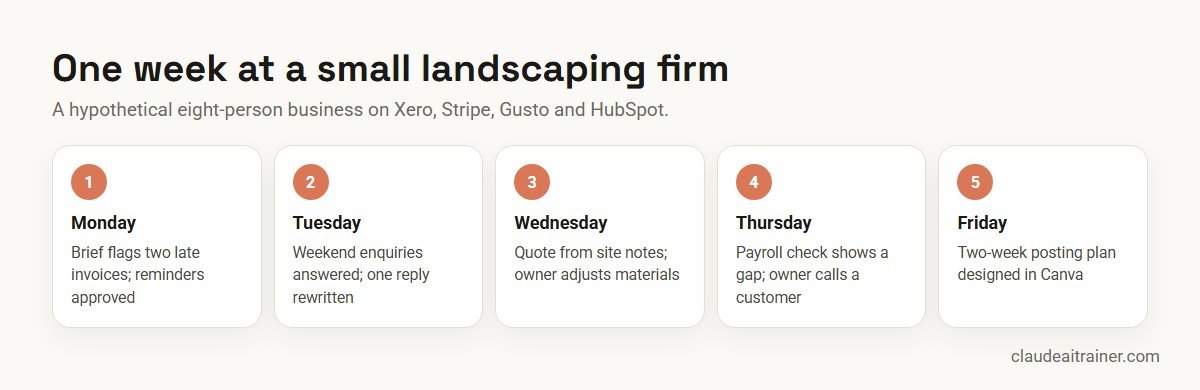
The owner still made every decision that mattered: who to chase, what to promise, what to charge. Claude did the collating and drafting around those decisions.
Next step
Set up Claude for your business, safely
We help small teams pick the right plan, connect accounting, payments and CRM with sensible permissions, and agree an approval routine for anything that sends or pays. Online or on-site.
Outside the US: what to watch
Claude for Small Business launched with a US focus: the tour stops, partner programmes and examples were American, and some skills, such as 1099 preparation, follow US rules. The plugin and connectors work wherever Cowork is available, but treat tax, payroll and compliance outputs as a structure for your accountant to localise, not as advice. Anthropic’s own README says the plugin does not provide financial, tax, legal or HR advice and that outputs should be reviewed by you and, where appropriate, a qualified professional.
Security and governance for small teams
- Keep approvals on. Anything that sends, posts, pays or writes to your systems should wait for a yes, at least until you have watched a workflow run cleanly many times.
- Use least privilege. Claude sees what the connected account can see. Connect with an account that has only the access the workflow needs, and give staff their own Team seats rather than sharing one login.
- Know the training setting. Anthropic’s pricing page says Team and Enterprise plans do not train models on your content by default; on Free, Pro and Max, model training is a setting you can turn off.
- Beware instructions inside emails and files. An inbox or a supplier PDF can contain text that tries to steer an AI. Review what a workflow plans to do before you approve it.
- Disconnect what you stop using. Connectors can be removed in Settings at any time.
Sources
Checked October 2026: Anthropic’s Claude for Small Business announcement, the small business solution page, the Small Business plugin listing and its open-source repository; the QuickBooks, HubSpot and Canva connector listings; and Claude pricing.
Key takeaways
- Claude for Small Business is a plugin plus connectors inside Cowork, not a separate product with its own price
- You need a paid plan: Pro for one person or Team for a business with more than one
- Every workflow starts in approval mode; nothing sends, posts or pays until you say yes
- Connectors are optional: each skill also works from a CSV export, a PDF or a pasted email
- Start with read-only briefs, then let one trusted workflow run on a schedule
- Have your accountant check close packets, tax files and payroll before they are filed
FAQ
Claude for small business: common questions
Is Claude a good software for small businesses?
Claude is strong at the reading, collating and drafting that fills an owner’s week: briefs, reminders, close notes, proposals and replies. Claude for Small Business adds ready-made workflows and connectors to accounting, payments and CRM tools, with approval before anything is sent or paid. It is not accounting or payroll software; it works alongside the tools you already use.
How much is Claude AI for small business?
There is no separate charge for the package. You need a paid Claude plan: Pro costs $20 a month billed monthly or $17 a month billed annually, and Team costs $25 per standard seat a month billed monthly or $20 billed annually, for 2 to 150 people (US list prices, checked October 2026). Your partner tools are billed by their own vendors.
Which AI is best for a small business?
It depends on the tools you use and the jobs you want help with. Claude’s advantage for small businesses is the Small Business plugin with approval gates and connectors to QuickBooks, Xero, Stripe, Shopify, HubSpot and others. Try one real workflow, such as invoice chasing, on two tools for a week before deciding.
How do I get Claude for small business?
Subscribe to Pro or Team, open Cowork, install the Small Business plugin from the plugin directory and say “get me started” or run /smb-onboard. The guided setup connects your first two tools and learns your business.
Does Claude AI have a business plan?
Yes. Team is for 2 to 150 people with admin controls and SSO, and Enterprise adds features such as SCIM, audit logs and custom data retention. Anthropic suggests Pro for a solo owner and Team for a business with more than one person.
Is Claude for Small Business available in the UK and outside the US?
The plugin and connectors work wherever Claude and Cowork are available, including the UK. The launch was US-focused and some skills, such as 1099 preparation, follow US rules, so have your accountant localise tax and payroll outputs.
Do I need to connect QuickBooks or other tools?
No. Anthropic’s README says every skill works from a CSV export, a pasted email, an uploaded PDF or plain conversation. Connectors make the workflows faster and more current.
Will Claude send emails or pay bills on its own?
Not by default. Every workflow starts in approval mode, so nothing is sent, posted or paid until you approve it. You can later let a trusted workflow run on a schedule; payroll stays staged for you to submit.
Can Claude do my bookkeeping?
Claude can reconcile, categorise, chase and prepare a close packet for your accountant, and it reports unreadable figures instead of guessing. The books, tax returns and payroll remain your and your accountant’s responsibility.
Is my business data used to train Claude?
Anthropic says Team and Enterprise plans do not train models on your content by default. On Free, Pro and Max, model training is a setting you can switch off in your privacy settings.
Can I use Claude for Small Business on the Free plan?
The plugin runs in Cowork, which needs a paid plan. On the Free plan you can still upload a sales export or invoice list in chat and ask for a summary or reminder drafts.
What is the difference between Claude for Small Business and Claude Cowork?
Cowork is the mode in which Claude carries out multi-step tasks on your files and apps. Claude for Small Business is a plugin and set of connectors that runs inside Cowork with owner-focused workflows and approval steps.
Where can my team learn this hands-on?
Our Claude Cowork training and corporate Claude AI training take owners and staff through these workflows on their own tools, online or on-site.
Trusted by
Teams we’ve trained
…and 200+ organisations, across 16+ countries.
What participants say
Real feedback from real sessions
Verified feedback collected from participants across corporate sessions — average rating 4.8/5.
“A very productive session for working professionals. A must-do.”
“The session was highly insightful and conducted in a very professional and interactive manner. Learnt about AI and excited to learn more!”
“Highly recommended! Hands-on and directly useful — from making PPTs and strategic plans to building KRAs.”
“I would recommend everyone to go through this session — it clarifies both what to expect from AI and where AI isn’t needed.”
“A nice interactive session with a lot of new insights and the power of AI. This will help me save time in routine activities.”
“A very good training session. AI can do wonders — we’ll implement it to create efficiency and save time.”
Explore more
Keep going with Claude AI training
Work with us
Help your team run the business with Claude
Tell us what you use today (QuickBooks, Xero, Shopify, Stripe, HubSpot, Google Workspace or Microsoft 365), how many people would use Claude and which jobs eat the most time. We will suggest a short, hands-on format, online or on-site, and send a fixed proposal, usually within one business day.