Blog · Claude for finance
Claude Prompts for Finance: 10 Templates for FP&A, Close and Reporting (2026-27)
Finance work punishes a vague prompt. A number without a source, a variance without a driver or an accrual without support is worse than no answer at all. These ten prompts are written for controllers, FP&A analysts and finance managers. Each one names the file to attach, the Claude surface to run it in and the check a reviewer should make before anything reaches the CFO.
Most finance teams first try Claude by pasting a few rows and asking “explain this variance”. The answer reads well and is often wrong, because Claude cannot see the trial balance, the budget assumptions or last month’s commentary. Finance prompts work when they carry four things: the data, the threshold that matters, the format the reviewer expects and an instruction to show the working.
The ten prompts below follow that pattern. They are grouped roughly in the order a month runs: close, analysis, forecasting and reporting. Product details were checked on Anthropic’s documentation in October 2026. If you want one starter use case per department rather than a finance library, read Claude use cases for business; for the marketing equivalent of this page, see Claude prompts for marketing. HR and analytics colleagues have their own guides: Claude prompts for HR and Claude for data analysis.
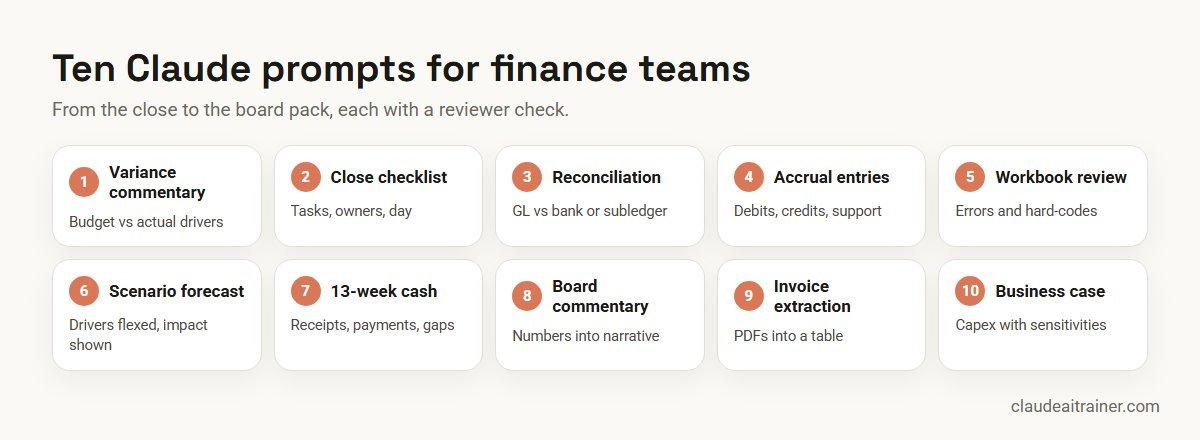
Quick answer: ten Claude prompts for finance
- Variance commentary: drivers behind budget-to-actual gaps above your threshold.
- Close checklist: a dated close plan with owners and dependencies.
- Account reconciliation: GL against bank or subledger, with reconciling items aged.
- Accrual entries: draft journals with debits, credits and support listed.
- Workbook review: broken formulas, hard-codes and inconsistent logic in a model.
- Scenario forecast: flex the key drivers and show the effect.
- 13-week cash forecast: receipts, payments and the weeks that need action.
- Board commentary: numbers turned into a short, sourced narrative.
- Invoice and statement extraction: PDFs into a clean table.
- Capex business case: payback, NPV and sensitivities in one page.
Where to run finance prompts
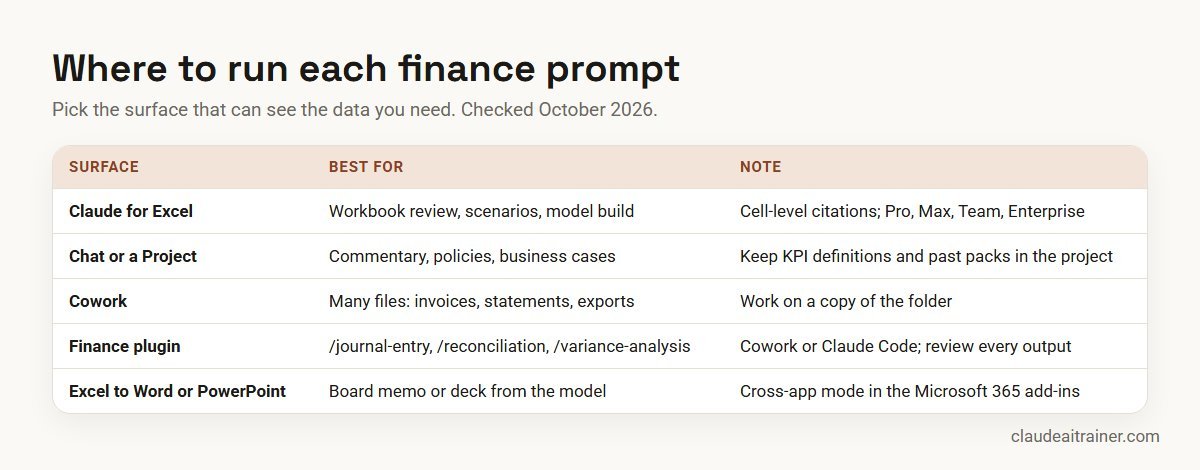
The same prompt behaves differently depending on what Claude can see. Pick the surface first.
- Claude for Excel. An add-in for Pro, Max, Team and Enterprise plans that reads the open workbook, answers with cell-level citations, adjusts assumptions while keeping formula relationships, and traces errors to their source. It runs on Excel on the web, Excel on Windows with a Microsoft 365 subscription and recent Excel for Mac. Our guide on how to use Claude in Excel covers installation and house rules.
- A chat or a Project. Good for commentary, policies and business cases. A finance Project holding KPI definitions, the chart of accounts and two or three past packs means you do not re-explain context every month; see our Claude Projects examples for a month-end reporting project you can copy.
- Cowork. For work that spans many files, such as a folder of supplier statements. Point it at a copy of the folder and describe the file you want back; our list of Claude Cowork use cases includes a reconciliation example.
- Anthropic’s finance plugin. An open-source plugin designed mainly for Cowork, which also works in Claude Code, with commands such as
/journal-entry,/reconciliation,/income-statement,/variance-analysisand/sox-testing. Its documentation states plainly that it does not give financial, tax or audit advice and that qualified people must review outputs. - Financial services plugins. For investment banking, equity research, private equity and wealth teams, a separate open-source set adds skills such as
/comps,/dcf,/earningsand/ic-memo, with connectors to data providers that may need their own subscription.
Comparison table
| Prompt | Attach | Best surface | Reviewer check |
|---|---|---|---|
| Variance commentary | Actuals vs budget by line | Excel add-in or Project | Drivers agree to the ledger |
| Close checklist | Last close list, calendar | Project; Docs artifact | Owners and dates confirmed |
| Reconciliation | GL detail plus bank or subledger | Cowork or /reconciliation | Every item traced and aged |
| Accrual entries | POs, GRNs, contracts, prior accruals | /journal-entry or chat | Support exists; accounts right |
| Workbook review | The model itself | Excel add-in | Fixes tested before saving |
| Scenario forecast | Driver-based model | Excel add-in | Formulas still link |
| 13-week cash | AR and AP ageing, payroll, debt | Excel add-in | Opening cash agrees to bank |
| Board commentary | Final pack numbers | Project, then Word or PowerPoint | Every figure matches the pack |
| Invoice extraction | Folder of PDFs | Cowork | Sample checked against PDFs |
| Capex case | Quotes, volumes, cost of capital | Excel add-in, then Word | Assumptions signed off |
The ten prompts in detail
1. Budget vs actual variance commentary prompt
Use it for monthly management accounts, when every line over a threshold needs a one-line reason.
You are the FP&A analyst for [company]. Attached is the [month] actuals
vs budget by cost centre and GL line, plus last month's commentary.
For every line where the variance is more than 5% AND more than
[amount], give: the variance in value and %, favourable or adverse,
the most likely driver based only on the data and notes attached, and
whether it is timing or permanent. Mark any driver you are inferring
with [CONFIRM WITH OWNER]. Finish with a five-line summary for the CFO
and a list of questions to send to budget holders.
Check. Drivers agree to the ledger and to what budget holders say. In Claude for Excel, ask it to cite the cells behind each number so the reviewer can click through.
2. Month-end close checklist prompt
Use it for turning last month’s close tracker into this month’s plan, especially when the calendar shifts for a holiday or a quarter-end.
Using the attached close tracker from last month and this month's
working-day calendar, build the close plan for [month]. Columns: task,
owner, working day due (WD-2 to WD+6), dependency, system, evidence
required. Add quarter-end tasks if this is a quarter-end month. Flag any
owner with more than four tasks on the same day and any task whose
dependency finishes after it starts.
Check. The controller confirms owners and dates. The finance plugin’s close-management skill covers task sequencing in a similar way if you run the close in Cowork.
3. Account reconciliation prompt
Use it for bank, AR, AP and intercompany reconciliations where the matching is tedious and the exceptions are what matter.
Reconcile the attached GL cash account detail for [month] to the bank
statement. Match on amount and date within three days, then on reference.
Output three tabs: matched items; reconciling items (outstanding cheques,
deposits in transit, bank charges, errors) with age in days; and a
summary that starts from the bank balance and ends at the GL balance.
Do not force any match. List every unmatched item over [amount] with a
suggested owner to investigate.
Check. The reconciliation balances, and every reconciling item is real and aged. For several accounts at once, run the finance plugin’s /reconciliation command in Cowork on a copy of the exports.
4. Accrual journal entry prompt
Use it for drafting period-end accruals from open purchase orders, goods received notes and contracts.
From the attached open PO list, GRN report and the service contracts
folder, draft the [month] expense accruals. For each entry: debit and
credit accounts from the attached chart of accounts, cost centre,
amount with the calculation, the supporting document name, and whether
it reverses next month. Exclude anything already invoiced in the AP
subledger. Put any item without clear support in a separate list
rather than accruing it.
Check. Support exists for every line, accounts and cost centres are right, and the entries are posted by a person in your ERP. Claude drafts; it does not post.
5. Workbook review prompt
Use it for a model you inherited, a budget template from a business unit, or any file going to the board.
Review this workbook before it goes to the board. List, with cell
references: formula errors, hard-coded numbers inside formulas, formulas
that break the pattern of their row or column, links to external files,
totals that don't foot, and inconsistent signs. For each, say why it
matters and suggest a fix, but do not change anything until I approve.
Then give me a one-paragraph view of how the model flows from inputs
to outputs.
Check. Approve fixes one at a time and re-test totals. This is where the Excel add-in is at its best, because it can trace a number to its source across tabs.
For finance leaders
Want the whole finance team prompting to one standard?
Prompts pay off when they sit on top of shared KPI definitions, a review routine and the Excel add-in set up properly. We run hands-on sessions where your team builds those on its own close and reporting files. Book a short call if that would help.
6. Scenario forecast prompt
Use it for quick what-ifs on a driver-based forecast before a leadership meeting.
In this forecast model, create three scenarios on a new tab without
overwriting the base case: base, downside (volume -10%, price -3%,
input cost +5%) and upside (volume +8%). Keep every formula linked to
the original drivers. Show revenue, gross margin, EBITDA and closing
cash for each scenario by quarter, and a short table of which driver
moves EBITDA the most.
Check. Formulas still link to the drivers and the base case is unchanged. Anthropic’s Excel documentation describes exactly this kind of request: changing an assumption and updating dependent calculations.
7. 13-week cash flow forecast prompt
Use it for treasury and working-capital reviews, especially when cash is tight.
Build a 13-week direct cash flow forecast starting [date] from the
attached AR ageing, AP ageing, payroll calendar, loan schedule and
opening bank balance. Receipts: apply the collection pattern in the
'history' tab by customer segment. Payments: by due date, payroll and
tax on their actual dates. Show weekly opening cash, receipts, payments
and closing cash, highlight any week below [minimum balance], and list
three actions that would close the gap with their cash effect.
Check. Opening cash agrees to the bank, and collection assumptions are realistic. Treasury signs off any action that involves customers or lenders.
8. Board and management commentary prompt
Use it for turning a finished pack into the narrative leadership actually reads.
Using only the attached final management pack for [month], write the
CFO commentary: a three-sentence headline, then sections for revenue,
margin, costs, cash and outlook, each under 80 words. Quote every
number exactly as it appears in the pack with its page or tab. Do not
introduce any figure that is not in the pack. Finish with the three
decisions or risks the board should discuss.
Check. Every figure matches the pack. With the Microsoft 365 add-ins in cross-app mode, Claude can pull the figures from the open Excel model straight into a Word memo or a PowerPoint slide; see our guides to Claude for Word use cases and Claude for PowerPoint use cases.
9. Invoice and statement extraction prompt
Use it for getting structured data out of a folder of supplier invoices or statements.
Read every PDF in this folder (supplier invoices for [month]). Create a
spreadsheet with one row per invoice: supplier, invoice number, date,
due date, currency, net, tax, gross, PO number and file name. Add a
check column that flags duplicates (same supplier and number), totals
that don't add up, and missing PO numbers. Don't rename, move or delete
any file.
Check. Sample ten rows against the PDFs and review every flag. Run it in Cowork on a copy of the folder.
10. Capex business case prompt
Use it for a one-page investment case for a machine, a system or a new site.
Build a capex business case for [project] from the attached quotes,
volume plan and our hurdle rate of [x]%. Show: total investment, annual
savings or margin, payback period, NPV and IRR over [n] years with the
calculation on a separate tab, and a sensitivity table for volume and
price at -20% to +20%. Then draft a one-page summary for the investment
committee with the key assumptions listed and the two biggest risks.
Check. Assumptions are signed off by the business owner, and the finance team checks the discounting.
How to adapt these prompts
- Set your thresholds. Replace the 5% and amount placeholders with your materiality levels.
- Name your accounts. Attach the chart of accounts once in a Project instead of describing it.
- Ask for working. “Show the calculation” and “cite the cell” make review fast.
- Ban guessing. Tags such as [CONFIRM WITH OWNER] make weak points visible instead of hiding them.
- Save what works. Once a prompt is reliable, package it as a skill (see how to create Claude skills) so every analyst gets the same result. Skills you enable also apply inside the Excel, Word and PowerPoint add-ins.
Worked example: a five-day close with five prompts
A six-person finance team at a mid-sized distributor uses five of these prompts across its close:
- Working day 1. The controller runs prompt 2 on last month’s tracker and shares the plan.
- Working day 2. The AP lead runs prompt 4 for accruals; the controller reviews support before posting.
- Working day 3. Prompt 3 reconciles bank and AR; exceptions go to named owners.
- Working day 4. The FP&A analyst runs prompt 1 in Claude for Excel on the trial balance and sends the questions to budget holders.
- Working day 5. Prompt 8 drafts the commentary from the final pack; the CFO edits and signs off.
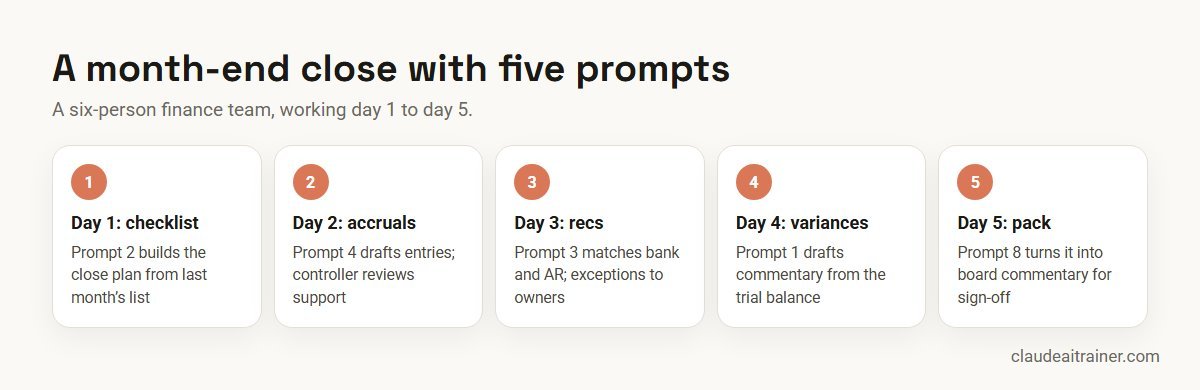
The gain is in first drafts and consistency. The judgements (what to accrue, what a variance means, what the board hears) stay with the team.
Next step
Turn these templates into your close playbook
We help finance teams adapt these prompts to their chart of accounts, save the reliable ones as shared skills and agree what a reviewer checks. Online or on-site.
Security and governance
- Use an approved business plan. Keep ledgers, payroll and forecasts in a Team or Enterprise workspace your company has cleared; see the best Claude plan for business.
- Know where add-in data sits. Anthropic’s documentation says the Microsoft 365 add-ins keep chat history locally in the browser, delete inputs and outputs on the backend within 30 days (with stated exceptions), and do not inherit custom retention settings. Add-in activity is not in Enterprise audit logs but is covered by the Compliance API, which is in public beta.
- Trusted files only. Anthropic warns that spreadsheets from outside sources can carry hidden instructions. Review any action Claude asks you to confirm.
- Segregation of duties. Claude can draft entries and reconciliations; posting and approval stay with authorised people in your systems.
- Connectors. ERP, data warehouse and BI connectors act with each user’s own permissions. Keep write actions behind approval; see the best MCP servers for Claude and our list of Claude skills, plugins and connectors.
Sources
Checked October 2026: Anthropic’s Claude for Excel documentation, work across Microsoft 365 apps, the open-source finance plugin, and financial services plugins for Cowork.
Key takeaways
- Attach the source file every time; a finance prompt without data invites invented numbers
- Ask for the calculation behind every derived figure and a flag on anything Claude inferred
- Run model work in Claude for Excel, where answers cite the cells they came from
- Use Cowork or the finance plugin for jobs that span many files, on a copy of the folder
- Keep KPI definitions and past commentary in a Project so prompts stay short
- A qualified person reviews every entry, reconciliation and number before it is used
FAQ
Claude prompts for finance: common questions
What are the best Claude prompts for finance?
Useful finance prompts cover variance commentary, the close checklist, reconciliations, accrual entries, workbook reviews, scenario forecasts, 13-week cash forecasts, board commentary, invoice extraction and capex business cases. Each works best with the source file attached and a request to show the calculation.
Can Claude do financial analysis in Excel?
Yes. Claude for Excel is an add-in for Pro, Max, Team and Enterprise plans that reads the open workbook, answers with cell-level citations, changes assumptions while keeping formulas linked, and traces errors to their source.
Is Claude accurate with numbers?
Claude is strong at reading and structuring financial data, but it can make mistakes. Ask it to show every calculation and cite cells or pages, and have a person check figures before they are used.
Does Anthropic have a finance plugin for Claude?
Yes. Anthropic’s open-source finance plugin, designed mainly for Cowork and also usable in Claude Code, includes commands such as /journal-entry, /reconciliation, /income-statement, /variance-analysis and /sox-testing. It does not give financial, tax or audit advice.
Can Claude post journal entries to our ERP?
Claude can draft entries with accounts, amounts and support. Posting should stay with an authorised person in your ERP, even if an ERP connector is available.
Can Claude build a DCF or comparable company analysis?
Yes. Anthropic’s financial services plugins for Cowork include skills such as /dcf and /comps. Data connectors such as S&P Global or FactSet may need a separate subscription.
How do I stop Claude inventing figures in commentary?
Attach the final pack, tell Claude to use only figures in it and to quote the page or tab for each, and ask it to tag anything inferred. A reviewer then checks the tags.
Can Claude turn an Excel model into a board deck or memo?
With the Claude for Excel, Word and PowerPoint add-ins installed and cross-app mode turned on, Claude can pull figures from an open workbook into a memo or slides in one conversation. This needs a paid plan and direct Claude sign-in.
Is it safe to upload financial data to Claude?
Use a business plan your company has approved, follow your data policy and avoid personal accounts. Only open trusted files in the add-ins, because outside files can contain hidden instructions.
Should finance prompts be saved as skills?
Yes, once they work reliably. A skill gives every analyst the same method, and enabled skills also apply in the Excel, Word and PowerPoint add-ins.
Which Claude plan does a finance team need?
The Excel, Word and PowerPoint add-ins need Pro, Max, Team or Enterprise. Teams handling company data usually choose Team or Enterprise for admin controls.
Where can our finance team learn this hands-on?
Our Claude for finance teams training has analysts build a finance project, run these prompts on their own close files and agree a review routine, online or on-site.
Trusted by
Teams we’ve trained
…and 200+ organisations, across 16+ countries.
What participants say
Real feedback from real sessions
Verified feedback collected from participants across corporate sessions — average rating 4.8/5.
“A very productive session for working professionals. A must-do.”
“The session was highly insightful and conducted in a very professional and interactive manner. Learnt about AI and excited to learn more!”
“Highly recommended! Hands-on and directly useful — from making PPTs and strategic plans to building KRAs.”
“I would recommend everyone to go through this session — it clarifies both what to expect from AI and where AI isn’t needed.”
“A nice interactive session with a lot of new insights and the power of AI. This will help me save time in routine activities.”
“A very good training session. AI can do wonders — we’ll implement it to create efficiency and save time.”
Explore more
Keep going with Claude AI training
Work with us
Help your finance team get reliable results from Claude
Tell us about your team, your close calendar and the reports you produce each month. We will suggest a short, hands-on format, online or on-site (for example Claude AI training in Mumbai), and send a fixed proposal, usually within one business day.