Blog · Claude for Microsoft 365
Claude for PowerPoint: 10 Use Cases for Business Decks (2026-27)
Claude for PowerPoint is an add-in that works inside your deck: it reads the slide master, builds slides in your template, turns bullets into editable diagrams and native charts, and edits one slide without regenerating the rest. Here are ten use cases for business teams, with example prompts, how to install it, what plan you need, the limits to know and how to keep client and board decks safe.
There are two ways to get slides out of Claude. In a chat, the Slides template in artifacts produces a deck you can download as PowerPoint or PDF; our Claude artifacts examples cover that route. The other is the Claude for PowerPoint add-in, which works on the deck you have open, in your own template. For most business teams with a brand template and recurring decks, the add-in is the one that saves real time, because nothing needs to be rebuilt afterwards.
This article lists ten use cases for the add-in, with prompts you can adapt. Details were checked on Anthropic’s Claude for Microsoft 365 documentation in October 2026.
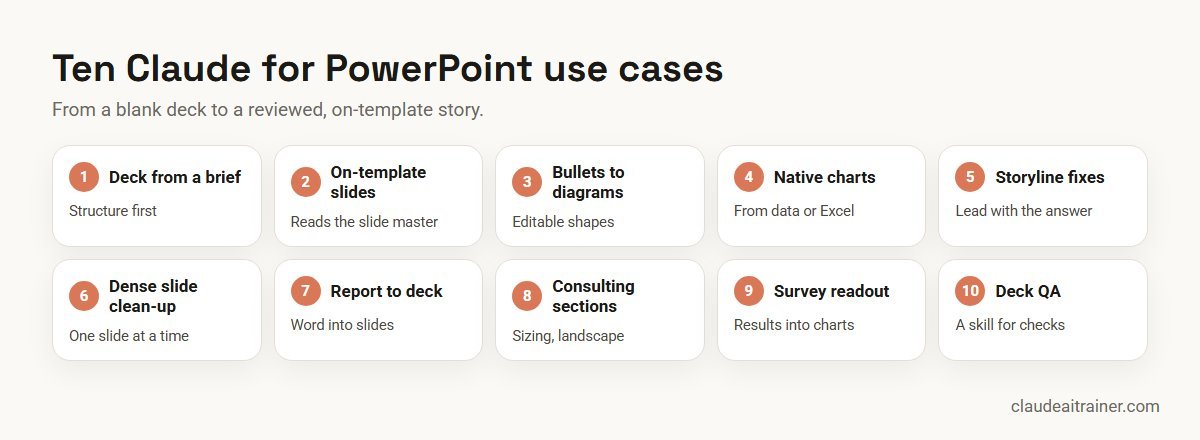
Quick answer: ten Claude for PowerPoint use cases
- First-draft deck from a brief, with a logical structure you then refine.
- New slides in your corporate template, using its layouts, fonts and colours.
- Bullets into diagrams such as process flows, as editable shapes.
- Native charts from a table or an open Excel model.
- Storyline restructuring: lead with the recommendation, fix the order.
- Dense slide clean-up on one slide without touching the others.
- Word report into slides through cross-app mode.
- Consulting-style sections: market sizing, competitive landscape.
- Survey readouts with charts and key findings.
- Deck QA with a reusable skill for your house rules.
What Claude for PowerPoint is, and what you need
Claude for PowerPoint is part of Claude for Microsoft 365, a set of add-ins for Excel, PowerPoint, Word and Outlook. According to Anthropic’s documentation:
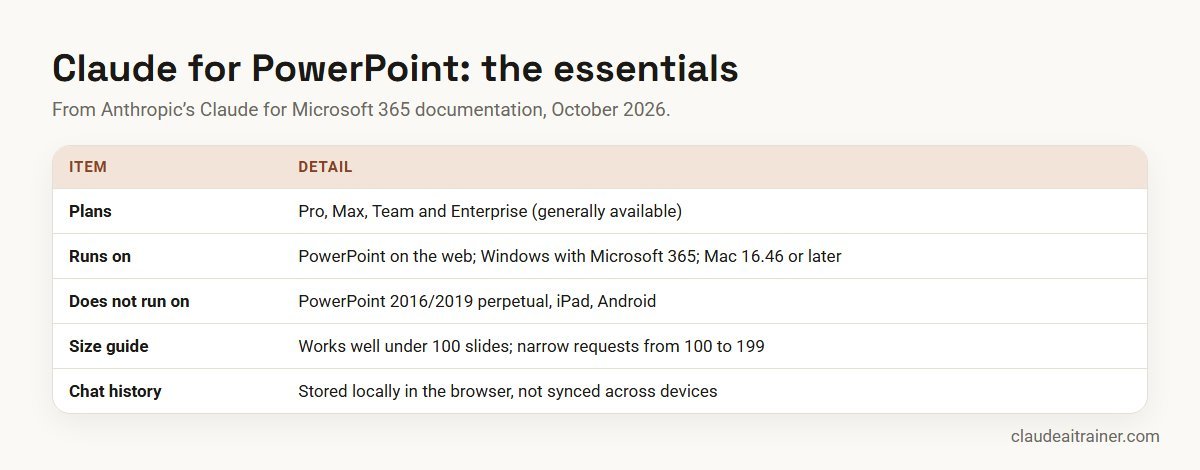
- Plans. Generally available on Pro, Max, Team and Enterprise. Use counts against your normal Claude usage limits.
- Versions. PowerPoint on the web, PowerPoint on Windows with a Microsoft 365 subscription, and PowerPoint for Mac 16.46 or later. It does not run on PowerPoint 2016 or 2019 perpetual licences, iPad or Android.
- Install. Search for “Claude for Microsoft 365” on Microsoft AppSource, select Get it now, open PowerPoint and sign in with your Claude account. Admins can deploy it from the Microsoft 365 Admin Center or with a custom manifest when the Office Store is turned off.
- Instructions. A settings field for standing rules, such as “always use one-line bullets”. Instructions set in PowerPoint apply only to PowerPoint.
- Skills and connectors. Skills you have enabled in Claude apply in the add-in, and you can call one by typing
/. Connectors can bring outside context into the deck. - Dictation. Available in desktop PowerPoint, not on the web.
Comparison table
| Use case | Start from | Example prompt | Check |
|---|---|---|---|
| Deck from a brief | Blank deck in your template | “Create a 10-slide deck on our market entry hypotheses” | Storyline and facts |
| On-template slides | Template with slide master | “Add an executive summary using the one-column layout” | Layout choice |
| Bullets to diagrams | Slide with bullets | “Turn these bullets into a process flow” | Logic of the flow |
| Native charts | Table or open Excel model | “Create a bar chart comparing Q1 to Q4” | Numbers vs source |
| Storyline | Draft deck | “Reorder to lead with recommendations” | Argument holds |
| Clean-up | One dense slide | “Simplify the text on slide 3” | Meaning kept |
| Report to deck | Open Word document | “Summarise this report into six slides” | Nothing invented |
| Consulting sections | Research notes | “Build TAM, SAM, SOM slides” | Sources and maths |
| Survey readout | Results table | “Summarise these survey results” | Percentages and base |
| Deck QA | Finished deck | /deck-check or your own skill | Final human read |
The ten use cases in detail
1. Generate a first-draft deck from a brief
What it does. Builds a draft deck with a logical structure and sensible defaults from a description of the goal.
Who it’s for. Managers who need a first version of a project update, proposal or strategy discussion.
How to do it. Open a blank deck that already uses your template, then describe the audience, purpose and length: “Build an internal project update presentation with timeline and next steps for the steering committee, eight slides.” Ask for the outline first if the topic is complex, approve it, then let Claude build. For the full weekly routine behind a steering pack, see Claude for project managers.
Check. The storyline is right for the audience and every fact is yours, not a placeholder.
2. Build slides inside your corporate template
What it does. Reads the slide master, layouts, fonts and colour scheme, and uses them for new slides, so they match the rest of the deck.
Who it’s for. Anyone working to a brand or client template.
How to do it. Anthropic’s advice is to start with the template already applied. Name the layout when it matters: “Add an executive summary slide using the one-column content layout.” Put recurring rules in the Instructions field, such as “use the blue accent colour for highlights”.
Check. Layouts are the right ones and nothing off-brand has crept in.
3. Turn bullets into diagrams and process flows
What it does. Converts a list into a diagram, process flow or framework built from editable shapes rather than a static image.
Who it’s for. Operations, HR and consulting teams explaining processes.
How to do it. Select the slide and ask: “Turn these bullets into a process flow diagram with five steps and owners under each.”
Check. The steps are in the right order and the diagram says what the bullets said.
4. Create native charts from data or Excel
What it does. Builds editable PowerPoint charts from a table on the slide or, with cross-app mode, from an open Excel workbook.
Who it’s for. Finance, sales operations and anyone presenting numbers.
How to do it. “Create a bar chart comparing Q1 to Q4 performance from the table on slide 5.” With Claude for Excel also installed and “Let Claude work across files” turned on, you can ask it to update a chart with the latest figures from the open model. Our guide on how to use Claude in Excel covers the Excel side.
Check. Every number matches the source workbook. Cross-app mode is on by default for Pro and Max and off by default for Team and Enterprise.
For teams that live in decks
Want your team building on-brand decks with Claude?
The add-in works best with a clean template, house rules in its Instructions field and a review habit. We run hands-on sessions where your team builds its own recurring decks with Claude. Book a short call if that would help.
5. Restructure the storyline
What it does. Reorders and re-sequences slides, adds transitions between sections and rebuilds the agenda to match.
Who it’s for. Anyone whose deck grew one slide at a time.
How to do it. “Reorder slides to lead with recommendations first, then the evidence, then next steps. Create an agenda slide that reflects the new structure.” Or more targeted: “Restructure the storyline across slides 4 to 7.”
Check. The argument still holds in the new order; speaker notes and references follow the slides they belong to.
6. Clean up dense slides one at a time
What it does. Makes targeted edits to a selected slide while keeping the formatting and the rest of the deck intact.
Who it’s for. Reviewers fixing a colleague’s deck before a meeting.
How to do it. “Simplify the text on slide 3, it’s too dense.” “Combine slides 5 and 6 into a single summary.” “Make the recommendations section more visual.” Being specific about the slide and element gives better results than “improve this deck”.
Check. Shortening has not removed a qualification or caveat that mattered.
7. Turn a Word report into slides
What it does. With both add-ins open and cross-app mode on, Claude reads the Word document and builds slides from it in the same conversation.
Who it’s for. Teams that write the report first and present it second.
How to do it. “Summarise the open Word report into six slides for the leadership team: one headline per slide, evidence underneath, recommendations last.” Our guide to Claude for Word use cases covers the document side.
Check. Nothing on the slides is missing from, or contradicts, the report.
8. Build consulting-style sections
What it does. Drafts familiar analytical sections such as market sizing and competitive landscapes, which Anthropic lists among its example uses.
Who it’s for. Strategy, consulting and business development teams. See also Claude for consultants.
How to do it. “Create a market sizing section, three slides covering TAM, SAM and SOM with supporting visuals, using the figures in my notes.” “Create a competitive landscape slide comparing four players.” Give it your sources; do not let it estimate market sizes from memory.
Check. The maths is right and every figure has a source on the slide or in the notes.
9. Summarise survey results into a readout
What it does. Turns survey results into key findings, charts and an implications slide.
Who it’s for. HR, marketing and customer teams running engagement, brand or satisfaction surveys.
How to do it. “Summarise these survey results into five slides: response base and method, three key findings with a chart each, and what we should do next.”
Check. Percentages show the base, and small samples are labelled as such.
10. Check a deck with a reusable skill
What it does. Applies your house rules as a skill: titles as full sentences, sources on every chart, consistent number formats, no orphan slides.
Who it’s for. Teams that send many decks to clients or boards.
How to do it. Anthropic’s documentation uses /deck-check as an example of a skill invoked in PowerPoint by typing /. Write your own with the rules your reviewers apply today; see how to create Claude skills.
Check. A person still reads the whole deck before it goes out.
Limits worth knowing
- Deck size. Anthropic’s performance guidance says decks under 100 slides work well, 100 to 199 slides carry higher risk, and 200 or more are at your own risk. Ask for a few slides at a time.
- Open files only. In cross-app mode, Claude reads and writes only files that are open; it cannot open, close or switch files itself.
- Long sessions. Longer conversations are compacted automatically into new conversations.
- Models. The add-in offers a curated subset of Claude models, and your organisation’s model settings apply.
- Not for final client deliverables without human review, or for highly sensitive or regulated data without proper controls, in Anthropic’s own words.
How to choose: add-in, artifact or Cowork?
- Use the add-in when the deck must be in your template and you will keep editing it in PowerPoint.
- Use a Slides artifact in chat for a quick standalone deck where branding matters less; see how to use Claude artifacts.
- Use Cowork when the deck depends on many files in a folder, such as a weekly readout built from several exports; see Claude Cowork use cases.
Worked example: a quarterly business review deck across three apps
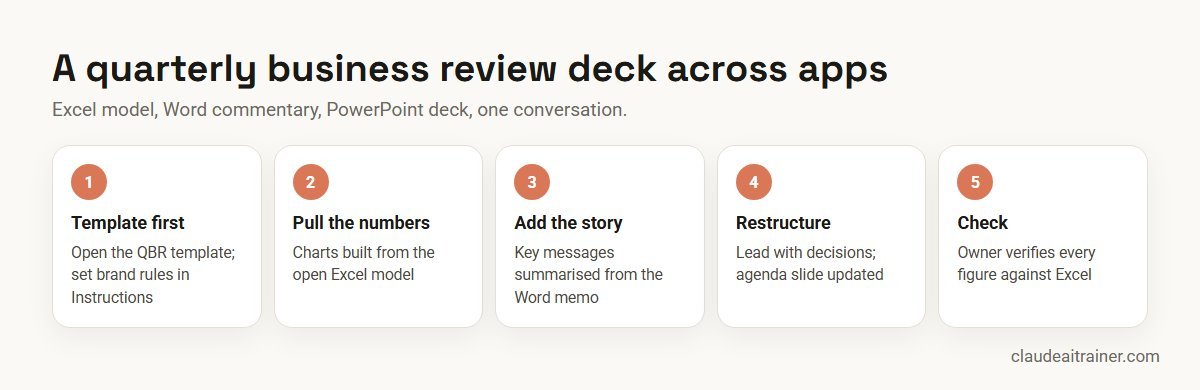
A regional sales operations manager builds the quarterly review for leadership.
- Template first. She opens last quarter’s deck as the template and sets Instructions: one-line bullets, sources under every chart.
- Numbers. With the Excel model open and cross-app mode on, she asks Claude to build the revenue and pipeline charts from the model.
- Story. She asks Claude to summarise the open Word commentary into three message slides.
- Structure. “Lead with the three decisions we need” reorders the deck and rebuilds the agenda.
- Check. She runs the team’s deck-check skill, then verifies every figure against Excel before sending.
Next step
Turn your monthly decks into a repeatable routine
We help teams set up the Microsoft 365 add-ins, write a deck-check skill and connect Excel, Word and PowerPoint for recurring packs. Online or on-site.
Security and governance
- Where data goes. Anthropic says inputs and outputs are deleted from its backend within 30 days, with stated exceptions, and chat history is kept locally in the browser, not synced across devices.
- Audit. Add-in activity is not in Enterprise audit logs and does not follow custom retention settings; Enterprise organisations with the Compliance API get add-in sessions covered (public beta). Admins can also route an audit trail to their own OpenTelemetry collector.
- Trusted files only. Downloaded templates and vendor decks can hide instructions. Anthropic warns about prompt injection and asks you to confirm risky operations; read those confirmations.
- Admin controls. Team and Enterprise owners can switch cross-app mode on or off under Organization settings, Office agents, and manage add-in access in the Microsoft 365 Admin Center.
- Plan choice. For company decks, use a Team or Enterprise plan; see the best Claude plan for business.
For more Claude features worth rolling out, see Claude use cases for business and our list of Claude skills, plugins and connectors.
Sources
Checked October 2026: Anthropic’s Claude for PowerPoint documentation, work across Microsoft 365 apps, performance and limits, and connectors and skills in the add-ins.
Key takeaways
- Claude for PowerPoint is generally available on Pro, Max, Team and Enterprise plans
- It reads your slide master, layouts, fonts and colours, so open your template before you start
- Charts and diagrams are native and editable, not pasted images
- With cross-app mode, it can pull numbers from Excel and text from Word into slides
- Keep decks under about 100 slides and ask for a few slides at a time
- Review every slide; Anthropic does not recommend final client deliverables without human review
FAQ
Claude for PowerPoint: common questions
What is Claude for PowerPoint?
It is an Anthropic add-in that brings Claude into PowerPoint. It builds slides in your template, edits specific slides, generates full decks, turns bullets into diagrams and creates native charts.
Is Claude for PowerPoint free?
No. Anthropic lists it as generally available on Pro, Max, Team and Enterprise plans, and use counts against your normal Claude limits.
How do I install Claude in PowerPoint?
Find the Claude for Microsoft 365 listing on Microsoft AppSource, select Get it now, open PowerPoint, activate the add-in and sign in with your Claude account. Admins can deploy it to users from the Microsoft 365 Admin Center.
Does Claude for PowerPoint work on Mac?
Yes, on PowerPoint for Mac version 16.46 or later. It also runs on PowerPoint on the web and on Windows with a Microsoft 365 subscription.
Why is Claude not showing in PowerPoint?
Check that you have a supported version (not PowerPoint 2016 or 2019 perpetual, iPad or Android), activate it from Home, Add-ins on Windows or Tools, Add-ins on Mac, and ask your admin whether Office Store access is turned off.
Can Claude use my company's PowerPoint template?
Yes. It reads the slide master, layouts, fonts and colours of the open deck and uses them for new slides. Apply the template before you start.
Can Claude create charts in PowerPoint?
Yes. It creates native, editable PowerPoint charts and diagrams, not static images. With Claude for Excel installed and cross-app mode on, it can pull figures from an open workbook.
How many slides can Claude for PowerPoint handle?
Anthropic’s guidance says decks under 100 slides work well, 100 to 199 carry higher risk, and 200 or more are at your own risk. Ask for a few slides at a time.
What is the difference between the add-in and Slides artifacts?
Slides artifacts are created in a Claude chat and downloaded as PowerPoint or PDF. The add-in works on the deck you have open, in your template, so you can keep editing it in PowerPoint.
Where is my Claude for PowerPoint chat history stored?
Anthropic says chat history is stored locally in your browser, is not synced across devices and can be cleared from the add-in settings.
Is it safe to use Claude for PowerPoint with client decks?
Use an approved business plan, open only trusted files and review every slide. Anthropic does not recommend final client deliverables without human review.
Where can my team learn Claude for PowerPoint hands-on?
We run hands-on sessions where teams set up the Microsoft 365 add-ins and build their own recurring decks, online or on-site.
Trusted by
Teams we’ve trained
…and 200+ organisations, across 16+ countries.
What participants say
Real feedback from real sessions
Verified feedback collected from participants across corporate sessions — average rating 4.8/5.
“A very productive session for working professionals. A must-do.”
“The session was highly insightful and conducted in a very professional and interactive manner. Learnt about AI and excited to learn more!”
“Highly recommended! Hands-on and directly useful — from making PPTs and strategic plans to building KRAs.”
“I would recommend everyone to go through this session — it clarifies both what to expect from AI and where AI isn’t needed.”
“A nice interactive session with a lot of new insights and the power of AI. This will help me save time in routine activities.”
“A very good training session. AI can do wonders — we’ll implement it to create efficiency and save time.”
Explore more
Keep going with Claude AI training
Work with us
Help your team build better decks with Claude
Tell us which decks your team builds every month, from board packs to client proposals. We will suggest a short, hands-on format, online or on-site (for example Claude AI training in Dubai or Mumbai), and send a fixed proposal, usually within one business day.