Blog · Claude for data
Claude for Data Analysis: 10 Workflows, Prompts and Tools (2026-27)
Claude can now run code on your files, query a warehouse through a connector and work inside Excel, so it is a real analysis tool rather than a chatbot that guesses at numbers. This guide gives ten workflows for analysts, operations teams and managers who live in spreadsheets. Each names the data to attach, the prompt and the check that makes the result safe to share.
The first time most people use Claude for data analysis, they paste a few rows into a chat and ask what the data says. The answer sounds sensible, but nothing was calculated: Claude read a sample and described it. Analysis becomes trustworthy when Claude works on the whole file with code, shows what it ran, reports row counts at each step and leaves the conclusions to someone who knows the business.
This guide covers the ten workflows that come up most in business teams, in roughly the order an analysis runs: understand the data, clean it, summarise it, test it and present it. Product details were checked on Anthropic’s help centre, documentation and plugin repository in October 2026. If your work is mostly inside Excel, read how to use Claude in Excel alongside this; finance teams will also want Claude prompts for finance.
Quick answer: ten ways to use Claude for data analysis
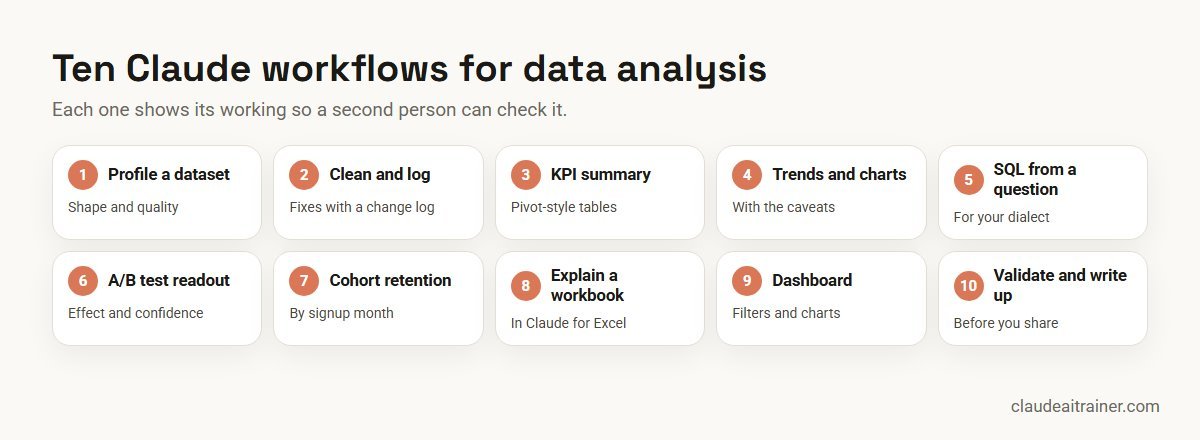
- Profile a dataset: shape, types, missing values, duplicates and outliers before any analysis.
- Clean with a change log: fixes applied in code, with every change recorded.
- KPI summary tables: pivot-style tables by the dimensions your managers ask about.
- Trends and charts: time series with seasonality and breaks called out.
- SQL from a question: a query in your warehouse’s dialect, explained line by line.
- A/B test readout: effect size, uncertainty and whether the test was big enough.
- Cohort retention: retention curves by signup month or segment.
- Explain a workbook: trace how a number in Excel is built, with cell citations.
- Dashboard: an interactive view with filters for people who won’t open the file.
- Validate and write up: a QA pass, then a short memo of what the data supports.
Where to run data analysis in Claude
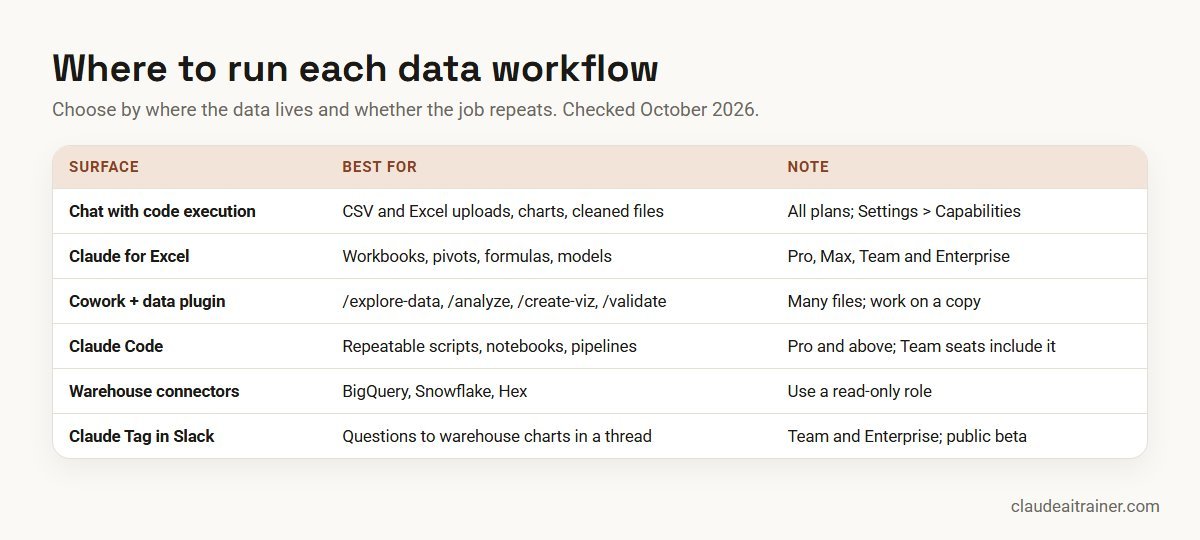
The right surface depends on where the data lives and whether the job will repeat.
- A chat with code execution. Anthropic’s help centre describes “code execution and file creation” as available on Free, Pro, Max, Team and Enterprise plans, switched on in Settings > Capabilities (owners control it on Team and Enterprise). Claude runs Python in a sandbox on files you upload, such as CSV, TSV and Excel, and can return charts and cleaned files. You can attach up to 20 files to a chat. Excel uploads need this setting turned on.
- Claude for Excel. An add-in for Pro, Max, Team and Enterprise that answers questions about the open workbook with cell-level citations, edits pivot tables, applies conditional formatting and keeps formulas linked when assumptions change. It does not support data tables, macros or VBA.
- Cowork with Anthropic’s data plugin. The open-source
dataplugin, designed mainly for Cowork and usable in Claude Code, adds/explore-data,/analyze,/write-query,/create-viz,/build-dashboardand/validate. Without a warehouse connection, you upload CSV or Excel files or paste query results instead. - Claude Code. Included from the Pro plan and in Team seats. Best when the analysis should become a script or notebook that someone can rerun next month. See our Claude Code use cases.
- Warehouse and BI connectors. The connectors directory includes BigQuery (made by Google, with tools to list datasets and run SQL), Snowflake (made by Snowflake) and Hex, all marked Anthropic verified. Our guide to the best MCP servers for Claude covers setup.
- Claude Tag in Slack. On Team and Enterprise plans, in public beta, a question asked in a Slack channel can become a warehouse query and a chart in the thread, once an admin connects BigQuery or Snowflake. It can also run a recurring metrics post on a schedule.
Comparison table
| Workflow | Attach | Best surface | Reviewer check |
|---|---|---|---|
| Profile a dataset | Raw CSV or Excel export | Chat or /explore-data | Row count matches the source |
| Clean with a log | Raw file, mapping rules | Chat with code execution | Change log reviewed |
| KPI summary | Clean file, metric definitions | Excel add-in or chat | Totals tie to the source |
| Trends and charts | Time series, event list | Chat or /create-viz | Axes, units, gaps labelled |
| SQL from a question | Table schema, sample rows | /write-query or connector | Run on a small range first |
| A/B test readout | Experiment results by variant | Chat with code execution | Test plan matches the method |
| Cohort retention | User events or orders | Chat or Claude Code | Cohort sizes shown |
| Explain a workbook | The open workbook | Claude for Excel | Click through the citations |
| Dashboard | Clean summary data | /build-dashboard or artifact | Filters tested; data date shown |
| Validate and write up | Analysis, code, draft memo | /validate or chat | Second analyst signs off |
The ten workflows in detail
1. Profile a new dataset
Use it for any file you haven’t worked with before. Attach: the raw export, unchanged.
Profile the attached file before we analyse it. Using code, report:
number of rows and columns; each column's type, % missing and number
of distinct values; duplicate rows and duplicate IDs; min, max and
median for numeric columns; date ranges; and values that look like
errors (negative quantities, future dates, outliers beyond 3 IQR).
Don't change the data. Show the code you ran and list the questions
I should ask the data owner.
Check. The row count matches the source system. The data plugin’s /explore-data command runs a similar profile in Cowork.
2. Clean data with a change log
Use it for standardising messy exports: inconsistent names, mixed date formats, duplicates. Attach: the raw file and any mapping you already use, for example a product or region lookup.
Clean the attached file using code and return two files: the cleaned
data and a change log. Standardise dates to YYYY-MM-DD, trim and
standardise text case, map [field] using the attached lookup, and
remove exact duplicate rows. Do not delete any other rows; put rows
you can't fix in a separate "exceptions" sheet with the reason. The
change log should list each rule, how many rows it changed and the
row counts before and after.
Check. Review the change log and the exceptions sheet; rows in plus rows out must reconcile.
3. KPI summary tables
Use it for the monthly tables managers ask for. Attach: the cleaned file and a short note defining each metric the way your business calculates it.
Using the attached clean data and our metric definitions, build
summary tables for [month]: [metric 1], [metric 2] and [metric 3] by
region and by product category, with the prior month and the same
month last year side by side and the change in % and absolute terms.
State the exact formula used for each metric and the number of rows
behind each cell. Highlight any cell based on fewer than [30] records.
Check. Grand totals tie to the source. If the data is already in a workbook, run this in Claude for Excel so each figure carries a cell citation.
4. Trend analysis and charts
Use it for explaining what changed over time. Attach: the time series plus a list of known events such as price changes, campaigns or outages.
Chart [metric] weekly for the last 18 months from the attached data.
Add a 4-week moving average. Identify seasonality, the three largest
breaks in trend and whether each lines up with an event in the
attached list. Label axes and units, mark any weeks with missing data,
and keep the y-axis starting at zero unless you say why not. Under the
chart, write five sentences on what the data supports and what it
doesn't.
Check. Charts are labelled honestly and every claimed cause is linked to an event, not assumed. /create-viz produces publication-style charts in Cowork.
5. SQL from a business question
Use it for getting a correct first query when you know the question but not every join. Attach: the table definitions (DDL) or a schema document and a few sample rows.
Write a [BigQuery / Snowflake / PostgreSQL] query that answers: "[question]".
Use only the tables and columns in the attached schema. Explain each
join and filter in a comment, avoid SELECT *, and add a LIMIT so I can
test it safely. Tell me which assumptions you made about how the
tables relate, and how I could check them with a quick count query.
Check. Run it on a small date range first and compare a known total. With a connector, use a read-only database role.
For analytics leads
Want your analysts using Claude the same careful way?
The tools are easy to switch on; the habits take practice: asking for the code, checking row counts, keeping a change log. We run hands-on sessions where teams work through these workflows on their own data. Book a short call if that would help.
6. A/B test readout
Use it for writing up an experiment without overclaiming. Attach: results by variant (users, conversions, revenue) and the original test plan.
Analyse the attached A/B test results against the attached test plan.
Report conversion and revenue per user for each variant, the absolute
and relative difference, a 95% confidence interval and p-value using
the method in the plan, and whether the sample reached the planned
size. Check for sample ratio mismatch. Say plainly whether the result
supports a decision, and list what you could not check.
Check. The method matches the plan written before the test, not one chosen afterwards. The data plugin’s statistical-analysis skill covers the same ground.
7. Cohort retention analysis
Use it for seeing whether newer customers stay longer than older ones. Attach: an orders or events file with customer ID, first-activity date and activity dates.
Build a monthly cohort retention table from the attached data: cohorts
by first purchase month, retention in months 1 to 12 as a % of the
cohort, with cohort sizes shown. Plot retention curves for the last
six cohorts. Describe the main difference between recent and older
cohorts in three sentences, and flag cohorts too small to compare.
Save the code so I can rerun it next month.
Check. Cohort sizes add up to the total number of customers. If this becomes a monthly job, move the saved code into Claude Code so it runs the same way each time.
8. Explain a workbook in Claude for Excel
Use it for a spreadsheet you inherited or need to sign off. Attach: nothing; open the workbook and use the add-in.
Walk me through how this workbook produces the figure in [Sheet!Cell].
List each input it depends on, with cell references, and any hard-coded
numbers, broken links or formulas that break the pattern of their row.
Then summarise in one paragraph how data flows from the input tabs to
the summary tab. Don't change anything.
Check. Click through the cell citations Claude gives. Anthropic’s documentation advises against using the add-in for audit-critical calculations without verification.
9. Interactive dashboard
Use it for sharing results with people who won’t open a spreadsheet. Attach: clean summary data, not raw records.
Build an interactive dashboard from the attached summary data: three
headline numbers at the top, a trend chart, a bar chart by region and
a table, with filters for region and month. Show the data's date range
and source in the footer. Keep colours consistent and accessible, and
don't add any figure that isn't in the data.
Check. Test every filter and compare headline numbers with the source. In Cowork, /build-dashboard produces an HTML dashboard; in a chat, it can be an artifact (see Claude artifacts examples).
10. Validate and write up the analysis
Use it for the step most teams skip: a QA pass before results go to leadership. Attach: the analysis output, the code and your draft conclusions.
Act as a sceptical second analyst. Review the attached analysis, code
and draft memo. Check: row counts at each step, joins that could
duplicate rows, filters that exclude data silently, metrics that
don't match our definitions, and conclusions the numbers don't
support. List issues by severity. Then rewrite the memo in under 250
words, keeping only claims the analysis supports.
Check. A second person signs off. The data plugin’s /validate command is built for this pre-sharing review.
How to adapt these workflows
- Define your metrics once. Keep metric definitions, table descriptions and a glossary in a data Project; see our Claude Projects examples.
- Ask for code and counts. “Show the code” and “report row counts before and after” are the two lines that make review possible.
- Separate facts from interpretation. Ask for “what the data supports and what it doesn’t” under every chart.
- Make repeat jobs repeatable. A monthly analysis belongs in a saved script, a skill or a scheduled job rather than a fresh chat each time. See how to create Claude skills.
Worked example: a monthly returns review
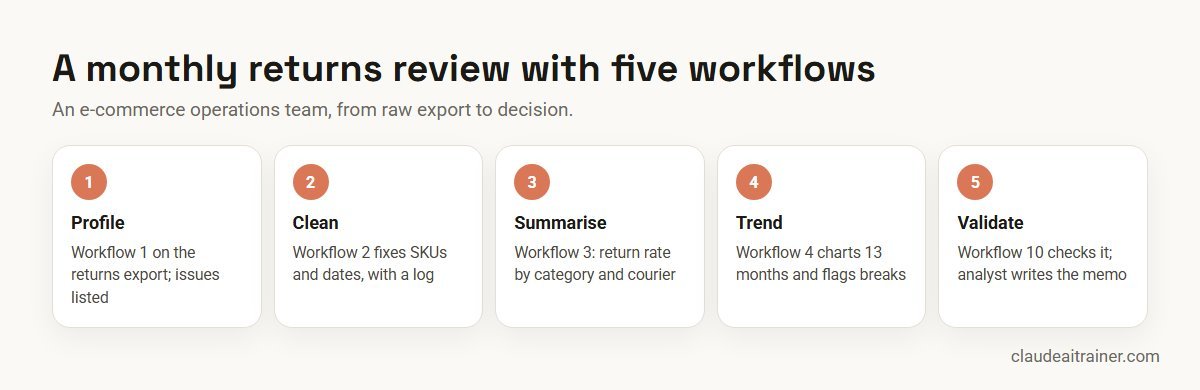
An e-commerce operations team of five reviews product returns each month. It uses five of the workflows above:
- Profile. The analyst runs workflow 1 on the returns export and sends two questions about missing courier codes to the warehouse team.
- Clean. Workflow 2 standardises SKUs and dates against the product lookup and logs 140 rows it could not fix.
- Summarise. Workflow 3 produces return rates by category and courier, with last month and last year alongside.
- Trend. Workflow 4 charts 13 months of returns and links one spike to a packaging change in the event list.
- Validate. Workflow 10 catches a join that double-counted split shipments; the analyst fixes it and writes the memo.
Claude does the heavy lifting on code and first drafts. The analyst decides what the numbers mean and what the team should do about them.
Next step
Build a repeatable analysis routine
We help teams set up a data Project, connect the right sources with read-only access, and turn their best workflows into shared skills. Online or on-site.
Security and governance
- Choose an approved workspace. Team and Enterprise plans do not use your content for model training by default, according to Anthropic’s pricing page. Customer and transaction data belong there, not in personal accounts; see the best Claude plan for business.
- Set network egress deliberately. On Team and Enterprise, owners choose whether code execution can reach the internet: off, package managers only (the Team default), package managers plus allowed domains, or all domains, which Anthropic calls the riskiest option.
- Remember connectors bypass that setting. Anthropic notes that MCP connections can still send data even when network egress is off, so connect only the sources a team needs.
- Read-only by default. Give warehouse connectors a role that can read, not write or delete, and limit it to the schemas the team uses.
- Watch for hidden instructions. Files and web pages from outside can contain prompt injections. Anthropic recommends watching Claude while it works and stopping it if it accesses data unexpectedly.
- Minimise personal data. Most analysis works with customer IDs instead of names, emails or phone numbers.
Sources
Checked October 2026: Anthropic’s help article on creating and editing files with Claude, Claude for Excel documentation, the open-source data plugin, the BigQuery and Snowflake connector listings, and Claude Tag: answer data questions.
Key takeaways
- Turn on code execution so Claude calculates with code instead of estimating in prose
- Ask to see the code and the row counts at every step; that is your audit trail
- Use Claude for Excel for workbooks, Cowork with the data plugin for many files, and Claude Code for jobs that repeat
- Connect warehouses with a read-only role and test the SQL on a small range first
- Keep definitions of every metric in a Project so answers use your numbers, not generic ones
- A second person checks the method and a sample of figures before anything is shared
FAQ
Claude for data analysis: common questions
Is Claude good for data analysis?
Yes, when code execution is on and you ask it to show the code and row counts. Claude then calculates on the whole file instead of describing a sample, and a reviewer can check what it did.
How do I upload data to Claude for analysis?
Attach CSV, TSV or Excel files to a chat, up to 20 files per chat, with code execution and file creation turned on in Settings > Capabilities. For a warehouse, connect BigQuery, Snowflake or another source through a connector.
Can Claude analyse Excel files?
Yes. You can upload an Excel file to a chat, or use the Claude for Excel add-in on Pro, Max, Team and Enterprise plans to work inside the open workbook with cell-level citations.
Can Claude write SQL?
Yes. Give it the table definitions and the question, and ask it to explain each join. Anthropic’s data plugin adds a /write-query command, and warehouse connectors let Claude run queries directly.
Can Claude make charts and dashboards?
Yes. With code execution it creates charts from your data, and it can build an interactive dashboard as an artifact or with the data plugin’s /build-dashboard command in Cowork.
Does Anthropic have a data analysis plugin?
Yes. The open-source data plugin, designed mainly for Cowork and also usable in Claude Code, includes /explore-data, /analyze, /write-query, /create-viz, /build-dashboard and /validate.
Can Claude connect to BigQuery or Snowflake?
Yes. Both appear in the connectors directory as Anthropic verified, built by Google and Snowflake. On Team and Enterprise plans, Claude Tag can also answer data questions from these warehouses in Slack (public beta).
Should I use Claude Code for data analysis?
Use Claude Code when the analysis should become a script or notebook that runs again next month. For one-off questions on a file, a chat with code execution is quicker.
How accurate is Claude with numbers?
Calculations done in code are reliable when the inputs and method are right; mistakes usually come from wrong joins, filters or metric definitions. Ask for row counts at each step and have a second person validate before sharing.
Is it safe to upload company data to Claude?
Use a Team or Enterprise workspace your company has approved, remove personal data the analysis does not need, set network egress deliberately and give connectors read-only access.
Can Claude do statistical analysis such as A/B tests?
Yes. Give it the results and the original test plan, ask it to use the planned method, check sample ratio mismatch and say what it could not verify.
Which Claude plan do analysts need?
Code execution works on every plan. Claude for Excel needs Pro, Max, Team or Enterprise, Claude Code comes with Pro and Team seats, and Claude Tag needs Team or Enterprise.
Where can our team learn this hands-on?
Our Claude in Excel training and corporate Claude programmes take analysts through these workflows on their own data, online or on-site.
Trusted by
Teams we’ve trained
…and 200+ organisations, across 16+ countries.
What participants say
Real feedback from real sessions
Verified feedback collected from participants across corporate sessions — average rating 4.8/5.
“A very productive session for working professionals. A must-do.”
“The session was highly insightful and conducted in a very professional and interactive manner. Learnt about AI and excited to learn more!”
“Highly recommended! Hands-on and directly useful — from making PPTs and strategic plans to building KRAs.”
“I would recommend everyone to go through this session — it clarifies both what to expect from AI and where AI isn’t needed.”
“A nice interactive session with a lot of new insights and the power of AI. This will help me save time in routine activities.”
“A very good training session. AI can do wonders — we’ll implement it to create efficiency and save time.”
Explore more
Keep going with Claude AI training
Work with us
Help your team analyse data with Claude, safely
Tell us about your team, where your data lives (Excel, a warehouse, BI tools) and the reports you produce each month. We will suggest a short, hands-on format, online or on-site (for example Claude AI training in Pune), and send a fixed proposal, usually within one business day.