Blog · Claude for Microsoft 365
Claude for Word: 10 Use Cases for Drafting, Redlining and Review (2026-27)
Claude for Word is an add-in that reads the document you have open, including comments and tracked changes, and edits it without breaking your styles or numbering. This guide covers ten use cases for policy writers, analysts, consultants, HR and legal teams, with example prompts, setup steps, plan requirements, the limits Anthropic lists and how to keep sensitive documents safe.
Copying text out of Word into a chat window, then pasting the answer back, loses most of what makes a Word document useful: heading styles, numbering, comments and the revision history. Claude for Word removes that round trip. It sits in a sidebar, reads the open document, and writes back as normal edits or as tracked changes, in the document’s own styles.
Below are ten use cases that work for most teams, not only lawyers, with prompts adapted from Anthropic’s documentation and examples of our own. Details were checked on Anthropic’s Claude for Microsoft 365 documentation in October 2026. If your interest is mainly legal, read this alongside Claude for lawyers, which covers Anthropic’s legal plugins and research connectors.
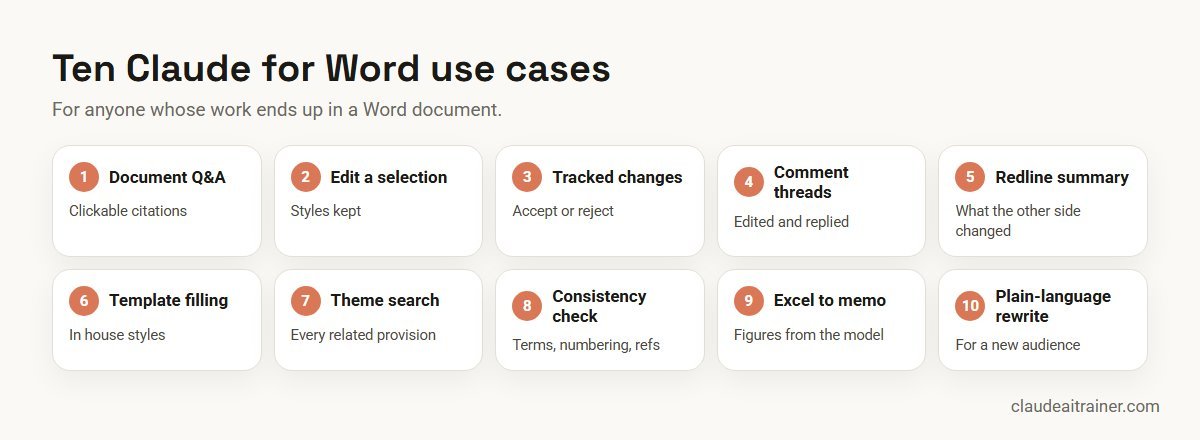
Quick answer: ten Claude for Word use cases
- Document Q&A with clickable section citations.
- Edit a selection while keeping styles and numbering.
- Tracked changes, so every edit can be accepted or rejected.
- Comment threads worked through, with a reply on each.
- Redline summaries of what the other side changed.
- Template filling in your heading and paragraph styles.
- Theme search for every passage on a topic, not just a keyword.
- Consistency checks on defined terms, numbering and cross-references.
- Memos from Excel through cross-app mode.
- Audience rewrites for non-specialist readers.
What Claude for Word is, and what you need
Claude for Word is one of the Claude for Microsoft 365 add-ins, alongside Excel, PowerPoint and Outlook. From Anthropic’s documentation:
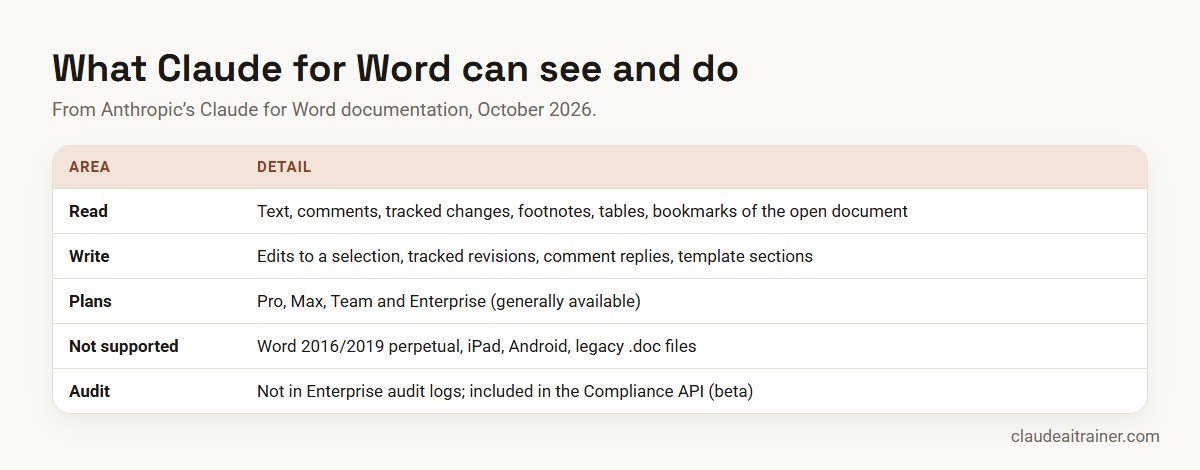
- Plans. Generally available on Pro, Max, Team and Enterprise, using your normal Claude usage limits.
- Versions. Word on the web; Word on Windows with a Microsoft 365 subscription, version 2205 or later; Word for Mac 16.61 or later. Not supported: Word 2016 and 2019 perpetual licences, iPad, Android and legacy
.docfiles (save as.docxfirst). - Install. Get the Claude for Microsoft 365 listing from Microsoft AppSource, open Word, activate the add-in and sign in. Admins can deploy it from the Microsoft 365 Admin Center, or with a custom manifest if Office Store access is turned off.
- What it reads. Text, comments, tracked changes, footnotes, tables and bookmarks in the document you have open, and nothing else in Word.
- Instructions. A settings field for standing preferences, such as “use formal tone” or a citation style. They apply only in Word.
- Skills and connectors. Enabled skills apply automatically or by typing
/; connectors bring in outside context.
Comparison table
| Use case | Example prompt | Good for | Check |
|---|---|---|---|
| Document Q&A | “Summarise the key commercial terms” | Long reports, agreements | Click the citations |
| Edit a selection | “Tighten this paragraph, drop the passive voice” | Everyday drafting | Meaning unchanged |
| Tracked changes | “Rewrite section 4.2 as tracked changes” | Documents others review | Each revision |
| Comment threads | “Work through my open comments” | Review cycles | Replies are accurate |
| Redline summary | “What did the other side change?” | Negotiations | Severity calls |
| Template filling | “Draft the Key Risks section in the template’s style” | Memos, proposals | Facts and figures |
| Theme search | “Find every provision touching data retention” | Policies, contracts | Nothing missed |
| Consistency check | “Flag inconsistent defined terms” | Final drafts | Fixes approved |
| Memo from Excel | “Draft the memo using the open model” | Finance, operations | Numbers match |
| Audience rewrite | “Rewrite for a non-technical audience” | Policies, guidance | Accuracy kept |
The ten use cases in detail
1. Ask questions about a document with section citations
What it does. Answers questions about sections, clauses, figures or defined terms, with citations you can click to jump to the passage.
Who it’s for. Anyone handed a 60-page report or agreement before a meeting.
Prompt to try. “What assumptions drive the revenue forecast in section 3?” or “What’s the liability cap and is it mutual?”
Check. Click through the citations for anything you will repeat to others.
2. Edit a selected passage without breaking formatting
What it does. Edits only the selected text. New text inherits the paragraph style, font and numbering around it, which is the part that usually breaks when you paste from a chat.
Who it’s for. Everyday drafting by any team.
Prompt to try. Select a paragraph and ask: “Tighten this to under 80 words and drop the passive voice.”
Check. Shorter text still says the same thing, including any qualifications.
3. Edit with tracked changes
What it does. In tracked changes mode, each edit appears as a deletion and insertion in Word’s review pane, so you accept or reject it like any other reviewer’s change. Ctrl+Z or Cmd+Z undoes it.
Who it’s for. Documents with several reviewers, or any change someone else must approve.
Prompt to try. “In tracked changes, update section 6 to reflect the new 30-day notice period and adjust any cross-references.”
Check. Review every revision before accepting; Anthropic lists this as its first best practice.
4. Work through comment threads
What it does. Reads each comment and the text it is anchored to, edits the passage, then replies in the thread to say what it changed.
Who it’s for. Authors facing 30 reviewer comments the night before a deadline.
Prompt to try. “Work through my open comments as tracked changes. Skip any comment that needs a decision from me and list those at the end.”
Check. Replies describe the change accurately, and judgement calls come back to you.
5. Summarise counterparty redlines
What it does. Reads the tracked changes in a document someone has returned and groups them by severity or flags the ones worth pushing back on.
Who it’s for. Legal, procurement and sales teams in a negotiation, and anyone receiving a marked-up proposal.
Prompt to try. “Summarise what the other side changed, grouped as minor, needs discussion and unacceptable, with a one-line reason for each.”
Check. You make the severity calls. For legal teams, our Claude for lawyers guide covers playbook-based review.
For teams that write for a living
Want your team drafting and reviewing in Word with Claude?
The add-in pays off when your templates are clean, your house style is written down and reviewers know what to check. We run hands-on sessions on your own documents. Book a short call if that would help.
6. Fill a template in your document’s styles
What it does. Drafts sections using the template’s heading and paragraph styles, and fills tables in place without changing column widths.
Who it’s for. Analysts writing investment memos, consultants writing proposals, HR writing policy documents.
Prompt to try. “Draft the Key Risks section with four risks in the template’s style.” “Populate the summary table with revenue, gross margin and net retention for the last three years from the attached figures.”
Check. Every figure and claim comes from your source, not from Claude’s general knowledge.
7. Find every passage on a theme
What it does. Semantic navigation returns every passage that deals with a theme, even when the words differ, and each result jumps to its location.
Who it’s for. Compliance, policy and contract reviewers.
Prompt to try. “Find every provision touching data retention, including backups and deletion on termination.”
Check. For high-stakes reviews, also run a keyword search; two methods catch more than one.
8. Check defined terms, numbering and cross-references
What it does. Finds inconsistent defined terms, broken cross-references, numbering gaps and a party called by different names, and can proofread spelling, grammar and punctuation.
Who it’s for. Anyone finalising a long document.
Prompt to try. “Flag inconsistent defined terms and broken cross-references, check the numbering for gaps, and tell me if the same party is referred to by different names. Don’t change anything yet.”
Check. Approve fixes one at a time; renumbering can ripple.
9. Draft a memo from an Excel model
What it does. With Claude for Excel installed and “Let Claude work across files” turned on, Claude reads the open workbook and drafts the memo in Word in the same conversation.
Who it’s for. Finance and operations teams writing commentary from models.
Prompt to try. “Using the open forecast model, draft the investment thesis section with three points and quote each figure with its sheet and cell.” Our Claude prompts for finance include a board commentary template that pairs well with this.
Check. Numbers match the model. Cross-app mode is on by default on Pro and Max, off by default on Team and Enterprise, and not available through third-party cloud platforms.
10. Rewrite for a different audience
What it does. Rewrites a technical or legal passage for readers who need the meaning without the jargon, or adds a plain-language summary at the top.
Who it’s for. HR policies for employees, IT guidance for staff, product notes for customers.
Prompt to try. “Rewrite section 2 for employees with no HR background, at about a Year 9 reading level, keeping every obligation and date.”
Check. Simplification has not changed what anyone must do. Our Claude for HR teams training covers this kind of policy work.
How to choose your first use cases
- If you mostly read documents: start with use cases 1 and 7.
- If you mostly write: start with 2, 6 and 10, with your style rules in Instructions.
- If you mostly review: start with 3, 4 and 8.
- If you negotiate: 5 and 3 together give a full round of response.
- If you report on numbers: 9, with the Excel add-in; see how to use Claude in Excel.
Claude for Word by team
- HR. Policy drafts in the company template, employee-facing rewrites, and a consistency check across the handbook’s defined terms such as “employee”, “worker” and “contractor”.
- Finance. Investment and board memos drafted from the open model, with each figure tied to a cell, and partner comments worked through before the pack closes.
- Consulting and strategy. Proposal sections filled in the client template, then summarised into slides with the PowerPoint add-in.
- Sales and procurement. Redline summaries on customer or supplier paper, and tracked-change responses that legal approves.
- Operations and quality. SOP updates as tracked changes, so the document owner sees exactly what moved before a new version is issued.
Prompting tips for the Word add-in
- Select before you ask. A selection tells Claude exactly where to work and protects the rest of the document.
- Say “don’t change anything yet” for reviews, so you see the list of issues before any edit.
- Name the section. “Section 4.2” or “the Risks table” beats “the bit about risk”.
- Turn on tracked changes for anything another person will approve.
- Write house style once. Put tone, spelling convention and citation style in Instructions, and longer playbooks in a skill (see how to create Claude skills).
Limits worth knowing
- One document. Claude only accesses the document open in Word; for many documents at once, Cowork is the better tool (see Claude Cowork use cases).
- Heavy edits can time out. Anthropic’s performance page lists 30 seconds for a Word text edit, so ask for large changes in steps.
- Long sessions are compacted automatically into new conversations.
- Not recommended, in Anthropic’s words, for final client deliverables or counterparty sends without human review, litigation filings or audit-critical documents without verification, or privileged data without proper controls.
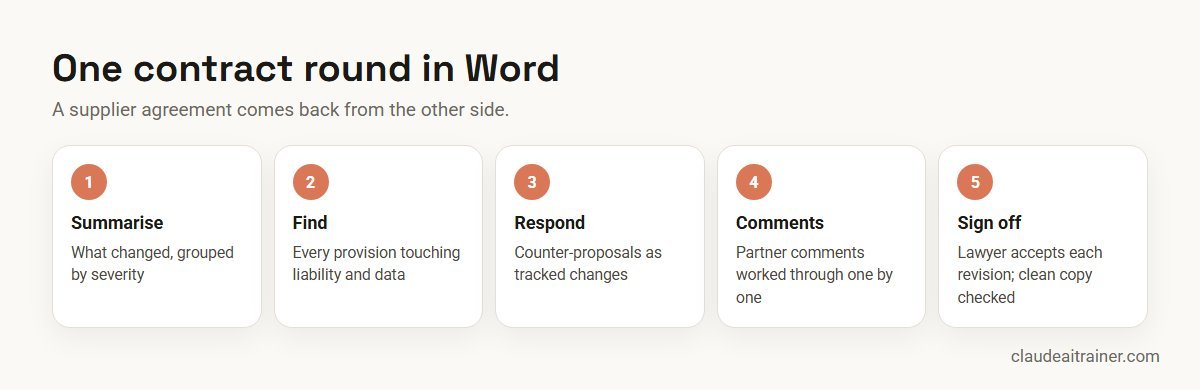
Worked example: one contract round in Word
A procurement manager receives a supplier agreement back with 40 tracked changes.
- Summarise. “Summarise what the supplier changed, grouped by severity.” Twelve changes are flagged for discussion.
- Find. “Find every provision touching liability and data protection” confirms nothing else moved.
- Respond. In tracked changes mode, she asks for counter-proposals on five clauses using the company’s standard positions.
- Comments. The in-house lawyer adds comments; Claude works through them and replies in each thread.
- Sign off. The lawyer accepts each revision and checks the clean copy before it goes back.
Next step
Make Claude part of your document workflow
We help teams deploy the Microsoft 365 add-ins, turn style guides and playbooks into skills and agree a review routine for tracked changes. Online or on-site.
Security and governance
- Data handling. Anthropic says inputs and outputs are deleted from its backend within 30 days, with stated exceptions. Chat history stays in your browser, is not synced across devices and can be cleared in settings.
- Audit. The add-in does not inherit custom retention settings and is not in Enterprise audit logs; Enterprise organisations with the Compliance API have Word sessions covered (public beta).
- Prompt injection. Anthropic warns that downloaded templates, counterparty files and emailed documents can hide instructions in text, comments, tracked changes, headers or footers. Use trusted documents and read every confirmation request.
- Access. Admins manage add-in access in the Microsoft 365 Admin Center and the cross-app setting under Organization settings, Office agents.
- Plan choice. Company documents belong in a Team or Enterprise plan; see the best Claude plan for business.
For decks, see the companion guide to Claude for PowerPoint use cases. For sales documents such as proposals and follow-ups, see Claude prompts for sales, and for connecting SharePoint and OneDrive content, see how to connect Claude to Microsoft 365.
Sources
Checked October 2026: Anthropic’s Claude for Word documentation, Claude for Microsoft 365 overview, work across Microsoft 365 apps and performance and limits.
Key takeaways
- Claude for Word is generally available on Pro, Max, Team and Enterprise plans
- It reads text, comments, tracked changes, footnotes, tables and bookmarks in the open document only
- Tracked changes mode makes every edit a revision you accept or reject in Word
- Instructions and skills carry your house style; cross-app mode brings in Excel, PowerPoint and Outlook
- Legacy .doc files, iPad, Android and Word 2016/2019 perpetual are not supported
- Review every change; Anthropic does not recommend unreviewed client or counterparty sends
FAQ
Claude for Word: common questions
What is Claude for Word?
It is an Anthropic add-in that brings Claude into Microsoft Word. It answers questions about the open document with section citations, edits selected text in your styles, works in tracked changes, handles comment threads and fills templates.
Is Claude for Word free?
No. Anthropic lists Claude for Word as generally available on Pro, Max, Team and Enterprise plans, using your normal Claude usage limits.
How do I add Claude to Word?
Install the Claude for Microsoft 365 listing from Microsoft AppSource, open Word, activate the add-in from the Home ribbon on Windows or Tools, Add-ins on Mac, and sign in with your Claude account.
Can Claude make tracked changes in Word?
Yes. In tracked changes mode, Claude’s edits appear as revisions in Word’s review pane that you accept or reject. You can also undo with Ctrl+Z or Cmd+Z.
Can Claude reply to comments in a Word document?
Yes. It reads each comment thread and its anchored text, edits the passage and replies in the thread with what it changed.
Does Claude for Word work on Mac?
Yes, on Word for Mac version 16.61 or later. It also runs on Word on the web and on Windows with a Microsoft 365 subscription, version 2205 or later.
Why doesn't Claude open my .doc file?
Legacy .doc files are not supported. Save the file as .docx and reopen it.
Can Claude read several Word documents at once?
The add-in works on the document you have open. For many documents together, use Cowork with a folder, or open the files and use cross-app mode for related Excel, PowerPoint and Outlook content.
Can Claude pull numbers from Excel into Word?
Yes, with Claude for Excel and Claude for Word installed and cross-app mode turned on. It is on by default for Pro and Max and off by default for Team and Enterprise.
Where is my Claude for Word chat history stored?
Anthropic says chat history is stored locally in your browser, is not synced across devices, and can be cleared from settings.
Is Claude for Word safe for confidential documents?
Use an approved business plan and trusted documents, and review every change. Anthropic does not recommend it for privileged or highly sensitive data without proper controls.
Where can my team learn Claude for Word hands-on?
We run hands-on sessions where teams set up the Microsoft 365 add-ins and practise on their own policies, reports and contracts, online or on-site.
Trusted by
Teams we’ve trained
…and 200+ organisations, across 16+ countries.
What participants say
Real feedback from real sessions
Verified feedback collected from participants across corporate sessions — average rating 4.8/5.
“A very productive session for working professionals. A must-do.”
“The session was highly insightful and conducted in a very professional and interactive manner. Learnt about AI and excited to learn more!”
“Highly recommended! Hands-on and directly useful — from making PPTs and strategic plans to building KRAs.”
“I would recommend everyone to go through this session — it clarifies both what to expect from AI and where AI isn’t needed.”
“A nice interactive session with a lot of new insights and the power of AI. This will help me save time in routine activities.”
“A very good training session. AI can do wonders — we’ll implement it to create efficiency and save time.”
Explore more
Keep going with Claude AI training
Work with us
Help your team draft and review faster in Word
Tell us which documents your team writes and reviews most: policies, proposals, contracts or reports. We will suggest a short, hands-on format, online or on-site (for example Claude AI training in London or Bengaluru), and send a fixed proposal, usually within one business day.